

Personal Settings
The Personal Settings page lets you review your account profile, photo, security options, privacy documents, and SSH keys.
Use this page when you:
- want to review the personal details linked to your account
- need to update your password
- want to improve account security with two-factor authentication
- need to add an SSH key for secure access
- want to review privacy or data processing information
Access the Personal Settings page
- Log in to the Pressidium Dashboard.
- Open your account menu.
- Select Personal Settings.
Sections included
The Personal Settings page is divided into three main areas:
- Personal Settings
- Security
- SSH Keys
Personal Settings
The Personal Settings area shows your general account profile information and profile photo.
General
The General card shows:
- first name
- last name
- email address
- phone number
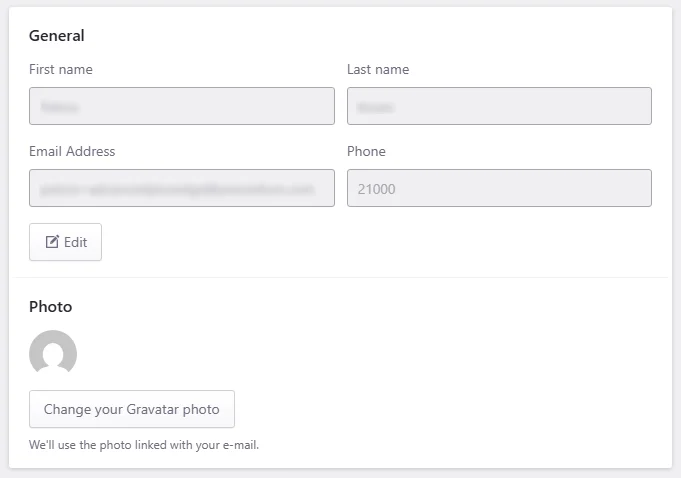
Your first name, last name, and email address are shared across all teams you are a member of.
Click Edit to update editable personal information.
The Photo card shows the profile image linked to your email address.
Pressidium uses the photo connected to your Gravatar account.
- Click Change your Gravatar photo to update the profile image linked to your email address.
Security
The Security area helps you manage account security and privacy options.
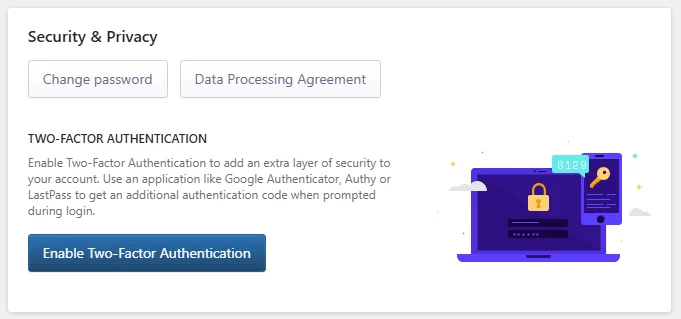
Security & Privacy
The Security & Privacy card includes options to change your password and access privacy-related documents.
- Click Change password to update your account password.
- Click Data Processing Agreement to review the agreement.
Two-factor authentication
Two-factor authentication adds an extra layer of security to your account.
When enabled, you use an authentication app, such as Google Authenticator, Authy, or LastPass, to generate an additional authentication code during login.
- Click Enable Two-Factor Authentication to start the setup process.
SSH Keys
The SSH Keys area shows the SSH keys associated with your account.
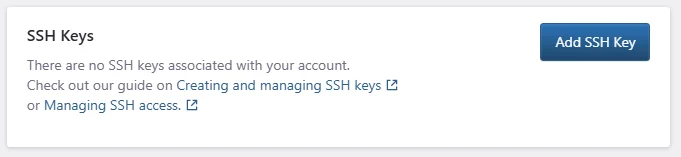
Use this section when you need to add a key for secure SSH access.
If there are no SSH keys associated with your account, the page shows an empty-state message.
- Click Add SSH Key to add a new SSH key to your account.
Common questions
Can I change my first name, last name, or email address from this page?
No. These details are shared across teams and may be used for invoicing. Contact Support if you need to change them.
Can I update my profile photo from the Dashboard?
The profile photo is managed through Gravatar. Click Change your Gravatar photo to update the image linked to your email address.
Should I enable two-factor authentication?
Yes. Two-factor authentication improves account security by requiring an additional authentication code during login.
What are SSH keys used for?
SSH keys are used for secure access to environments and tools that support SSH authentication.
Need help?
If you cannot update your settings, enable two-factor authentication, or add an SSH key, contact Support.
Include:
- your account email address
- the setting you are trying to update
- any error message shown in the Dashboard
- a screenshot, if available
Where to go next
- To review GDPR information and the Data Processing Agreement, read GDPR compliance.
- To manage team access, read Team settings.
- To create and manage SSH keys, read Create and manage SSH keys.
- To learn whether Pressidium provides SSH access, read Do you provide SSH access?.
- To manage SSH access for a WordPress site, read Managing SSH access.
Was this article helpful?