

Manage Cache Exclusions
The Cache Exclusions page lets you prevent matching URL paths or cookie-based requests from being served from the Page Cache.
When a request matches an exclusion, it bypasses the Page Cache and is processed by WordPress so the response can remain dynamic or visitor-specific.
Accessing the Cache Exclusions page
- Log in to the Pressidium Dashboard.
- Select the website you want to manage.
- Select Production or Staging.
- Go to Cache.
- Open the Cache Exclusions tab.
Included Sections
- Exclude URL paths from Cache – adds one or more URL paths that should bypass the Page Cache
- Exclude Cookie-based requests from Cache – bypasses the Page Cache for requests containing specified cookie names
What to know about Cache Exclusions
Not all content is suitable for caching. Certain dynamic or personalized elements on your site should be excluded from the caching process to ensure a smooth user experience.
Page cache exclusions refer to specific parts or elements of your website that are deliberately excluded from the page caching process.
When a user visits your website, our multi-layer caching engine inspects the request and decides if it is possible to serve cached versions of pages to significantly reduce loading times.
Page cache exclusions, on the other hand, ensure that certain content remains dynamic and is generated in real-time, rather than being pulled from a cached version.
By default, our platform bypasses the cache for the following requests:
- HTTP POST requests
- Responses with
401 UnauthorizedHTTP code status - Requests with an HTTP
Authorizationheader (e.g. password-protected websites) - Cart pages on popular Commerce plugins (e.g. WooCommerce)
- When a WordPress login session is detected (e.g. a user is logged in to the WordPress administration interface, an LMS logged-in user, an e-commerce logged-in user )
Depending on your website’s functionality, it might be required to exclude additional URLs from our caching mechanism. Such cases might include:
- Dynamic Content: Dynamic content includes elements such as user-specific information, shopping carts, search results, login forms, and more. Excluding these elements from caching ensures that each user receives personalized and up-to-date content.
- E-commerce Functionality: If your website incorporates e-commerce functionality, page cache exclusions are essential to ensure that product prices, availability, and cart contents remain accurate and dynamic for each visitor. E.g. if you are running a multi-language e-commerce store, it might be required to exclude the language-specific user profile or cart pages from the cache.
- User-Specific Data: Many websites utilize user-specific data, such as profiles, preferences, and customized content. Page cache exclusions prevent cached pages from displaying the wrong information to users by ensuring that these elements are generated dynamically based on each user’s unique context.
- Forms and Interactivity: Forms, comment sections, and interactive features like polls or voting systems rely on real-time data processing. Excluding these elements from caching ensures that user interactions are properly recorded and processed without interference from cached content.
You can configure a set of URLs to always bypass the cache mechanism and be dynamically generated in real time by adding them to a website’s URL cache exclusions list.
Exclude URL paths from Cache
To add a URL exclusion:
- Navigate to Cache -> Exclusions screen.
- Locate the Exclude URL Paths from Cache section.
Insert the URL path you want to exclude in the input box and click Exclude.
Example: /en/cart
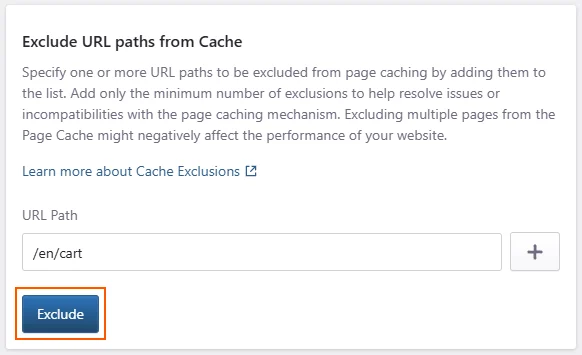
A background job will start to update the cache configuration. You will receive a Dashboard notification as soon as the process is finished.
How to remove one or more URL exclusions
When the background task is complete, a List of Excluded URL Paths section is created below and displays the excluded path. You can use this section to review or remove exclusions.
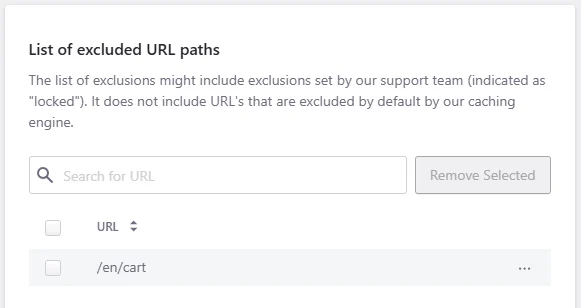
Select the entries from the list (you can select multiple entries) and click the Remove Selected button.
You can also use the 3-dot button and choose “Remove” from the drop-down menu.

A background job will start to update the cache configuration. You will receive a Dashboard notification as soon as the process is finished.
Important notes about exclusions:
- URLs must start with a forward slash (/).
- The exact URL plus any child pages (sub paths) will be excluded from cache. For example if you exclude
/articlesboth/articles/my-article-1and/articles/my-article-2will be excluded from page caching. - We strongly advice to be as specific as possible when adding URL path exclusions to avoid excluding unwanted paths from the page cache.
- Partial matching is not supported. If you want to exclude a URL based on an ending path segment or a partial keyword/string please reach out to our support team.
- All exclusions are URL path-based. Matching on query strings is not supported.
- Up to 15 entries / URLs can be added for each environment.
- You cannot exclude a website’s homepage (/) from the page cache.
- The list might contain entries added by our platform team (indicated with a “lock” icon in the UI). These entries cannot be deleted via the Dashboard. You will need to contact our support team and request the entry to be removed.
- URL exclusions are applied to all mapped domains of a website.
- Adding or removing a cache exclusion will automatically trigger a Page Cache clear action.
- The URL exclusion list does not include URLs that are excluded by default by our caching engine.
Exclude Cookie-based requests from Cache
Similar to URL exclusions you can add a page cache exclusion based on a cookie value, to prevent cached pages from being served once a specific cookie or cookies are set in the browser.
How to add a Cookie exclusion
- Navigate to Cache -> Exclusions screen.
- Locate the Exclude Cookie based requests from Cache section.
Insert the cookie name you want to exclude in the Cookie Name input box and click Exclude.
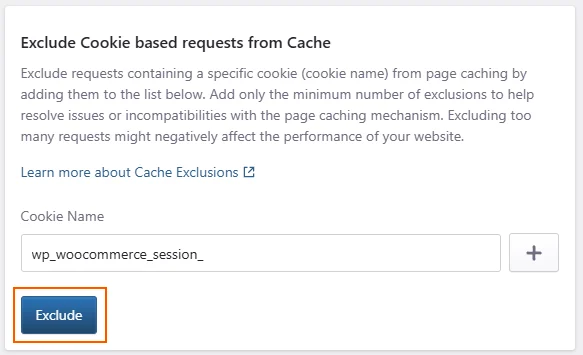
A background job will start to update the cache configuration. You will receive a Dashboard notification as soon as the process is finished.
How to remove one or more Cookie exclusions
When the background task is complete, a List of Excluded URL Cookies section will show right below. You can use this section to review or remove exclusions.
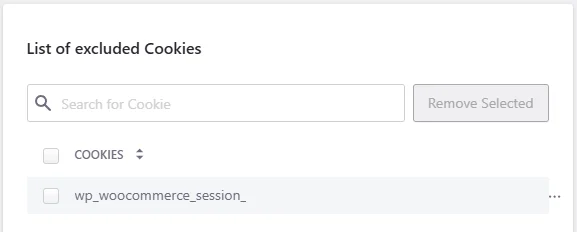
Select the entries from the list (you can select multiple entries) and click the Remove Selected button.
You can also use the 3-dot button and choose “Remove” from the drop-down menu.

A background job will start to update the cache configuration. You will receive a Dashboard notification as soon as the process is finished.
Add only the minimum number of exclusions to help resolve issues or incompatibilities with the page caching mechanism. Excluding multiple pages from the Page Cache might negatively affect the performance of your website.
Verification
After adding or removing an exclusion:
- Confirm that the background operation completes successfully.
- Check that the entry appears in or disappears from the relevant exclusions list.
- Open the affected URL in a private or incognito browser window.
- Test the expected logged-in, logged-out, or session-specific behavior.
- Confirm that a nearby public URL that should remain cacheable is not affected.
To verify the cache status of a request, follow Identifying Cache Behavior Using HTTP Headers. A request matched by an exclusion should normally return a cache status such as BYPASS.
Best practices
When managing exclusions:
- Start with the default Pressidium cache behavior.
- Use the most specific URL path possible.
- Remember that excluding a parent path also excludes its child paths.
- Use specific cookie-name fragments that cannot match unrelated cookies.
- Avoid excluding large public sections of the website.
- Record why each custom exclusion was added.
- Review exclusions after major plugin, theme, WooCommerce, LMS, or membership changes.
- Remove exclusions that are no longer required.
- Test both matching and non-matching requests after every change.
Common issues and solutions
A URL is still served from cache
Check whether:
- The configured path matches the requested URL.
- The path begins with
/. - A trailing slash affects the match.
- The background operation completed successfully.
- You are testing an older response stored in the browser cache.
Test again in a private or incognito browser window.
More pages bypass cache than expected
The excluded path may be too broad.
Remember that excluding:
/articles/also excludes child paths such as:
/articles/article-one/
/articles/article-two/
Replace broad exclusions with more specific paths where possible.
A cookie exclusion affects too many requests
Cookie exclusions use partial matching.
Check whether the configured value matches several cookie names or is present on more pages than expected. Replace it with a more specific cookie-name fragment where possible.
An exclusion cannot be removed
Entries marked with a lock icon were added by the Pressidium platform team and cannot be removed through the Dashboard.
Contact Support and include the affected domain and locked exclusion.
A removed URL is still not cached
Check whether:
- The request is excluded by default.
- Another URL or cookie exclusion still matches.
- The visitor is logged in.
- The request includes an authorization header.
- The request is a
POSTrequest. - A plugin adds cookies that cause cache bypass.
Need help?
Contact Support if:
- You are unsure whether a URL or cookie should be excluded.
- An exclusion affects more requests than expected.
- Private or visitor-specific content appears cacheable.
- A locked exclusion needs to be reviewed or removed.
- The background operation fails or remains pending.
- You cannot determine why a request is cached or bypassed.
Include:
- The affected domain
- The selected environment
- The affected URL
- The URL path or cookie name
- The expected behavior
- The actual behavior
- The approximate timestamp and timezone
- Screenshots of the exclusion and notification
- Relevant request and response headers
- Whether the issue affects logged-in users, logged-out users, or both
Where to go next
- Identify cache behavior using HTTP headers to confirm whether a request returns a cache
HIT,MISS, orBYPASS. - Review Cache Analytics to identify frequently bypassed URLs and changes in cache behavior over time.
- Manage website caches to clear the Page Cache, purge specific URL paths, or review the available cache types.
- Review Performance Analytics to assess whether cache exclusions are increasing uncached request volume or affecting response times.
Was this article helpful?