

Clear your WordPress site cache
Clear your WordPress site cache when recent changes are not appearing or cached content is outdated. You can clear all relevant caches from the Pressidium Dashboard or purge specific caches from the WordPress Admin Dashboard.
Using the Pressidium Dashboard
Navigate to the website overview screen by selecting / clicking on the related card in the Websites screen. Tip: You can quickly navigate to a website by using the S keyboard shortcut to bring up the quick search dialog.
Click on the Production operations button on the navigation bar to display the related drop-down menu.
Click the Clear Caches menu item, a confirmation dialog is displayed.
Finally, confirm the action by clicking Clear. A background operation to clear the website cache will be triggered. When the operation is completed a notification will be displayed in the sidebar panel.

Using the WordPress Admin Dashboard
- Login to your WordPress admin dashboard.
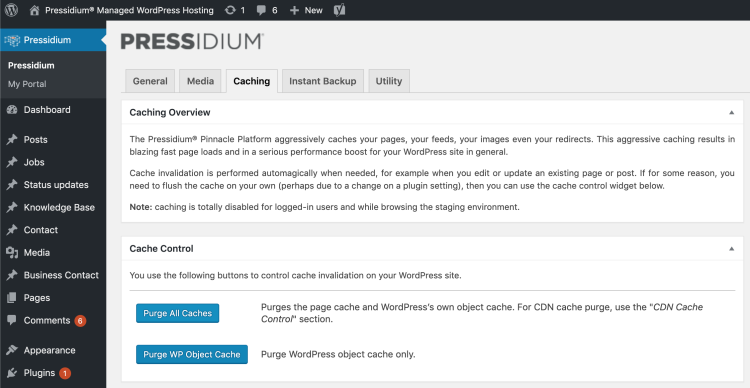
- Click on the Pressidium sidebar menu to open up the Pressidium platform settings.
- Click the Caching tab to go to the Cache settings screen.
- Click the Purge All Caches button to clear the page cache and WordPress own object cache.
- Click on the Purge WP Object Cache to clearonly the WordPress object cache.
Need help?
If clearing cache does not update the content you see, or you are not sure which cache should be cleared, contact our Support team before making further changes.
Where to go next
- Review how page cache works if you want to understand what is stored in cache.
- Identify cache behavior using HTTP headers if you need to check whether a page is being served from cache.
- Review persistent object cache if your issue may involve database-backed or dynamic content.
- Enable the CDN service if you also want to improve static asset delivery.
Was this article helpful?