

Install a Let’s Encrypt certificate
You can issue and install a free Let’s Encrypt SSL certificate for a mapped domain from the Pressidium Dashboard. Once enabled, Pressidium generates and installs the certificate automatically.
Using the Pressidium Dashboard
- Select the Websites menu option from the Dashboard sidebar.
- Click on your website’s name to go to the website overview.
- Click the Domains tab to view all mapped domains for your website.
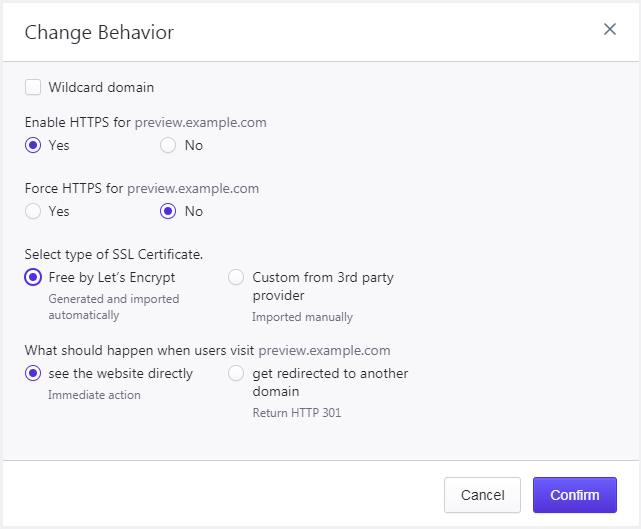
- Locate the domain you want to issue a certificate for and click Configure → Change Behavior.
- Select Yes for Enable HTTPS.
- Select Free by Let’s Encrypt for Select type of SSL Certificate.
- Click Confirm to save the changes. A background job will be initiated to generate and install the certificate on the website.
Need help?
If the Let’s Encrypt certificate does not install, or validation remains pending after your DNS records are correct, contact our Support team before trying again.
Where to go next
- Check whether DNS changes have propagated if certificate validation is delayed.
- Set up your domain and DNS records if the domain does not point to Pressidium yet.
- Upload a certificate if you need to use a custom SSL certificate instead.
Was this article helpful?