

Website Settings
The Settings screen lets you manage environment-level configuration for your WordPress website. From this page, you can switch the PHP version, control WordPress debugging and editor access, manage CDN and password-protection settings, enable SSH access, and delete the website.
What this page does
Use the Settings screen to:
- Change the PHP version used by an environment
- Enable or disable the WordPress file editor
- Enable or disable WordPress debugging
- Review or manage CDN delivery
- Protect an environment with Basic Authentication
- Enable SSH access
- Permanently delete the website
When to use
Use this page when you need to change an environment-level setting or prepare a website for development, testing, troubleshooting, or restricted access.
For detailed instructions and prerequisites, follow the related how-to guide for each setting.
Access the Settings screen
- Log in to the Pressidium Dashboard.
- Go to Websites.
- Select the website you want to manage.
- Select Production or Staging.
- Open Settings.
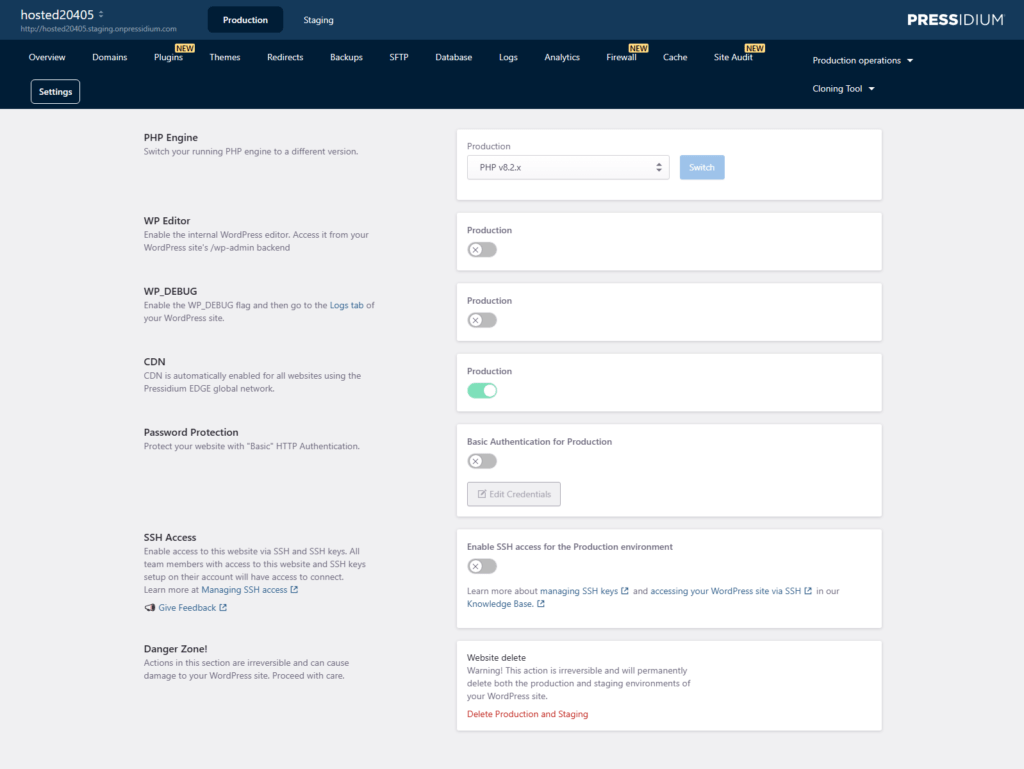
Sections included
- PHP Engine
- WP Editor
- WP_DEBUG
- CDN
- Password Protection
- SSH Access
- Danger Zone
PHP Engine
The PHP Engine section shows the PHP version currently used by the selected environment.

To change it, select another supported version and click Switch.
Changing PHP versions can affect themes, plugins, custom code, and integrations. Check compatibility before changing the Production environment.
WP Editor
The WP Editor setting controls access to the built-in theme and plugin file editors in WordPress.

When enabled, authorized WordPress administrators can access the editors through the WordPress admin area. When disabled, the editors are unavailable.
Disabling the editor can reduce the risk of accidental file changes through WordPress admin.
WP_DEBUG
The WP_DEBUG setting enables or disables the WordPress debugging flag for the selected environment.

Enable it when troubleshooting WordPress errors or unexpected application behavior. After enabling debugging, review the available output from the website’s Logs page.
CDN
The CDN setting controls CDN delivery for the selected environment.

For websites using the Pressidium EDGE Global Network, CDN delivery is enabled automatically.
The availability of this control may depend on the network and configuration used by the website.
Password Protection
The Password Protection section lets you restrict access to the selected environment using HTTP Basic Authentication.

When enabled, visitors must enter the configured username and password before they can access the website.
Use Edit Credentials to update the authentication details.
Password protection is useful when:
- A Staging website should remain private
- A website is under development
- Access should be limited before launch
- You need to prevent public access during testing
SSH Access
The SSH Access section controls whether team members can connect to the selected environment over SSH.

When SSH access is enabled, team members who have access to the website and have added SSH keys to their account can connect using their authorized keys.
Enable SSH only when command-line access is required for development, deployment, or troubleshooting.
Danger Zone
The Danger Zone contains destructive website actions.

Delete Production and Staging
The Delete Production and Staging action permanently deletes both environments associated with the website.
Do not use this action when you only want to reset, restore, or temporarily disable the website.
Need help?
Contact Support if:
- A setting does not update successfully
- A PHP version change causes the website to become unavailable
- Debug logging does not produce the expected output
- Password protection blocks required services
- SSH remains unavailable after it has been enabled
- You need help determining whether a destructive action is appropriate
Include the website name, selected environment, setting changed, approximate time of the change, and any displayed error or Dashboard notification.
Where to go next
- Change the website’s PHP version by following Upgrade the PHP version.
- Learn about available PHP runtimes in Switch the PHP runtime.
- Control access to the WordPress file editor by following Enable the WordPress editor.
- Collect debugging information by following Enable WordPress debug logs.
- Restrict website access by following Password-protect your WordPress website.
- Configure account access by following Create and manage SSH keys.
Was this article helpful?