

Access your WordPress site via SFTP
This guide helps you connect to your WordPress site’s files through an SFTP client. You will retrieve the connection details from the Pressidium Dashboard, configure your preferred SFTP client, and verify that you can access the correct Production or Staging environment.
Prerequisites
Before you begin, make sure you have:
- An SFTP client installed on your computer
- Access to the website in the Pressidium Dashboard
- An SFTP user for the Production or Staging environment you want to access
If you do not already have an SFTP user, follow Manage SFTP users to create one before continuing.
Find your SFTP connection details
- Log in to the Pressidium Dashboard.
- Go to Websites.
- Click the name of the website you want to access.
- Go to SFTP.
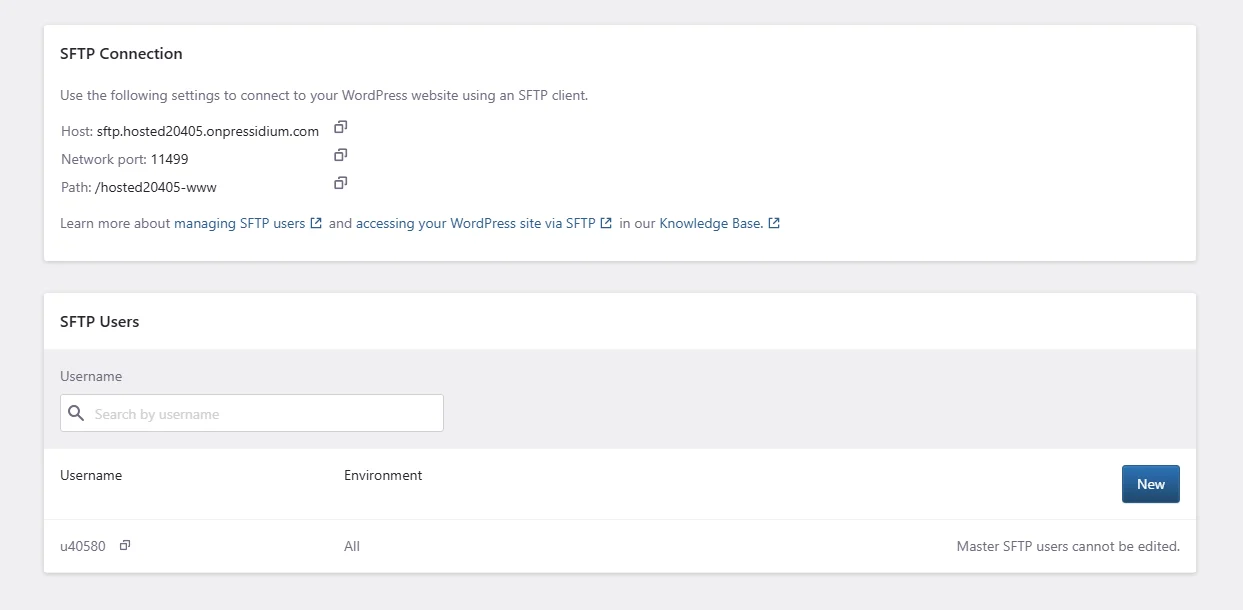
Copy the following values from SFTP Connection Details:
- Host
- Network port
- Path
You will need these values when configuring your SFTP client.
Configure your SFTP client
Open your preferred SFTP client and create a new connection using the following settings:
- Protocol: SFTP
- Host: The host displayed in the Pressidium Dashboard
- Port: The network port displayed in the Pressidium Dashboard
- Username: Your SFTP username
- Password: Your SFTP password
- Remote path: The path displayed in the Pressidium Dashboard, where supported by your client
Save the connection, then connect to the website.
Connect with WinSCP
Use the connection details from the Pressidium Dashboard to configure a new WinSCP session.
Example of connecting to myblog using WinSCP (replace settings with your own):
Connect with Cyberduck
Create a new SFTP bookmark using the connection details from the Pressidium Dashboard.
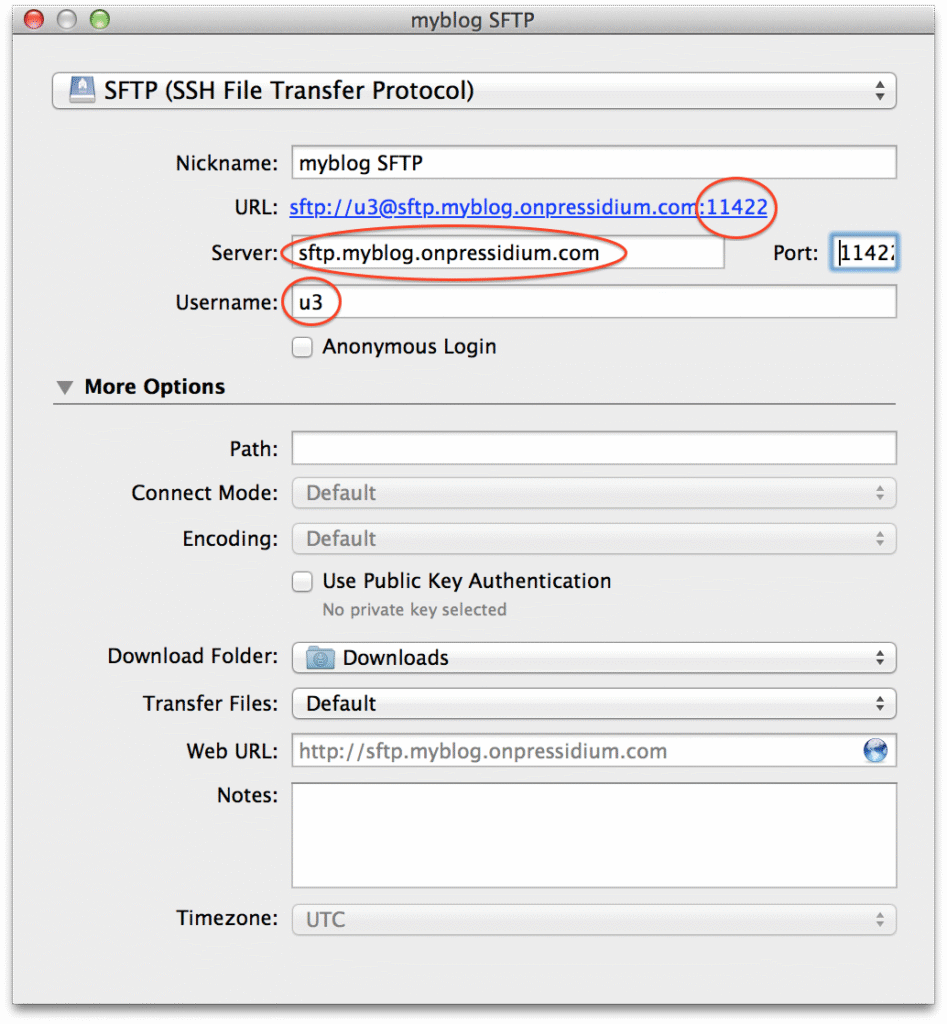
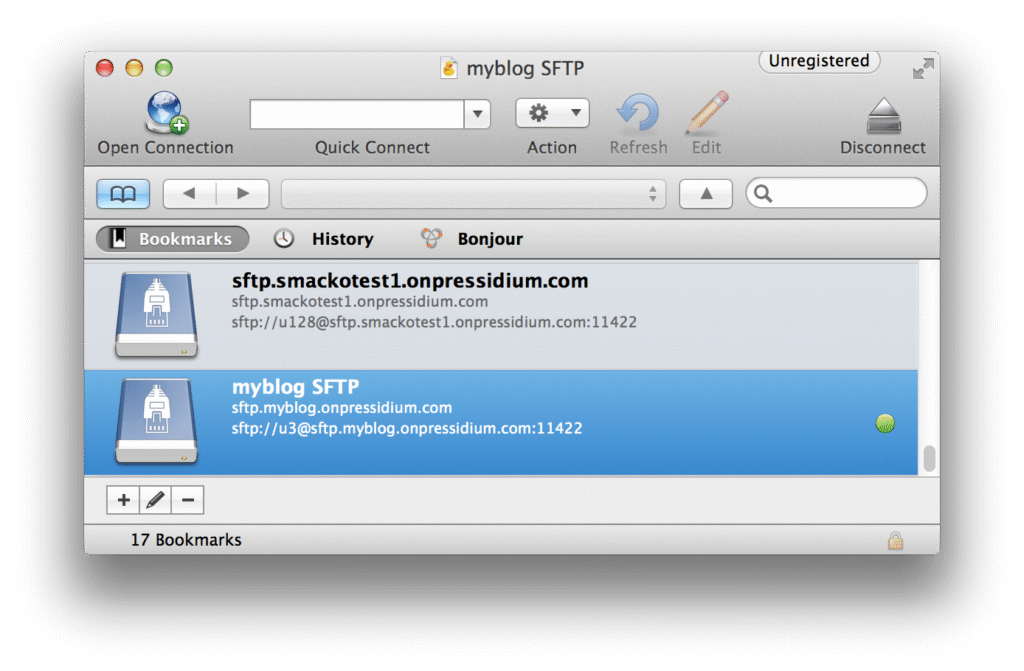
Select the bookmark, then click Open Connection.
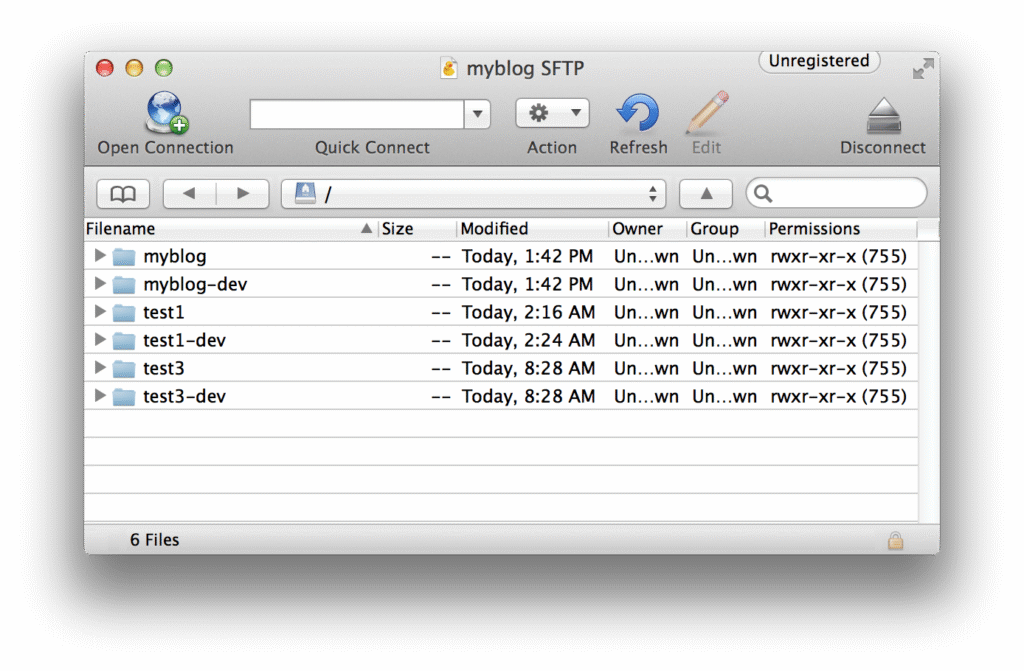
After connecting, Cyberduck displays the website’s directories and files.
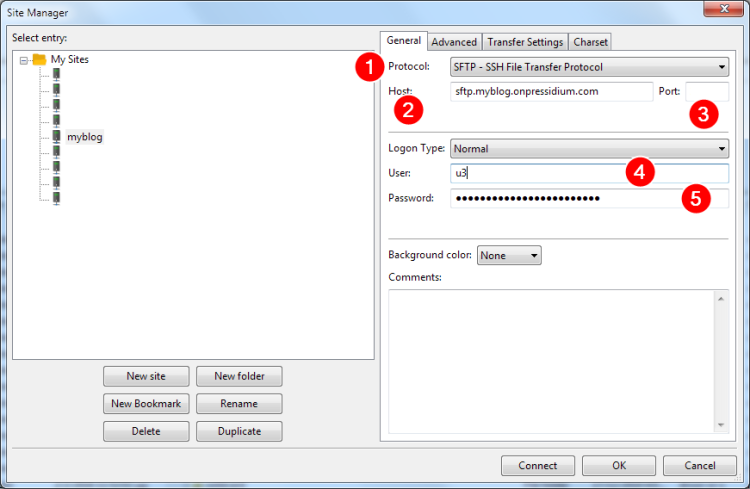
Connect with FileZilla
- Open Site Manager.
- Click New site.
- Set Protocol to SFTP – SSH File Transfer Protocol.
- Enter the host, network port, SFTP username, and password for the selected environment.
- Click Connect.
Example of connecting to myblog using FileZilla. Replace the example settings with your own:
Other SFTP clients
- Transmit (Mac)
- FileZilla (macOS / Linux / Windows)
- WinSCP (Windows)
- Forklift (Mac)
- OpenSSH SFTP Client (Mac OS X / Linux)
Common issues and solutions
The SFTP client cannot connect
Confirm that the host, username, and password are correct.
Check that you entered the Network port displayed in the Pressidium Dashboard. Do not assume that the connection uses port 22.
Also confirm that the SFTP user belongs to the environment you want to access. A Production user cannot access Staging files, and a Staging user cannot access Production files.
WordPress core files return an access-denied error
Pressidium manages the WordPress core files. Directly modifying these files through SFTP is not permitted, so an access-denied response is expected.
Uploaded files have incorrect permissions
Use Reset file permissions to restore the expected file ownership and permissions.
Verification
After connecting:
- Confirm that your SFTP client displays the website’s directories and files.
- Verify that you connected to the intended Production or Staging environment.
- Confirm that you can access the directory you need before uploading, replacing, or deleting files.
If the directory listing appears, the SFTP connection is working.
Need help?
If you cannot connect through SFTP, contact our Support team and include:
- The website name
- The selected environment
- The SFTP client you are using
- The host and network port
- The approximate time of the failed connection
- The complete error message or a screenshot
Do not include your SFTP password in the support request.
Where to go next
- Manage SFTP users to create, update, or remove SFTP access.
- Reset file permissions if file ownership or permissions cause access issues.
- Create an instant backup before making file-level changes.
- Review who
ninukisadmis if you notice this system user while reviewing your website files.
Was this article helpful?