

How do I reset file permissions?
Incorrect filesystem permissions usually generate strange errors, with the words “forbidden” or “denied” sprayed all over the access logs. This can be due to either plugin/theme installations that messed with the permissions, or due to some SFTP operation.
Resetting file permissions automatically fixes this problem. You can either open a support request, or reset them yourself via your Dashboard or WordPress administration menu. After resetting permissions:
- All directories are set to 755.
- All PHP files are set to 640.
- All other files, such as static assets, are set to 644.
Reset file permissions using the Pressidium Dashboard
- Select the Websites menu option from the Dashboard sidebar.
- Click on your website’s name to go to the website overview.
- Select the environment you want to reset file permissions by clicking on the respective tab Production or Staging.
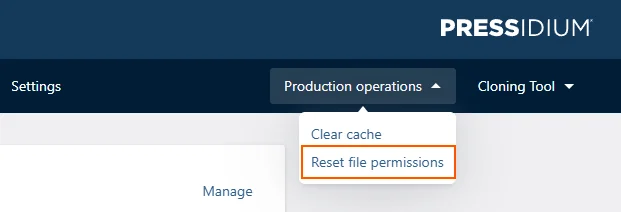
- Click on Staging operations or Production operations button (depending on the environment) on the navigation bar to display the related drop-down menu.
- Click the Reset file permissions menu item.
Reset file permissions via WordPress
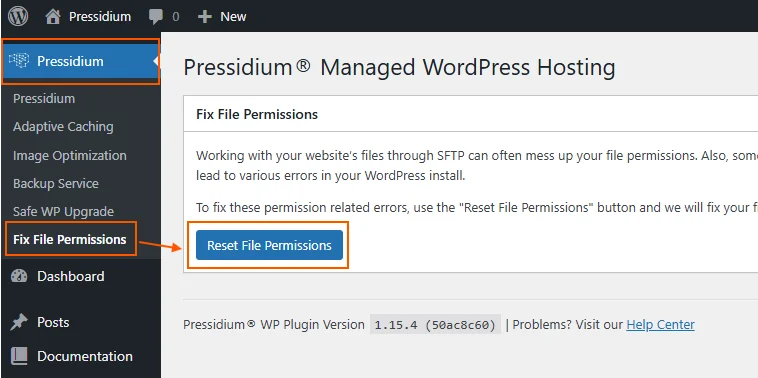
- Click Pressidium from the WordPress sidebar menu.
- Click the Fix File Permissions menu item, then the Reset File Permissions button
If you need to reset file permissions for your staging site, follow the same procedure in the staging environment.
Need help?
If resetting file permissions does not fix the issue, or you are not sure whether a file ownership problem is causing the error, contact our Support team before making further file changes.
Where to go next
- Manage SFTP users if file access needs to be reviewed after permissions are reset.
- Access your WordPress site via SFTP if you need to check or update files through an SFTP client.
- Review who
ninukisadmis if you notice this system user in your WordPress installation. - Create an instant backup before making further file-level changes.
Was this article helpful?