

Create an Instant backup
Create an Instant backup before making changes to your website so you have a recent restore point. You can add a description to help identify the backup later.
You can create a backup using the Pressidium Dashboard:
- Select the Websites menu option from the Dashboard sidebar.
- Go to your website’s overview by clicking on its name.
- Navigate to the Backups page by clicking the link on the navigation bar.
In the Backups screen, click Create an Instant Backup.
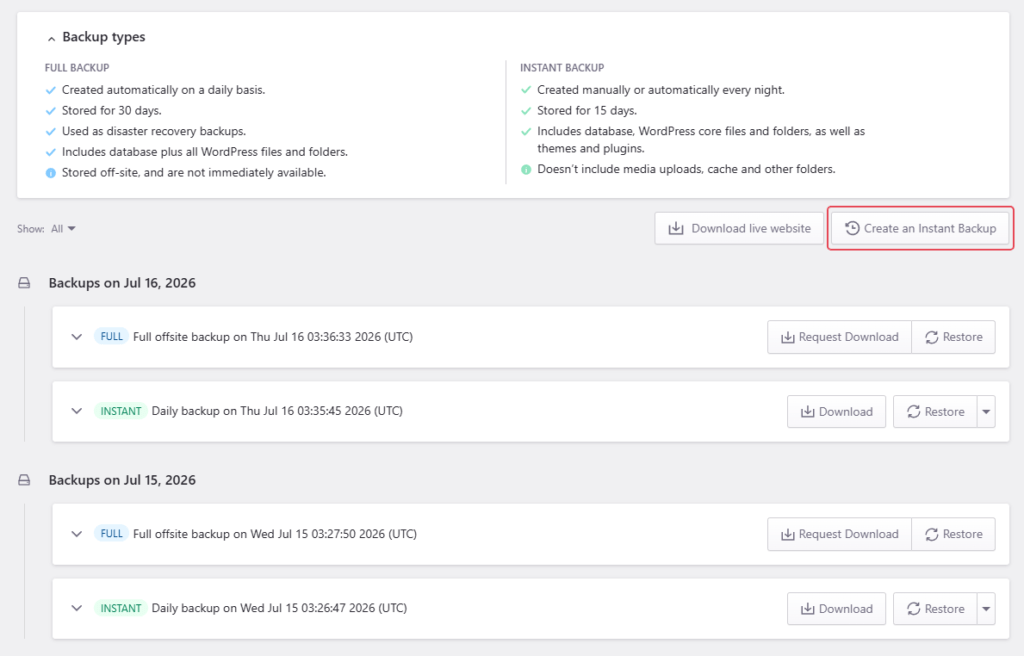
A popup window will show where you can add a short description that helps you identify what the backup contains.
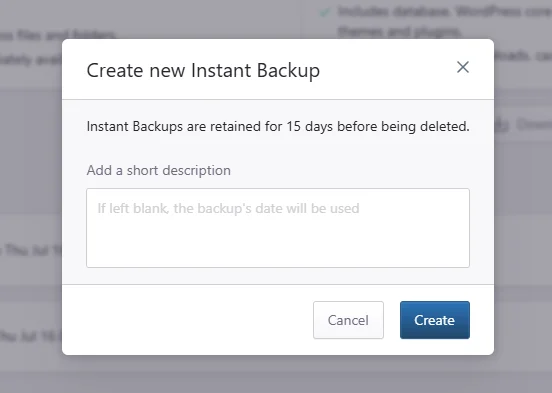
Click Create. Once the backup procedure is finished you will receive a Dashboard notification. You can leverage Instant Backups to easily roll back to a previous version of your website.
Need help?
If the instant backup does not complete, or you are not sure whether an instant backup is enough before making a change, contact our Support team before continuing.
Where to go next
- Restore an instant backup if you need to roll your site back later.
- Download your instant backup files if you need a local copy of the backup files.
- Review which files are excluded from instant backups to understand what is not included.
- Review Pressidium instant and offsite backups to understand how instant backups differ from offsite backups.
Was this article helpful?