

Backups management
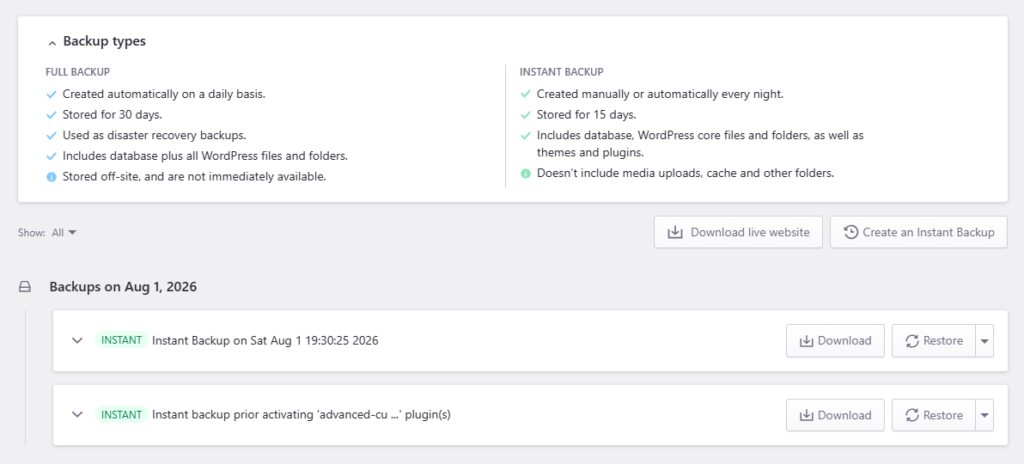
The Backups page lets you create, review, download, and restore backups for your WordPress site. It includes immediately available Instant backups, off-site Full backups for disaster recovery, and an option to generate an archive of the current live website.
Access the Backups page
Log in to the Pressidium Dashboard.
Go to Websites.
Select the website you want to manage.
Select the correct environment.
Go to Backups.
From the Backups page, you can:
View your Instant backups as well as additional information for each one (WordPress version, theme and plugin details).
A completed Instant or Full backup is one that already appears in this list. Expand the entry to check its timestamp, WordPress version, plugins, and themes. If you just triggered a backup operation, wait for the Dashboard notification before you download or restore it. Creating, downloading, and restoring Instant backups are Dashboard actions you start yourself. Full backup download and restore are requests that Pressidium processes before the backup becomes available.
Instant backups
Instant backups provide a restore point that is immediately available from the Dashboard.
They include:
The WordPress database
WordPress core files and folders
Installed themes and plugins
They do not include media uploads, cache, and certain other folders. Review which files are excluded from Instant backups for details.
Instant backups can be created manually or automatically each night and are retained for 15 days.
Dashboard Instant restore is whole-site. It does not restore one plugin. To copy one plugin folder from a downloaded Instant archive, follow Restore a single plugin’s files from an Instant backup.
Download the live website
Click Download live website to generate an archive of the website’s current state.
The archive includes:
A full database backup
All WordPress files and folders
To generate the archive:
Click Download live website.
Confirm the environment.
Optionally enter additional email addresses to notify.
Click Generate.
When the archive is ready, Pressidium sends an email notification to the displayed account address, any additional recipients, and team members with access to the website.
Full backups
Full backups are created each day automatically and retained for 30 days.
They:
Include the database and all WordPress files and folders
Are stored off-site
Are intended for disaster recovery
Are not immediately available for download or restoration
Use Request Download or Request Restore beside a Full backup. Pressidium processes the request before the backup becomes available.
Use the Show: Full filter to display only Full backups.
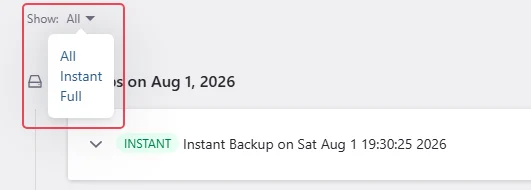
Expand a backup to review details such as its creation time, WordPress version, and included plugins and themes.
To restore a Full backup, request a Full backup restore.
Need help?
If you are not sure which backup type to use, or whether you need an instant backup or a full backup restore, contact our Support team before starting a restore.
Where to go next
Create an Instant backup to create a restore point before making changes.
Restore an Instant backup to return the website to an available restore point.
Restore a single plugin’s files from an Instant backup to copy one plugin folder from a downloaded Instant archive.
Request a Full backup restore to recover the website from an off-site backup.
Review files excluded from Instant backups to understand what is not included.
Was this article helpful?