

Download your Instant backup files
Using the Pressidium Dashboard
Select the Websites menu option from the Dashboard sidebar.
Go to your website’s overview by clicking your website name. Tip: You can also use the S keyboard shortcut to display the quick search dialog and navigate to your website, searching by name.
Navigate to the Backups page by clicking the link on the navigation bar.
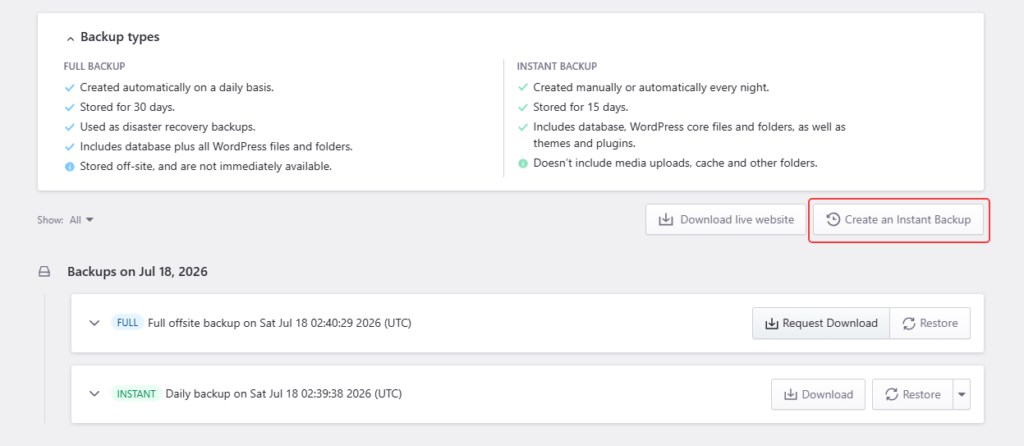
In the Backups page:
Locate the backup you wish to download. You can filter the backup list to display only Instant backups by using the Show: Instant option. You can view additional backup details (for example exact time taken, plugins and themes included, WordPress core version) by clicking on the backup list item to expand the details view.
Click the Download link next to the backup you wish to download to open the Instant Backup Download dialog.
Optionally specify one or more email addresses of people you want to notify when the process is completed.
Click the Send link button.
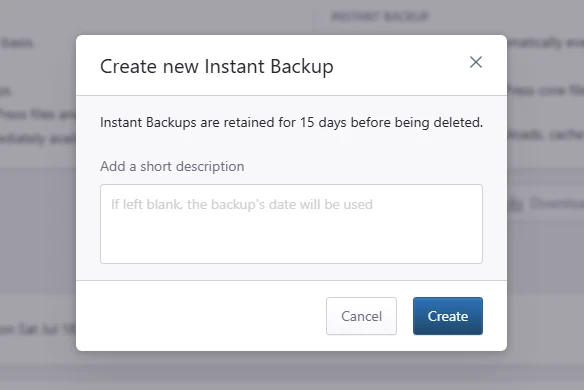
Once the process is completed you will receive a unique URL for your downloadable archive in your email.
Use a backup that already appears in the Backups list. If you just triggered a backup operation, wait for the Dashboard notification before you download it.
What the archive contains
An Instant backup is not files-only. The downloadable archive is a .tar.gz file. It includes the WordPress database and the website files from that Instant backup (WordPress core, themes, and plugins).
It does not include media uploads, cache, and the other paths listed in Which files are excluded from Instant backups?.
The WordPress database dump in the archive is wp-content/mysqldb-dump.sql.gz.
After you download the archive, extract the .tar.gz file. To copy one plugin folder from the archive instead of restoring the whole site, follow Restore a single plugin’s files from an Instant backup.
Need help?
If the instant backup files do not download, or you are not sure which instant backup to use, contact our Support team for guidance.
Where to go next
Create an Instant backup if you need a fresh backup before making changes.
Restore an Instant backup if you need to roll the site back instead of downloading files.
Restore a single plugin’s files from an Instant backup if you need one plugin folder from the archive.
Download your full backup files if you need files from a full backup set.
How to Extract and Unzip .tar.gz files after downloading backup files locally.
Was this article helpful?