

Download full website archive
If you want to download a full website archive with all your data, including uploads, do the following:
- Navigate to the website overview screen by selecting/clicking on the related card in the Websites screen. Tip: You can quickly navigate to a website by using the S keyboard shortcut to bring up the quick search dialog.
- Verify the environment you want to create and download the archive for, Production or Staging by checking out the currently selected environment in the navigation bar.
- Click on the Backups tab
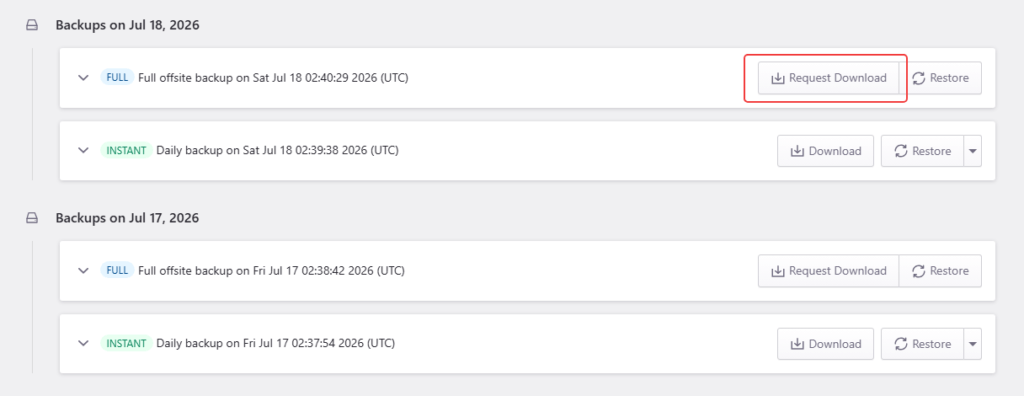
Click on the Request Download button to display the generated WordPress archive dialog.
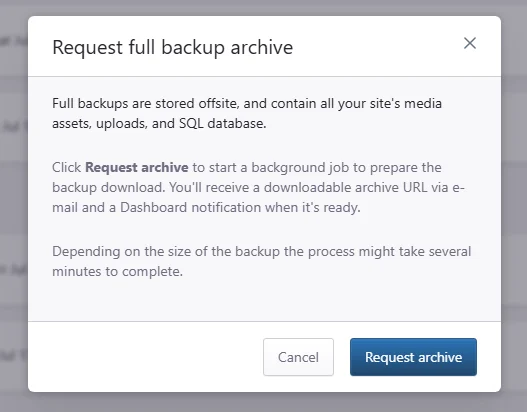
Click Request archive to start the archive creating process.
Once the process is completed you will receive a unique URL for your downloadable archive in your email. Full backup archives can be in .zip or .tgz format depending on the website size and contents.
Learn more on how you can extract and unzip .tgz files in this document.
Need help?
If the archive does not download, or you are not sure whether you need a full website archive or a specific backup file, contact our Support team for guidance.
Where to go next
- Download your instant backup files if you need files from an instant backup.
- Extract and unzip
.tar.gzfiles after downloading an archive locally. - Create an instant backup if you need a fresh restore point before making changes.
Was this article helpful?