

Request an offsite backup restore
Use this guide to restore a full offsite backup from the Pressidium Dashboard to the current website or another website. You can select the destination environment, configure optional restore settings, and review the request before confirming it.
Restore using the Pressidium Dashboard
- Select the Websites menu option from the Dashboard sidebar.
- Go to your website’s overview by clicking your website name. Tip: You can also use the S keyboard shortcut to display the quick search dialog and navigate to your website, searching by name.
- Navigate to the Backups page by clicking the link on the navigation bar.
In the Backups page, locate the full offsite backup you wish to restore.
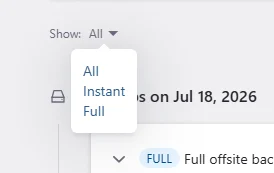
You can filter the backup list to display only Full backups by using the Show: Full option.
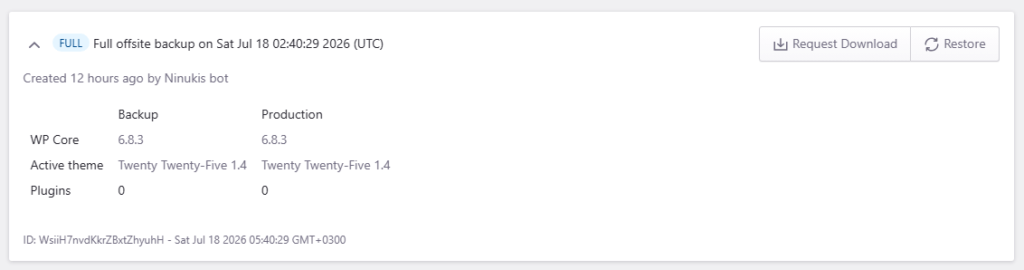
You can view additional backup details (e.g exact time taken, plugins and themes included, WordPress core version) by clicking on the backup list item to expand the details view.
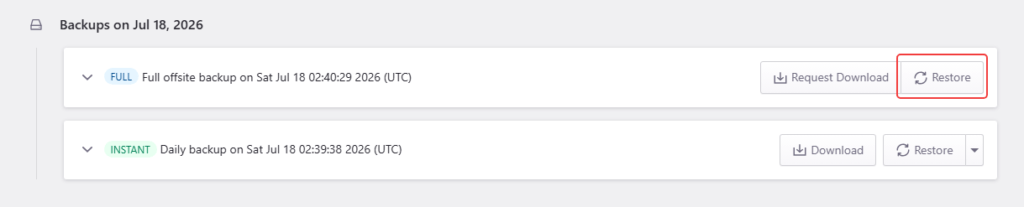
Click the Request Restore button next to the backup you wish to restore
This will open the Request Full Backup screen.
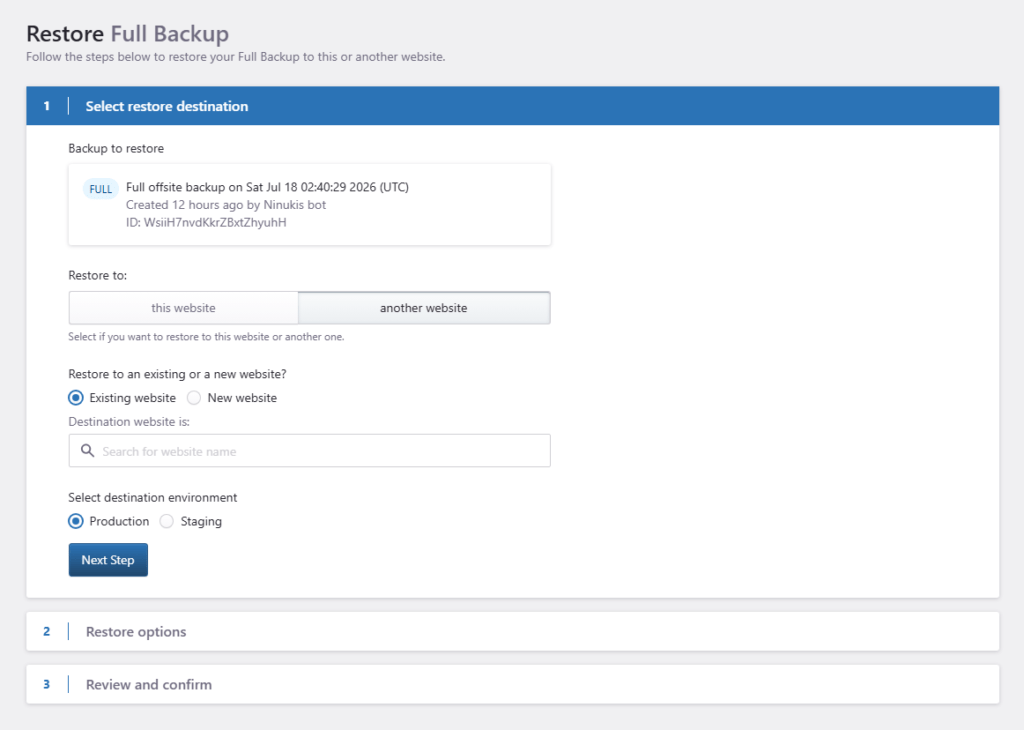
Under 1. Select restore destination, select:
- This website to restore the backup to the current website.
- Another website to restore it elsewhere.
When restoring to another website, choose whether to restore to:
- An Existing website, then search for and select the destination website.
- A New website.
Select the destination environment: Production or Staging.
Click Next Step.
Configure restore options
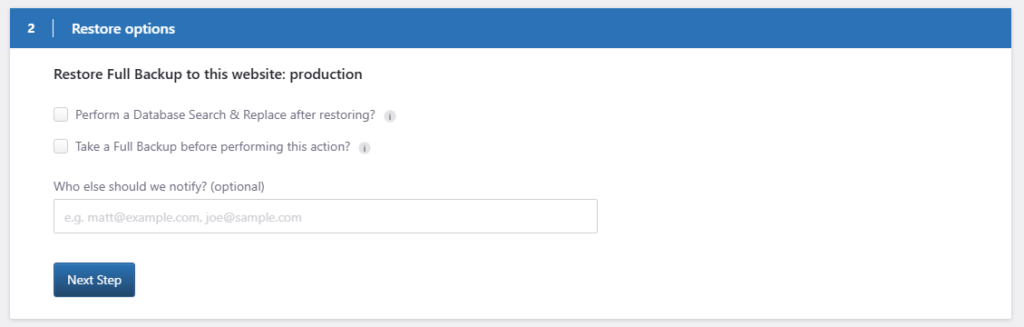
Under Restore options, choose any additional actions to perform during the restore:
- Select Perform a Database Search & Replace after restoring when the destination uses a different domain or URL.
- Select Take a Full Backup before performing this action to create a backup of the destination before it is overwritten.
- Under Who else should we notify?, enter any additional email addresses that should receive restore notifications. Separate multiple addresses with commas.
- Click Next Step to review and confirm the restore.
Review and confirm the restore
Review the restore details before starting the process:
- Confirm the destination website and environment are correct.
- Verify that the selected full backup is the one you want to restore.
- Review any additional notification email addresses shown under Also notify.
- Enter
RESTOREin the confirmation field. - Click Restore! to start the restore process.
Need help?
If you are not sure which restore point to request, or whether an offsite restore is the right option, contact our Support team before submitting the request.
Where to go next
- Review Pressidium instant and offsite backups to understand the difference between backup types.
- Restore an instant backup if an instant backup is available and fits your recovery needs.
- Create an instant backup before making new changes after the restore.
- Review which files are excluded from instant backups to understand instant backup scope.
Was this article helpful?