

Manage plugins across your websites
The Plugin Management page gives you a centralized view of the WordPress plugins installed across your Pressidium websites.
When to use Plugin Management
Use the Plugin Management page when you want to:
- Review plugins across multiple websites.
- Find plugins with available updates.
- Identify plugins with reported security issues.
- Check whether a plugin is active or inactive on individual websites.
- Update or manage plugins across multiple websites.
- Review the status of automatic updates.
Access the Plugin Management page
- Go to Websites overview -> Bulk Management.
- Select Plugin Management.
- Select Production or Staging, depending on the environments you want to review.
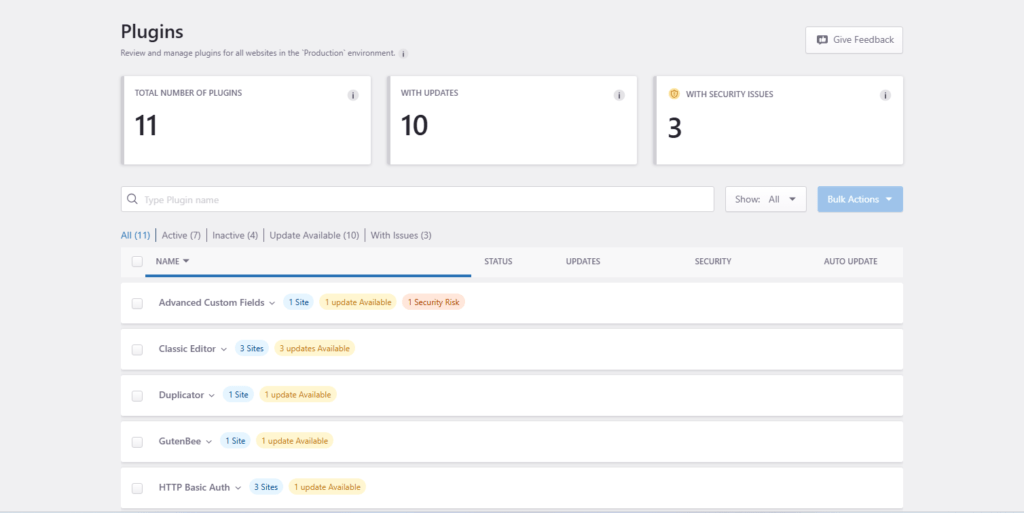
The page displays plugin information for websites in the selected environment.
Plugin overview
At the top of the page, the summary cards give you a quick overview of your plugins:
- Total Number of Plugins: the number of different plugins found across your websites.
- With Updates: plugins that have an available update.
- With Security Issues: plugins with reported security issues that may require attention.

Use these summaries to quickly identify plugins that need review.
Find and filter plugins
Use the search field to find a plugin by name.
You can also use the available filters to narrow the list based on plugin status or issues, including:
- All
- Active
- Inactive
- Update Available
- With Issues
This is particularly useful when managing a large number of websites and you only want to review plugins requiring action.
Review a plugin across your websites
Each plugin appears once in the main list, with indicators showing how many websites use it and whether updates or security issues have been detected.
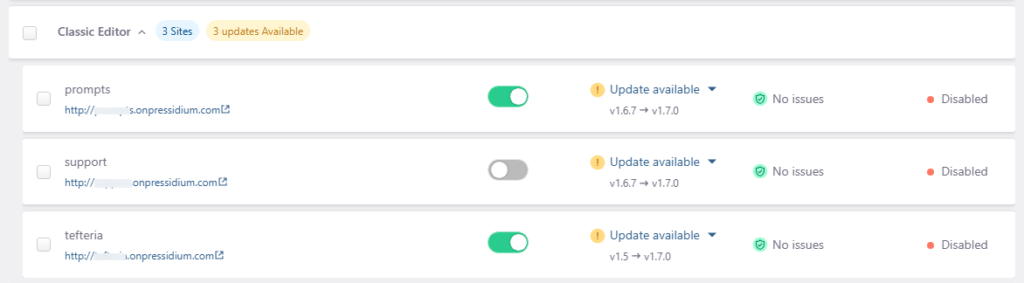
Expand a plugin to see the individual websites where it is installed.
For each website, you can review information such as:
- The website where the plugin is installed.
- Whether the plugin is active or inactive.
- Whether an update is available.
- The installed and available plugin versions.
- Whether a security issue has been reported.
- The status of automatic updates.
This lets you compare the state of the same plugin across multiple websites from one place.
Activate or deactivate a plugin
After expanding a plugin, use the Status control next to a website to activate or deactivate that plugin for the selected site.
Changing a plugin’s status can affect your website’s functionality. Before deactivating a plugin, make sure it is not required by your theme, another plugin, or important site functionality.
Update plugins
Plugins with an available update are marked in the Updates column. Expand the plugin to review which websites are using an outdated version and the version available for update.
Before updating a plugin across important production websites, consider testing the update on a staging environment first, particularly when the update introduces significant changes or the plugin is critical to site functionality.
Review plugin security issues
Plugins with detected vulnerabilities are marked in the Security column. The number shown indicates how many security issues have been identified for that plugin.
Click the issue indicator to view the vulnerability details. Depending on the issue, these may include:
- The installed plugin version.
- The version in which the vulnerability was fixed.
- A description of the vulnerability.
- Links to the associated CVE records.
- Other vulnerabilities affecting the installed version.
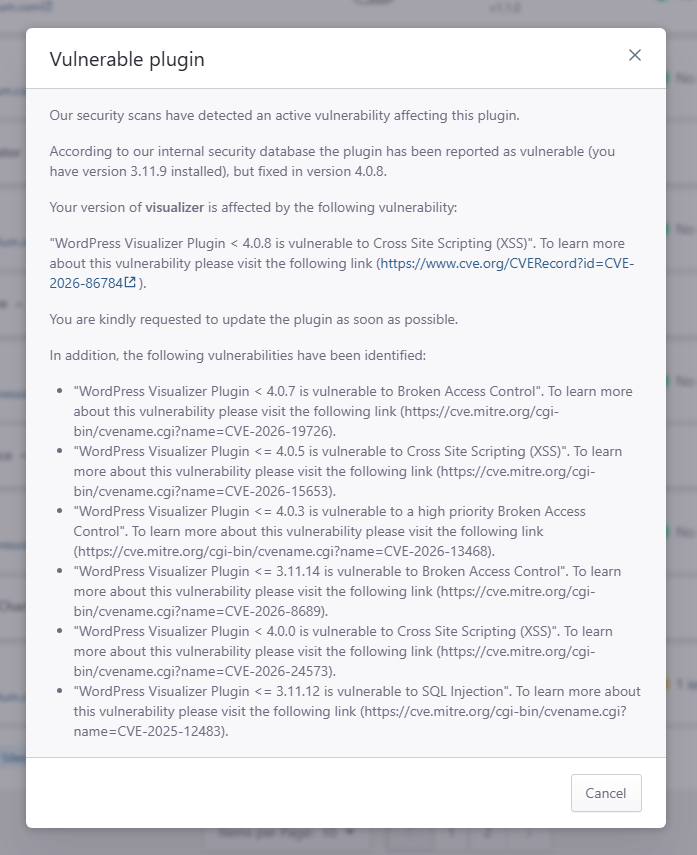
When a vulnerability has been fixed in a newer plugin version, update the affected plugin as soon as practical.
Manage multiple plugins with Bulk Actions
Use the checkboxes next to plugins to select multiple items, then open Bulk Actions to perform supported actions on the selection.
Before applying an action to multiple websites, review the selected plugins and affected sites carefully. Bulk changes can affect several websites at once.
Production and Staging environments
Use the Production and Staging tabs to manage plugins in the appropriate environment.
When possible, test significant plugin updates or configuration changes in Staging before applying them to Production.
Where to go next
After reviewing your plugins:
- Create and Manage a Staging Site: Test plugin updates and changes before applying them to Production.
- Troubleshoot Plugin Compatibility Problems: Investigate problems caused by incompatible or conflicting plugins.
Was this article helpful?