

Issue a Migration Request
Use a migration request when you want the Pressidium team to move your existing WordPress site to Pressidium Managed WordPress Hosting.
Prerequisites
Before you submit a migration request, collect the access details needed for the site.
You may need:
- your WordPress administrator credentials
- your current hosting control panel credentials, such as cPanel or Plesk
- your FTP, SFTP, or SSH credentials
- your primary domain
- any redirect domains
- any HTTP authentication credentials, if the site is protected
- any notes about plugins, custom behavior, or migration constraints
Request a migration from the Dashboard
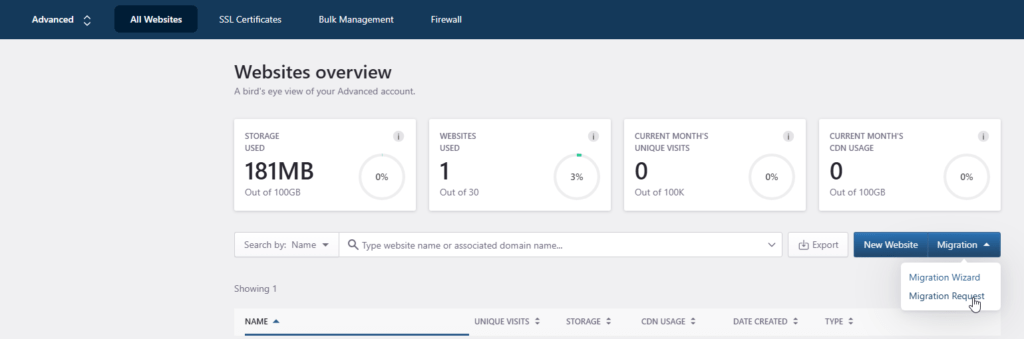
To open the migration request form, use either drop-down. Both include Migration Request and Migration Wizard.
After you select a team, the account overview uses Migrate. On Websites overview, the drop-down is Migration.
From the account overview:
- Log in to the Pressidium Dashboard.
- Select a team.
- Click Migrate.
- Select Migration Request.
From Websites overview:
- Log in to the Pressidium Dashboard.
- Go to the Websites overview screen.
- Click the Migration drop-down action button.
- Select Migration Request.
The Website Migration Request screen opens.
Complete the migration request form
The migration request form asks for the information our team needs to access, review, and migrate your WordPress site.
Enter the required details in each step.
1. Add the WordPress site name
Enter the name of the WordPress site you want to migrate.
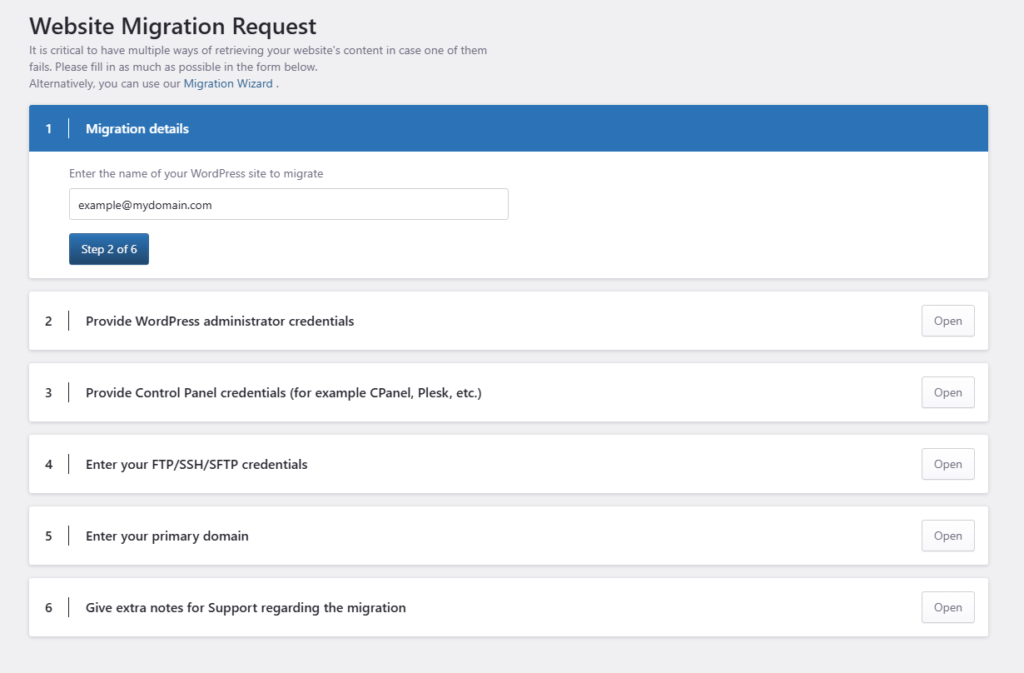
Use a name that helps you identify the site clearly in your account.
2. Add WordPress administrator credentials
Enter the credentials you use to log in to the WordPress Admin Dashboard.
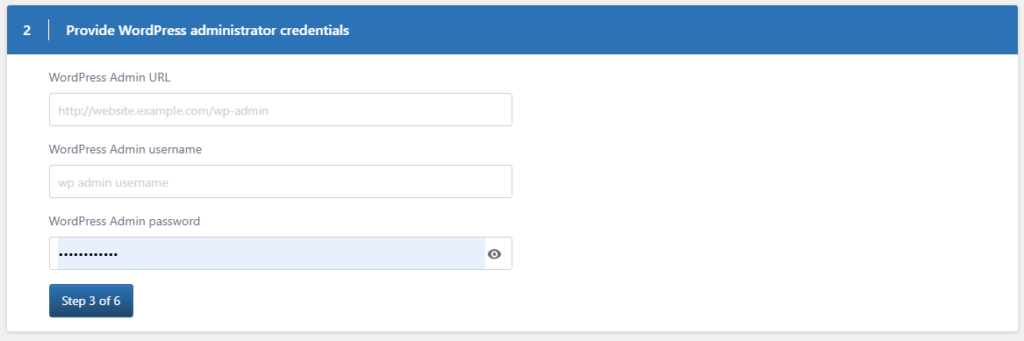
These credentials allow our team to review the WordPress installation and prepare the migration.
3. Add hosting control panel credentials
Enter the credentials for your current hosting control panel, such as cPanel, Plesk, or another hosting management panel.
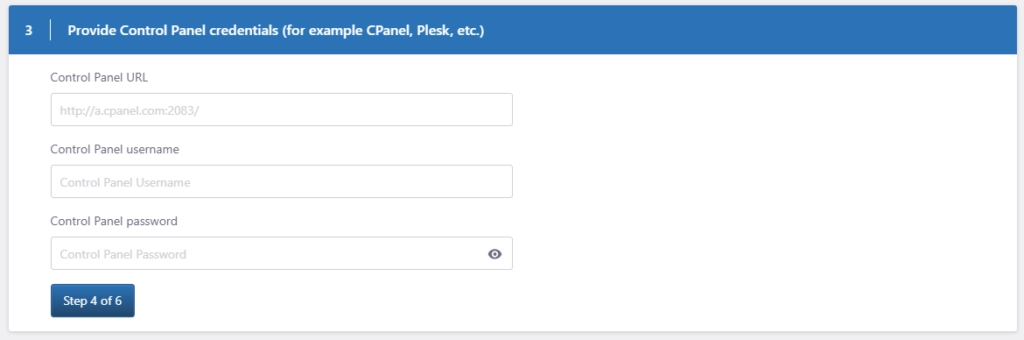
These credentials are usually provided by your current hosting provider.
4. Add FTP, SFTP, or SSH credentials
Enter the credentials used to access and manage your website files.
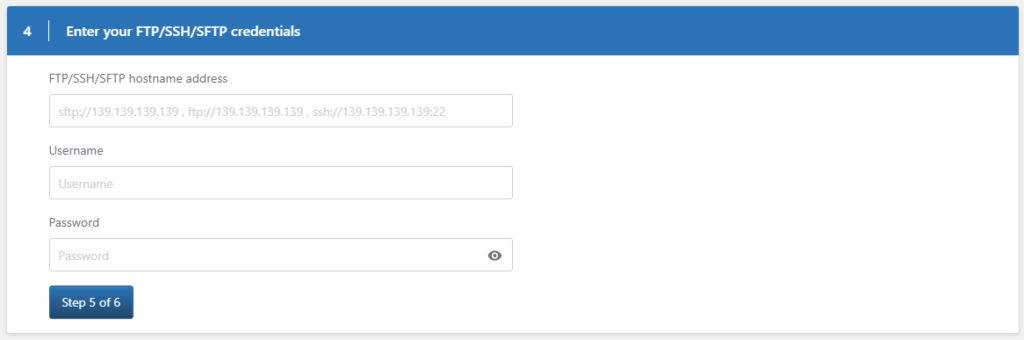
Depending on your current host, this may be FTP, SFTP, or SSH access.
5. Add your domains
Enter your primary domain and any redirect domains.
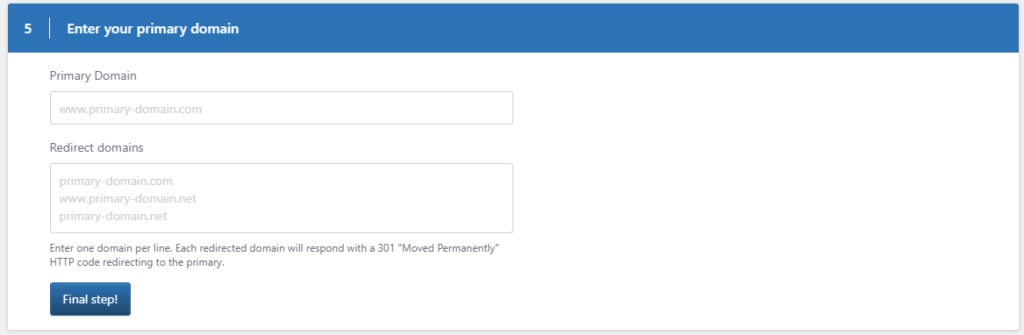
The primary domain is the main domain associated with your WordPress installation.
6. Add extra migration notes
Add any information that may help our team complete the migration.
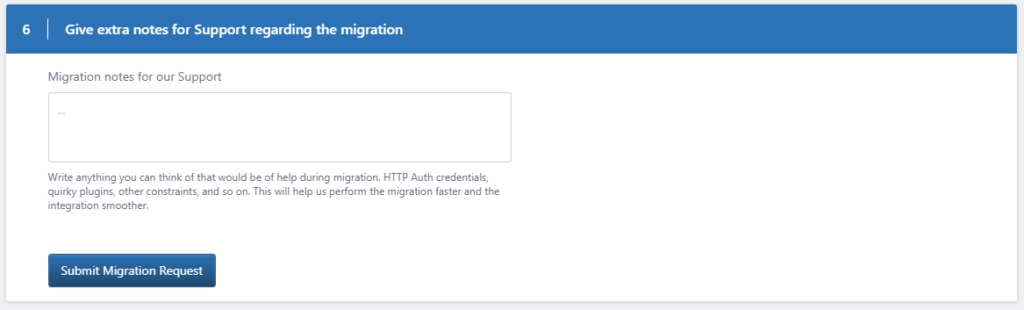
Include details such as:
- HTTP authentication credentials
- unusual plugin behavior
- custom paths or file locations
- redirects that need attention
- special constraints or timing requirements
What happens after you submit the request
After we receive your migration request, our team reviews the details and selects the best migration method for your site.
We will keep you updated on the migration status and contact you if more information is required.
Depending on the access details provided, our team will use the most suitable method to complete the migration in a fast and reliable way.
Need help?
If you are not sure what details to provide, or you cannot access the credentials needed for the migration request, contact Support before submitting the request.
Where to go next
- To check whether your plan includes a managed migration, read How many migrations am I eligible for?.
- To prepare and send a website archive file instead, read Manually create an archive for migration.
- To check supported archive formats, read Which formats does the Migration Wizard support?.
- To migrate the site yourself, read How to use the Migration Wizard for DIY migrations.
- After the migration is complete, read How can I test my migrated site before I switch DNS?.
Was this article helpful?