

How to use the Migration Wizard (for DIY migrations)
Use the Migration Wizard when you want to migrate an existing WordPress site to Pressidium yourself.
The Migration Wizard guides you through preparing your current site, creating a migration archive, importing it into Pressidium, and testing the migrated site before you switch DNS.
What this guide covers
This guide explains how to use the Migration Wizard from the Pressidium Dashboard.
You will learn how to:
- open the Website Migration Wizard
- prepare your current WordPress site
- create a migration archive
- import the archive into a new or existing Pressidium website
- test the migrated site before switching DNS
When to use
Use this guide when:
- you want to perform the migration yourself
- you can access your current WordPress Admin Dashboard
- you can install and use the Duplicator plugin
- you want to import the site into a new or existing Pressidium website
- you want to test the migrated site before sending live traffic to Pressidium
If you want the Pressidium team to handle the migration for you, submit a migration request instead.
Prerequisites
Before you start, make sure you have:
- access to your current WordPress Admin Dashboard
- administrator permissions on the site you want to migrate
- the ability to install the Duplicator plugin
- enough time to prepare, export, import, and test the site
- access to your domain’s DNS records for the final switch
Open the Migration Wizard
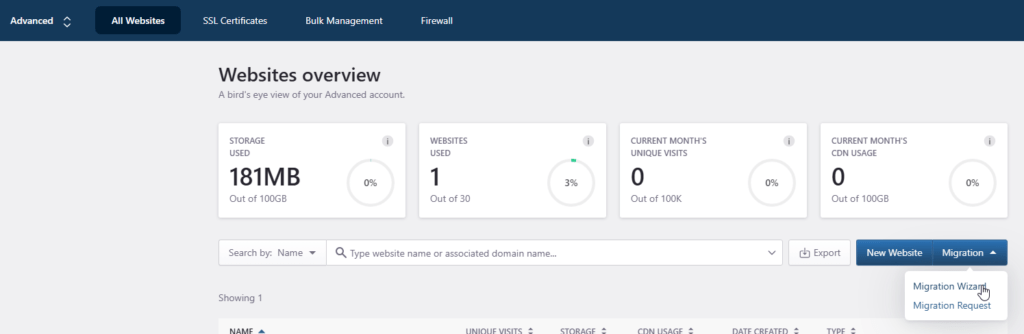
To open the Migration Wizard, use either drop-down. Both include Migration Request and Migration Wizard.
After you select a team, the account overview uses Migrate. On Websites overview, the drop-down is Migration.
From the account overview:
- Log in to the Pressidium Dashboard.
- Select a team.
- Click Migrate.
- Select Migration Wizard.
From Websites overview:
- Log in to the Pressidium Dashboard.
- Go to the Websites overview screen.
- Click the Migration drop-down action button.
- Select Migration Wizard.
The Website Migration Wizard opens.
Use the Migration Wizard
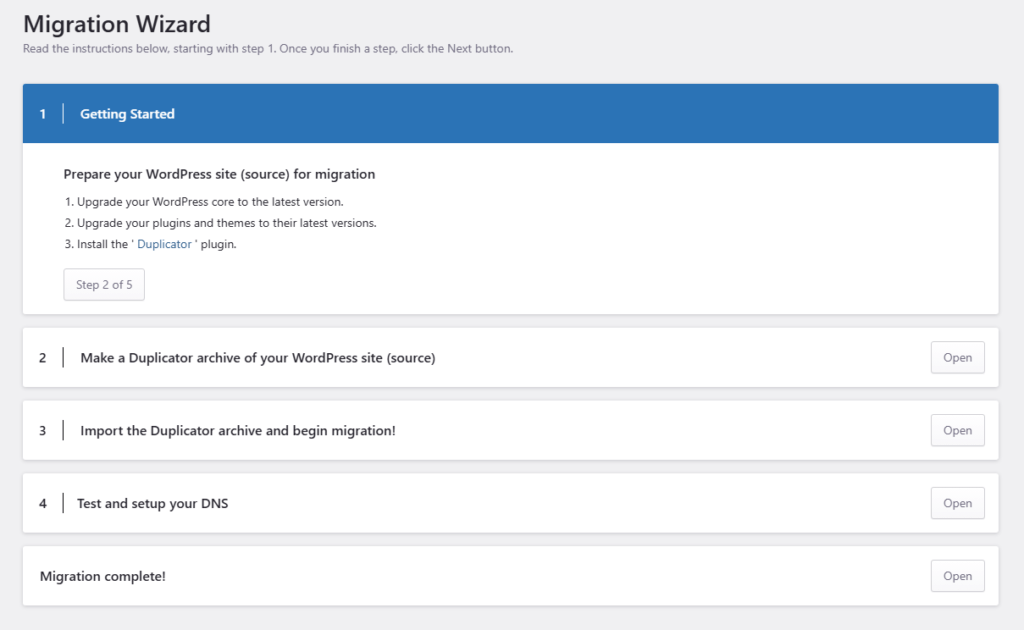
The Migration Wizard guides you through the migration step by step. Follow the on-screen instructions for each step.
Step 1: Prepare your WordPress site
Update your current WordPress site before creating the migration archive.
Before continuing:
- update WordPress core to the latest version
- update plugins to their latest versions
- update themes to their latest versions
- install the Duplicator plugin
Step 2: Create a migration archive
Use the Duplicator plugin to create a complete archive of your WordPress site.
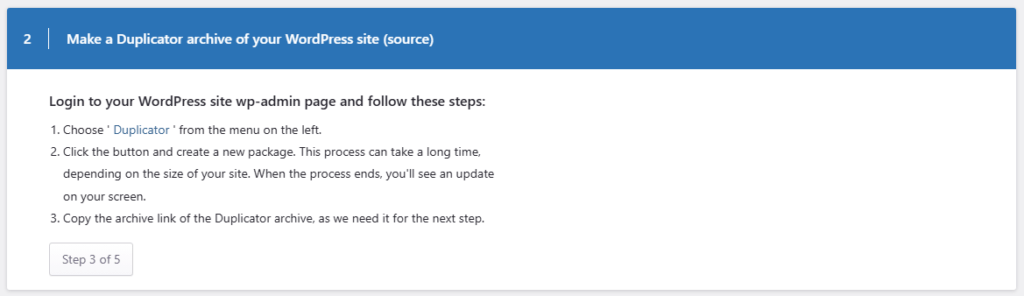
At the end of the process, Duplicator provides an archive URL. Copy this URL because you will need it in the next step.
You can also create an archive manually, as long as the archive uses one of the supported migration formats.
Step 3: Import the archive
Import the archive into Pressidium.
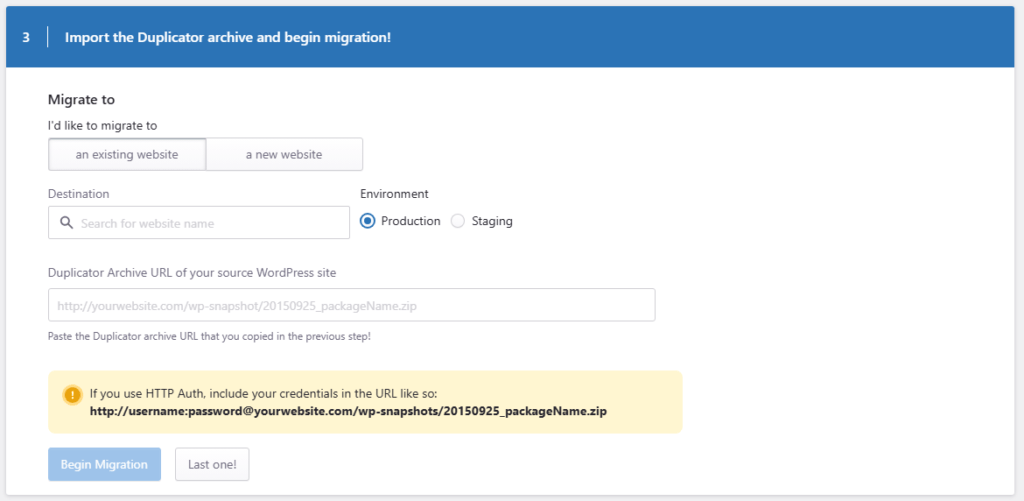
You can import the archive into:
- an existing website
- a new website
You can also choose whether to import the site into the Production or Staging environment.
Important: If you choose an existing website, the existing installation files and data will be overwritten.
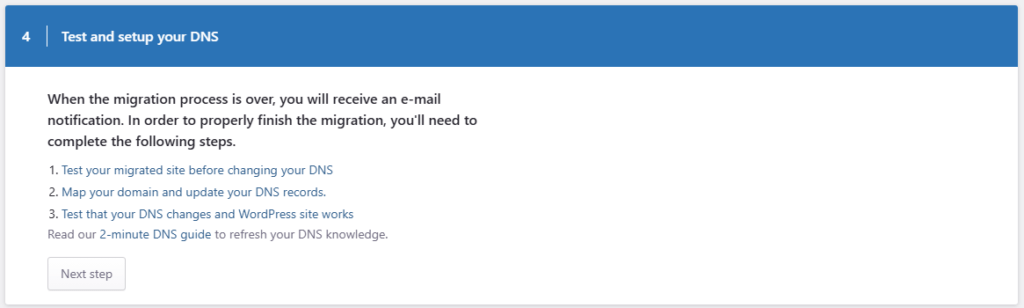
Step 4: Test the migrated site and prepare DNS
After the import is complete, test the migrated site before changing DNS.
Check that:
- the site loads correctly
- WordPress Admin access works
- key pages and forms work
- images and assets load correctly
- plugins and theme functionality behave as expected
- redirects work as intended
When the migrated site is ready, map your domain and update your DNS records.
Step 5: Complete the migration
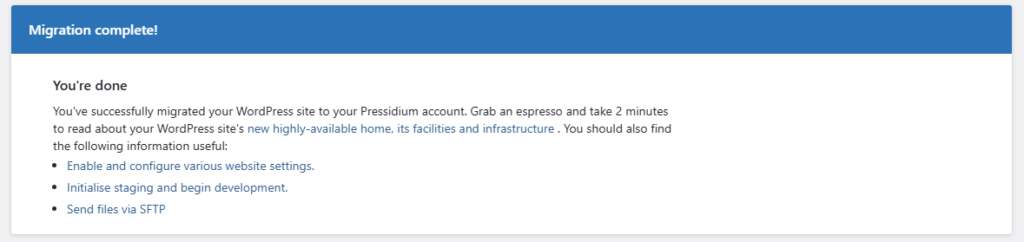
If the migrated site works as expected and DNS has been updated, the migration is complete.
Migration Wizard supported formats
Our Migration Wizard can import ZIP archives that must contain the following content:
- Your WordPress
wp-contentfolder containing folders:plugins, themes, uploads. - A Database dump file in SQL file format with the full contents of the database. WordPress core database definitions and table names should be present in the dump.
- A
wp-config.phpfile specifying the table prefix. This must match the table prefix in your database dump file.
The following archive formats and structures are supported:
database.sql,dup-database__(.*).sql$: Duplicator plugin, flat ZIP file.mysql.sql: WPEngine, flat ZIP file.wp-content/mysqldb-dump.sql: Pressidium Instant Backup, flat ZIP file.bvfulldump.sql: BlogVault Archive, flat ZIP file.
The following archives format are NOT supported:
Duplicator Pro custom DupArchive (
.daf) format.
Verification
Before considering the migration complete, confirm that:
- Your domain resolves to the migrated Pressidium site
- The frontend loads correctly
- WordPress Admin works
- forms, checkout, login, or membership flows work if your site uses them
- images, CSS, JavaScript, and uploaded media load correctly
- redirects and canonical URLs behave as expected
Common issues and solutions
The archive import fails
Check that the archive format is supported and that the archive URL is accessible.
If the import still fails, contact Support before retrying multiple times.
The migrated site does not work as expected
Test the site before switching DNS. If you notice missing assets, broken pages, plugin errors, or login issues, contact Support before sending live traffic to the migrated site.
You are not ready to overwrite an existing site
Create a new website or import the archive into a staging environment instead of importing directly into an existing production website.
Need help?
If the Migration Wizard cannot import your archive, or the migrated site does not work as expected, contact Support before switching DNS.
Where to go next
- To check which archive formats are supported, read Which formats does the Migration Wizard support?.
- To prepare an archive manually, read Manually create an archive for migration.
- To ask Pressidium to migrate the site for you, read Issue a migration request.
- After the import is complete, read How can I test my migrated site before I switch DNS?.
- When the migrated site is ready to receive live traffic, read How to add a domain and update DNS records.
Was this article helpful?