

Analyze geographic and IP traffic
The Geo & IP Analytics page shows where requests to your website originate and which source IP addresses generate the most traffic.
Use this page to review traffic distribution by country, identify high-volume IP addresses, investigate unusual geographic patterns, and collect request data for further analysis.
Access the Geo & IP Analytics page
- Log in to the Pressidium Dashboard.
- Select the website you want to review.
- Select the correct environment.
- Go to Analytics.
- Open the Geo & IP tab.
Sections Included
- Time range selector – changes the reporting period for all analytics on the page
- Web Traffic Requests by country – displays request volume geographically on an interactive world map
- Top Countries – lists the countries generating the highest number of requests
- Top IPs – lists the source IP addresses generating the highest number of requests
Time range and data updates
At the top of the page, use the Show filter to select the reporting period.
The page displays the time when the analytics data was last updated below the selected time range.
The map and both tables update to reflect the selected period.
When comparing traffic patterns, use the same reporting period so the results represent equivalent time ranges.
Web Traffic Requests by country
The Web Traffic Requests by country map shows the geographic distribution of requests to your website.
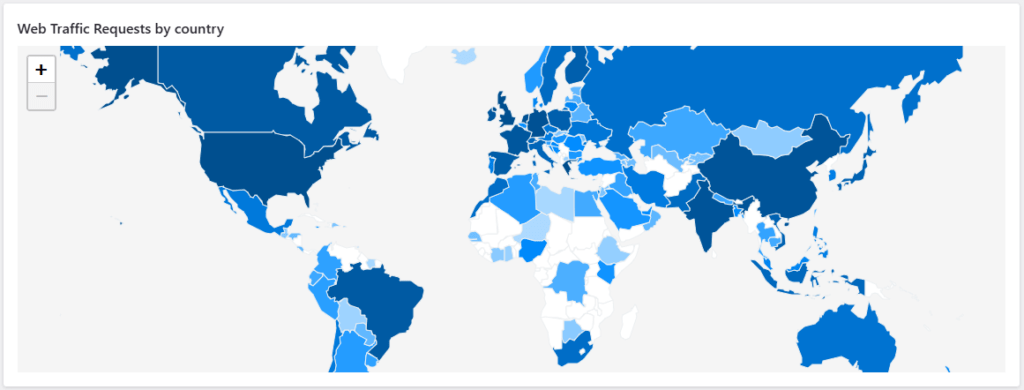
Countries are shaded according to their relative request volume. Countries with more requests appear more prominently than countries with little or no recorded traffic.
Use the map to:
- Identify the regions generating the most traffic
- Compare expected and unexpected visitor locations
- Spot sudden geographic changes
- Support investigations into bot or automated activity
- Determine whether country-level traffic controls may be appropriate
Use the + and − controls to zoom in or out.
The map provides a high-level geographic view. Use the Top Countries and Top IPs tables for specific request counts.
Top Countries
The Top Countries table lists countries by the number of requests recorded during the selected period.
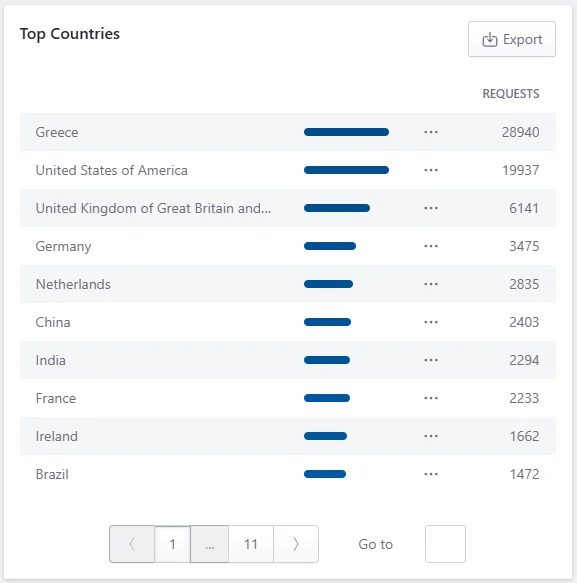
For each country, the table shows:
- Country – the geographic location associated with the requests
- Requests – the total number of requests attributed to that country
- Relative request volume – a visual bar showing how the country compares with other entries
Use this table to identify:
- Countries producing the largest share of traffic
- Unexpected geographic sources
- Changes in traffic from important markets
- Countries that may require further investigation
- Traffic patterns that may support a Geo Blocking decision
Navigate the country list
Use the pagination controls below the table to review additional countries.
You can:
- Move to the previous or next page
- Select a displayed page number
- Use Go to open a specific results page
Export country data
Click Export to download the country data as a CSV file.
Export the table when you need to:
- Compare traffic outside the Dashboard
- Share geographic data with your team or client
- Keep a record of unusual traffic
- Include supporting information in a support request
- Review changes between reporting periods
Top IPs
The Top IPs table lists the source IP addresses generating the highest number of requests.
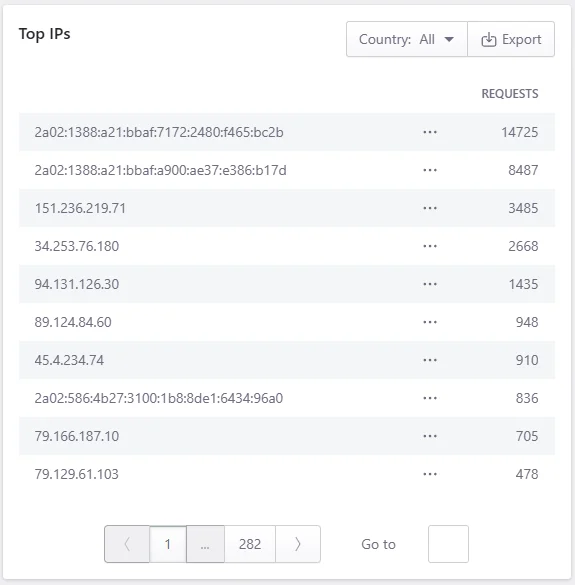
Both IPv4 and IPv6 addresses may appear in the table.
For each entry, the table shows:
- IP address – the source IP associated with the requests
- Requests – the total number of requests attributed to that IP
Use this table to identify:
- High-volume source IP addresses
- Repeated automated activity
- IPs contributing to unusual traffic spikes
- Sources that may require further log or security investigation
- Traffic associated with a particular country
Filter IPs by country
Use the Country filter above the table to limit the results to IP addresses associated with a specific country.
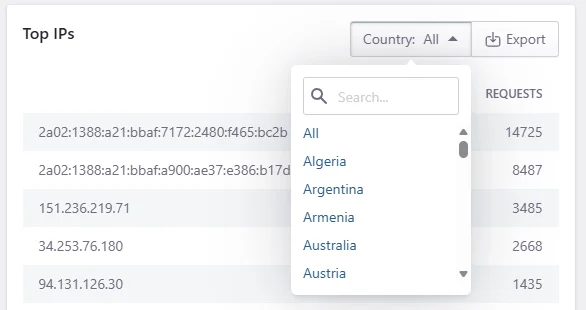
This is useful when:
- One country shows an unexpected traffic increase
- You need to identify the IPs contributing to that country’s request count
- You are investigating automated traffic from a particular region
- You need supporting data before applying country- or IP-level controls
Select All to remove the country filter.
Navigate the IP list
Use the pagination controls below the table to review additional IP addresses.
You can:
- Move to the previous or next page
- Select a displayed page number
- Use Go to open a specific results page
Export IP data
Click Export to download the displayed IP data as a CSV file. Apply a country filter before exporting when you only need IP addresses associated with one country.
Export the results when you need to:
- Share IP data with a developer or security team
- Compare traffic in another tool
- Review high-volume sources
- Include evidence in a support request
- Keep a record before changing access controls
Understanding the results
Review the map, country table, and IP table together. A single country or IP count does not provide enough context by itself.
A country has a high request count
A high count may be expected when:
- Your main audience is located there
- A campaign targets that market
- Search engine crawlers operate from that region
- A third-party service sends requests from that country
- A shared proxy or cloud provider handles many requests
Compare the country’s traffic with your expected audience and review its top IP addresses before taking action.
Traffic appears from an unexpected country
Unexpected traffic may come from:
- Search engines and crawlers
- Bots and automated scanners
- VPN or proxy services
- Cloud infrastructure
- Monitoring services
- Third-party APIs or integrations
- Visitors travelling or using privacy services
Review the related IP addresses and request patterns before blocking the country.
One IP generates many requests
A high-volume IP may represent:
- A legitimate search engine crawler
- A monitoring or uptime service
- A shared corporate or carrier network
- A reverse proxy
- An API integration
- A bot or automated scanner
- Repeated unwanted traffic
Use access logs, Requests Analytics, and security data to understand what the IP requested and how the website responded.
Several visitors appear under one IP
Multiple visitors may share one public IP when they connect through:
- A company or institutional network
- A mobile carrier
- A VPN
- A proxy service
- Network address translation
Do not assume that one IP always represents one individual visitor.
The map does not match the visitor’s actual location
Country attribution is based on the geographic information associated with the request’s source IP.
VPNs, proxies, mobile networks, cloud services, and outdated geolocation records can cause the reported country to differ from the visitor’s physical location.
Best practices
When reviewing geographic and IP analytics:
- Confirm that the correct website and environment are selected.
- Check the data-update timestamp before reviewing recent traffic.
- Use the same time range for before-and-after comparisons.
- Start with the map, then review the country and IP tables.
- Filter the IP table when investigating one country.
- Compare high request counts with Requests Analytics and access logs.
- Investigate sustained or repeated patterns rather than isolated requests.
- Export the data before applying access restrictions.
- Confirm that an IP does not belong to a required service before blocking it.
- Avoid blocking an entire country based on one IP address.
- Review the possible business impact before applying Geo Blocking.
Common questions
Why do I see uncached requests?
Some requests are not suitable for cache. This can happen when requests include specific cookies, logged-in sessions, dynamic behavior, query strings, or cache-bypass rules.
Why do some requests bypass cache?
Requests can bypass cache because of configured rules, cookies, request paths, or WordPress behavior that should not be cached.
Why are static asset requests higher than pageview requests?
A single pageview can trigger many asset requests. Images, CSS files, JavaScript files, fonts, and other files are counted separately as static asset requests.
Can I use Traffic Analytics to detect attacks?
Traffic Analytics can help identify unusual request patterns, top IPs, suspicious referrers, or country-level spikes. For security-specific investigation, also review Security Events Analytics.
Common issues and solutions
Traffic looks lower than expected
Check that:
- The correct site is selected.
- The correct environment is selected.
- The date range is correct.
- DNS is pointing traffic through Pressidium EDGE.
- The domain is active and receiving traffic.
Cache hit levels look lower than expected
Check whether:
- Many requests include cookies.
- Important URLs are excluded from cache.
- Custom web rules are bypassing cache.
- Logged-in or dynamic requests are included in the selected data.
- Recent cache purges affected the selected period.
A URL shows many cache misses
Review the URL and check whether it includes query strings, cookies, custom cache rules, or dynamic behavior that prevents caching.
A country or IP shows unusual traffic
Review the related URLs, response types, and security events. If the traffic appears abusive, consider creating a firewall rule or contacting Support.
Best practices
Review Traffic Analytics after major changes, such as DNS updates, cache rule changes, plugin changes, launches, campaigns, or deployments.
Use the response breakdown before changing cache settings. A high number of bypassed or uncached requests may be expected for some dynamic pages.
Compare traffic data with Security Events Analytics when investigating suspicious spikes.
Export data before making major rule changes so you have a baseline for comparison.
Need help?
Contact Support if:
- Traffic does not appear after DNS has been configured
- Analytics data looks incorrect for the selected date range
- You see unexpected error spikes
- A large amount of traffic is bypassing cache and you are not sure why
- You need help investigating suspicious IPs, countries, URLs, or referrers
Include the site name, environment, date range, affected URLs, screenshots, and any relevant timestamps.
Where to go next
- Review Requests Analytics to identify the URLs, response types, and traffic spikes associated with unusual activity.
- Review access and error logs when you need request-level details for a specific IP address, URL, or timestamp.
- Manage Firewall access rules to block or allow an IP address or restrict traffic from specific countries after investigating the source.
- Use Under Attack Mode during an active, high-volume automated attack that is affecting site availability or performance.
Was this article helpful?