

Database Search and Replace
On several occasions, you may need to make bulk changes, at once, to your website’s content by finding specific strings in the WordPress database and replacing them with another value.
Some common scenarios include:
Finding and replacing common content across several posts e.g. a company name, a specific link/URL, short codes, an email address, or a specific text snippet.
Finding and replacing configuration and option values (<table_prefix>_options table).
Migrating your website from HTTP to HTTPS. Although our platform takes care of the necessary updates required in most cases when enabling SSL/HTTPS, sometimes replacing hard-coded HTTP URL references to their HTTPS equivalent might be required.
Switching or updating domains and changing URLs. Our platform makes this painless by performing the necessary updates “under the hood”, but some special setups may require replacing references from the old domain name to the new domain name en mass after updating the WordPress associated primary domain.
You can perform search and replace operations by using our Database Search and Replace tool:
Select the Websites menu option from the Dashboard sidebar.
Click on your website’s name to go to the website overview (or navigate to your website via our Quick Search modal. Tip: You can quickly navigate to a website by using the S keyboard shortcut to bring up the quick search dialog).
Navigate to the Database tab and locate the Database search & replace section.
In the Search field, enter the value you want to look for in the database.
In the Replace field, enter the new value.
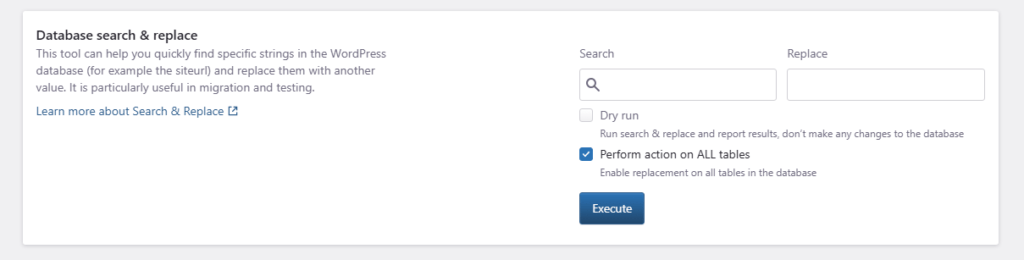
Dry Run
Before running the tool, it is recommended to perform a “Dry run” execution by selecting the respective option. Selecting this option will perform a search and replace operation but won’t make any actual changes to the database, just report the results (the number of replacements for each table in the database) in an email, and as a Dashboard notification as soon as the process is finished. This way you can verify they are the expected results before making changes in the database.
Actual Run
If you are satisfied with the results you can then execute the actual replacement leaving the option deselected. After the search and replace is complete you will receive an email report with the replacements made and a respective Dashboard notification. For safety, we will create an Instant Backup before the operation is executed so that you can easily restore it in case the result is not what you’ve expected.
Cache clear
Finally, you may need to clear any caches so that the results are visible:
- Clear any caches stored by individual plugins (e.g. Elementor).
- Clear the website cache.
Theme and plugin-related issues
Some themes such as Elementor may store data in a serialized format and might fail to be replaced by the search and replace tool. Please consult the theme’s documentation on how to properly perform the replacements in this case. (e.g. Elementor provides a “Replace URL” tool, https://elementor.com/help/i-changed-the-url-of-my-website-and-elementor-does-not-work-anymore/).
Need help?
If you are not sure what values to search and replace, or the site does not work as expected after the operation, contact our Support team before running it again.
Where to go next
- Create an instant backup before running a search-and-replace operation.
- Back up or export your database if you need a database-only copy before making changes.
- Set up your domain and DNS records if the search-and-replace is part of a domain change.
- Enable and manage SSL after the new domain points to Pressidium.
Was this article helpful?