

Reset WordPress user password
You can reset the password for a specific WordPress user directly from your Dashboard.
To reset a WordPress user’s password
1. Navigate to the website overview screen by selecting/clicking on the related card in the Websites overview screen.
2. Click the “ellipsis” action menu located in the Domains and SSL section to display the drop-down action menu.
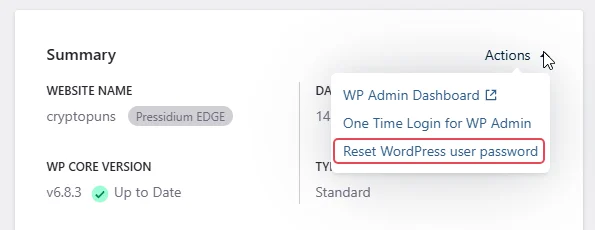
3. Click Reset WordPress user password.
4. Enter the Username or Email: In the field labeled “Username or Email Address”, input either the username or email associated with the user whose password you want to reset.
5. Set a New Password: In the “New Password” field, input a strong password of at least 12 characters. This password should include a mix of:
- Upper and lowercase letters.
- Numbers.
- Special characters like
! $ ? %.
Alternatively, click the Lock icon to generate a random strong password (you can use the clipboard icon to copy the generated password).
6. Confirm the Reset: After entering the necessary information, click the Reset Password button located at the bottom right of the screen. A background job will start to reset the password for the specified user. You will receive a dashboard notification as soon as the process is completed.
Once the password is reset, the affected user will be notified via email about the password change.
Need help?
If the password reset does not work, or you cannot identify the correct WordPress user account, contact our Support team before making further access changes.
Where to go next
- Log in to WordPress with a one-time login link if you need temporary access without changing the password.
- Access your WordPress site if you need another way to reach the WordPress admin area.
- Secure your account using two-factor authentication to strengthen dashboard login protection.
- Create and manage strong passwords before setting a new password.
Was this article helpful?