

Manage Redirects
Use the Redirects page to send visitors and search engines from one URL path to another.
Redirect rules are added to your website configuration and interpreted as regular expressions. You can apply a rule to all associated domains or limit it to a specific domain.
When to use
Use this page when you want to:
- Redirect an old URL to a new location
- Preserve access after changing a page or post URL
- Create permanent or temporary redirects
- Apply a redirect across all website domains
- Limit a redirect to one associated domain
- Import multiple redirects from a CSV file
Prerequisites
Before creating a redirect:
- Confirm that you are viewing the correct website and environment.
- Identify the source URL and destination URL.
- Decide whether the redirect is permanent or temporary.
- Check whether the rule should apply to all domains or one specific domain.
Access the Redirects page
- Log in to the Pressidium Dashboard.
- Go to Websites.
- Select the website you want to manage.
- Confirm that you are viewing the correct Production or Staging environment.
- Click Redirects.
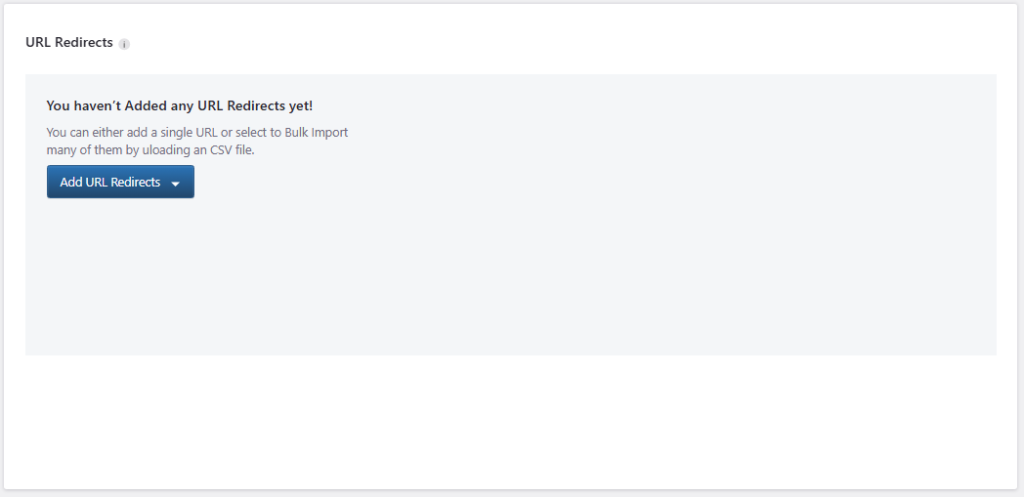
Sections included
- The existing URL redirect rules
- The Add URL Redirects menu
If no redirects have been configured, the page displays an empty-state message.
Add a single URL redirect
To create one redirect rule:
- Click Add URL Redirects.
- Select Add a single URL.
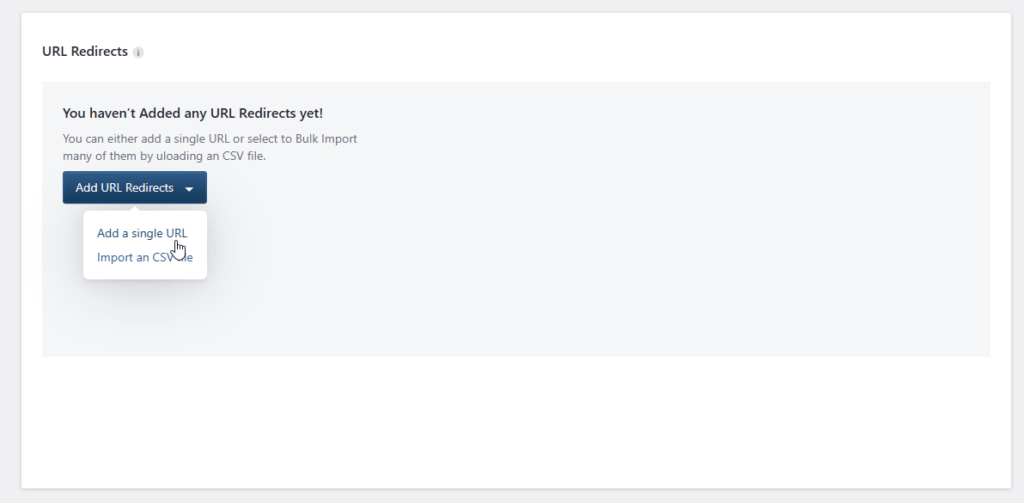
The Add Redirect Rule window opens.
- Open the Domain menu.
- Select the domain to which the redirect should apply.
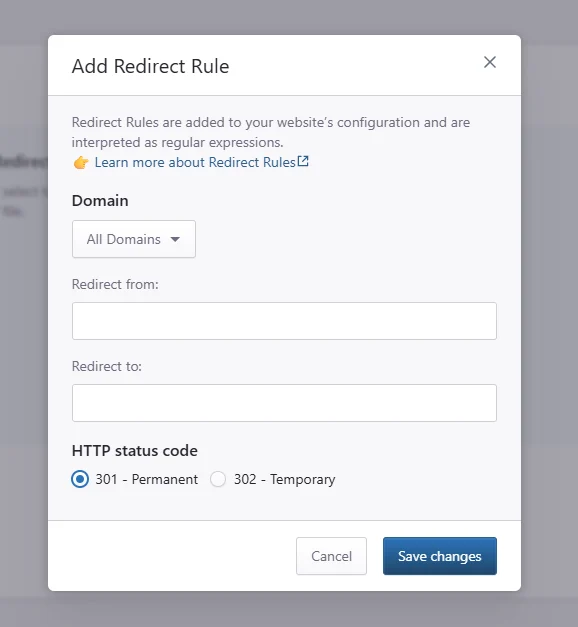
Available options may include:
- All Domains
- An individual domain associated with the website
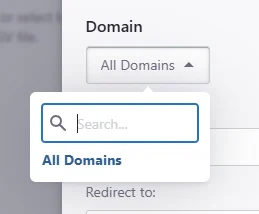
Use the search field to find a specific domain when several domains are available.
- Enter the source pattern in Redirect from.
- Enter the destination in Redirect to.
- Select the required HTTP status code:
- 301 – Permanent
- 302 – Temporary
- Click Save changes.
The redirect rule is added to the website configuration.
Redirect rule fields
Domain
Controls which website domain the rule applies to.
Select All Domains to apply the same redirect across every domain associated with the website. Select an individual domain when the redirect should affect only that domain.
Redirect from
Defines the incoming URL or URL pattern that should trigger the redirect.
Redirect rules are interpreted as regular expressions. Review the redirect-rule guidance before entering complex patterns.
Redirect to
Defines the destination to which matching requests are sent.
Make sure the destination is valid and does not redirect back to the source URL.
HTTP status code
Choose how the redirect should be communicated to browsers and search engines.
301 – Permanent
Use a 301 redirect when the source URL has permanently moved to the destination.
This is generally appropriate when:
- A page has been permanently renamed
- Content has moved to a new URL
- An old URL should be replaced by a new one
302 – Temporary
Use a 302 redirect when the change is temporary and the original URL may be restored later.
This is generally appropriate for temporary campaigns, maintenance flows, or short-term routing changes.
Import redirects from a CSV file
Use CSV import when you need to add several redirect rules at once.
- Click Add URL Redirects.
- Select Import a CSV file.
- Review the import instructions.
- Download the example CSV to confirm the required structure.
- Click Browse your computer.
- Select the completed CSV file.
- Click Import.
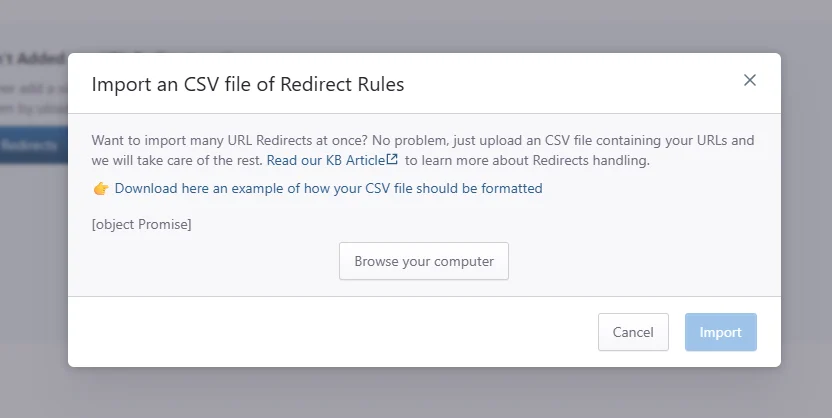
The Import button remains unavailable until a valid file has been selected.
Verification
After adding or importing redirects:
- Open the source URL in a private or incognito browser window.
- Confirm that it opens the expected destination.
- Check that the browser does not enter a redirect loop.
- Test more than one URL when the rule uses a regular expression.
- Confirm that unrelated URLs continue to load normally.
You can also inspect the response headers with browser developer tools or a command-line request to verify that the response returns the expected 301 or 302 status.
Common issues and solutions
The redirect does not run
Check that:
- You entered the correct source pattern
- The rule applies to the requested domain
- The source path matches the regular expression
- The destination is valid
- You are testing the correct environment
The redirect affects more URLs than expected
The source pattern may be too broad.
Review the regular expression and make it more specific before testing again.
The browser reports too many redirects
The source and destination may redirect back to each other, or another redirect may send the destination back to the original URL.
Review the complete redirect chain and remove the conflicting rule.
The CSV cannot be imported
Confirm that:
- The file uses the required CSV structure
- The required columns are present
- The source and destination values are valid
- The file is saved in CSV format
Use the downloadable example as the template for the import file.
Best practices
- Use
301only when the change is intended to be permanent. - Use
302for genuinely temporary routing. - Test redirects in Staging before adding complex rules to Production.
- Keep redirect patterns as specific as possible.
- Avoid creating long redirect chains.
- Redirect directly to the final destination.
- Review bulk-import files carefully before uploading them.
Need help?
If a redirect does not behave as expected, contact Pressidium Support and include:
- The website name
- The affected environment
- The source URL
- The expected destination
- The selected status code
- The domain to which the rule applies
- The approximate time of your test
- A screenshot of the redirect rule
Where to go next
- Learn how to redirect URLs for additional guidance on planning and testing URL redirects.
- Add a domain redirect when you need to redirect an entire domain rather than individual URL paths.
- Review the Domains page to check which domains are associated with the website.
Was this article helpful?