

Manage Domains
The Domains page shows the domain connected to your WordPress site and the additional domain names associated with it.
Use this page to review Domains when you want to:
- Confirm a domain is connected.
- Check whether HTTPS is enabled.
- Confirm whether traffic is routed through EDGE.
- Add another domain to the site.
- View DNS records for verification or routing.
- Change whether a domain serves the site directly or redirects elsewhere.
- Copy DNS values for your DNS provider.
Prerequisites
- Adding a domain name involves updating DNS records. We recommend reading our 2 minute guide to DNS to get familiar with how the DNS system works.
- You’ll need the login credentials for your DNS provider, the service that manages your domain’s DNS records. This is typically the company where you registered your domain (like GoDaddy or Namecheap), but it could also be a separate DNS hosting service.
Access the Domain page
To open it:
- Go to Websites
- Click the site you want to manage.
- Go to WordPress → Domains.
Sections included
- WordPress site domain address: Shows the domain associated with your WordPress site’s
site_url. - Reverse Proxy:
- Domain Names: Shows the domains connected to this site and provides the related functionality.
WordPress site domain address
The Update WordPress site domain address section shows the domain associated with your WordPress site’s site_url.

To update it:
- Enter the complete website address, including
https://. - Click Update.
- Wait for the domain update to complete.
The Update button may be unavailable while another domain-related operation is in progress.
The Domains list may display This domain is being updated while Pressidium applies the change. Wait for the process to finish before making another domain change.
Reverse Proxy
A reverse proxy configuration can be used when multiple websites need to be served from the same domain.
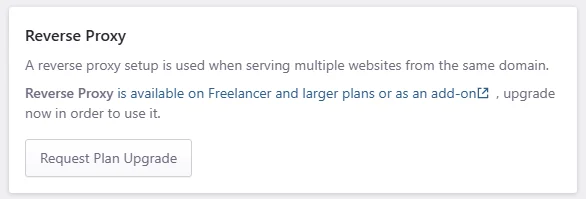
Reverse Proxy is available on Freelancer and larger plans or as an account add-on.
Depending on your account, the section may provide:
- A link explaining eligible plans
- A link to the available add-on
- A Request Plan Upgrade button
Click Request Plan Upgrade to contact Pressidium about enabling the feature for your account.
Domain Names list
The Domain Names section lists the domains associated with the website.
Use the search field to find a domain by name. Click Add Domain to begin adding another domain or subdomain.
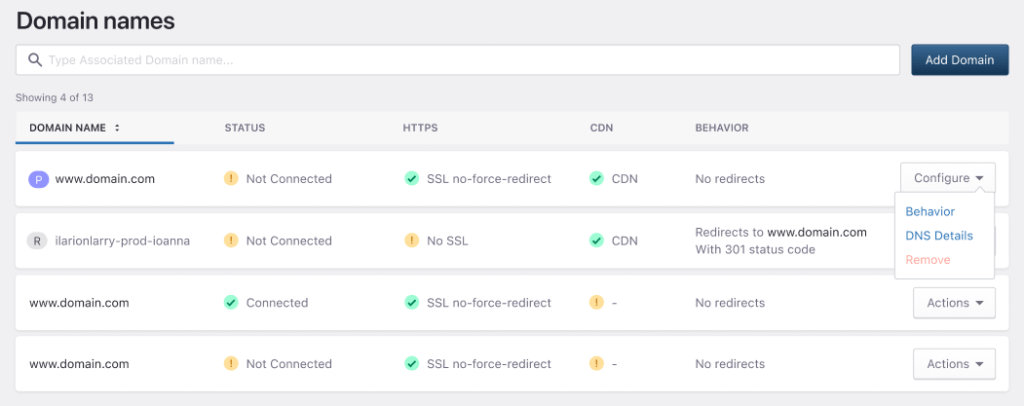
For each domain, the table shows:
- Domain Name: shows the hostname associated with the website. The primary domain may be marked with an icon beside its name.
- Status: shows whether the domain’s DNS configuration connects it to Pressidium. Possible states include:
- DNS Not Connected
- Connected
- A pending or updating state.
- HTTPS: shows the domain’s SSL certificate status.
If the status shows SSL Pending, click Verify DNS for SSL to review the DNS record required for ownership and SSL verification. - The CDN column shows the current CDN delivery status for the domain. The value may change while DNS or domain configuration is still in progress. Review the domain’s DNS details when the expected status does not appear after DNS propagation has completed.
- The Behavior column shows how the domain responds when visitors access it. For example:
- No redirects means the website is served directly through that domain.
- A redirect destination means visitors are sent to another associated domain.
Additional status information or actions may appear at the end of the row while a domain is being configured or updated.
Add a domain
Click Add Domain to associate another domain or subdomain with the website.

The button opens the domain setup flow, where you can enter the domain and review the required DNS records.
Follow Add a domain or subdomain and update DNS records for the complete procedure.
Configure a domain
The actions available for a domain depend on its current status.
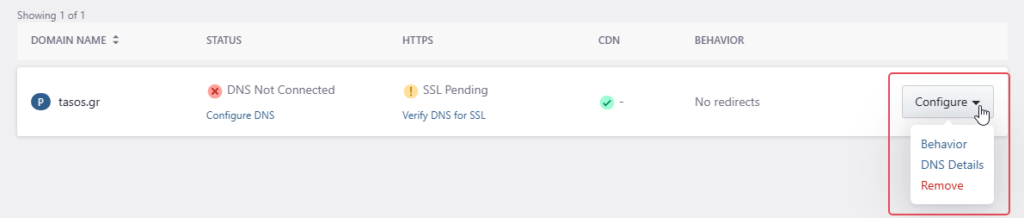
A configured domain may provide a Configure menu containing:
- Behavior
- DNS Details
- Remove
Behavior settings
Open Configure → Behavior to review or change how visitors access the domain.
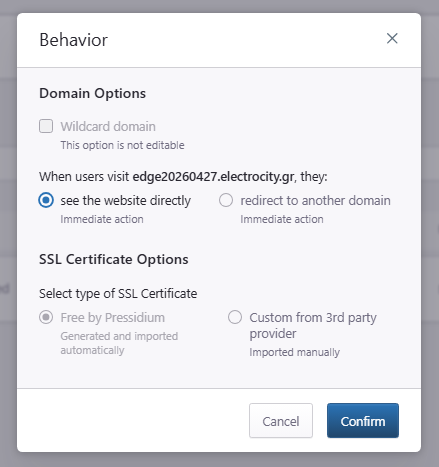
Under When users visit this domain, select one of the available behaviors:
- See the website directly
- Redirect to another domain
Choose See the website directly when the domain should serve the WordPress site.
Choose Redirect to another domain when visitors should be sent to another domain associated with the website.
Click Confirm to apply the change or Cancel to close the window without saving.
DNS Details
Open Configure > DNS Details to review the DNS records required for the domain.
The DNS settings can include separate areas for:
- Domain ownership and SSL verification
- Routing website traffic
Use the copy controls next to DNS values to copy them without manually retyping them.
This Domain ownership and SSL verification section shows the record required to verify that you control the domain.
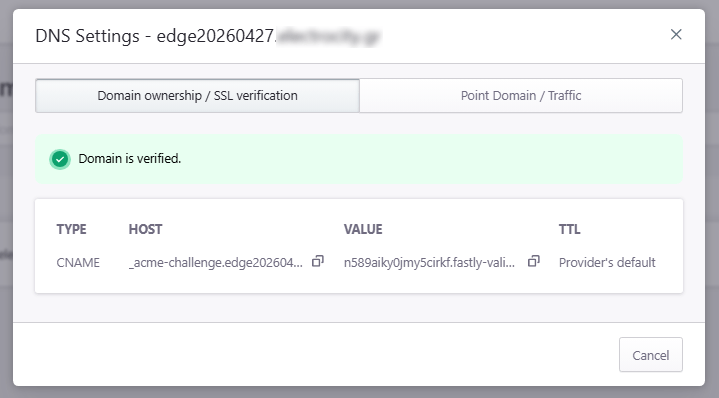
The record can be used for:
- Domain ownership verification
- SSL certificate issuance
- SSL certificate validation
When verification completes, the Dashboard displays a successful verification status.
The Point domain and traffic section shows the records required to route website traffic to Pressidium.
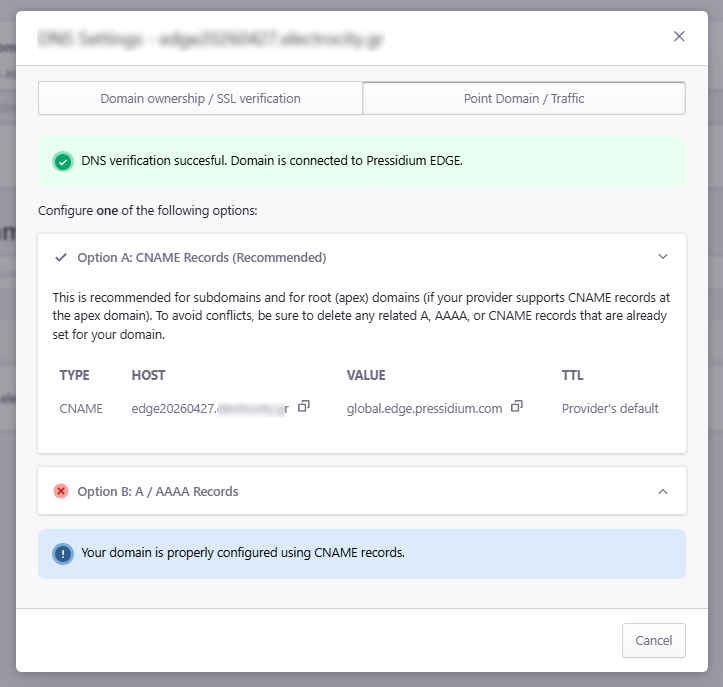
The Dashboard may provide:
- A recommended CNAME configuration
- Alternative A and AAAA records
Use the record option displayed for your domain and DNS provider.
A CNAME is commonly used for subdomains. Root-domain support depends on whether the DNS provider supports CNAME flattening or an equivalent apex-domain feature.
Before adding a new routing record, check for conflicting A, AAAA, or CNAME records using the same hostname.
For a more detailed guide, visit Pointing your domain to EDGE.
Remove a domain
Open Configure → Remove to disassociate a domain from the website.
Configure DNS and Verify DNS for SSL actions
A domain awaiting setup may show inline actions:
- Configure DNS opens the DNS Settings modal on the Point Domain / Traffic tab.
- Verify DNS for SSL opens the same modal on the Domain ownership / SSL verification tab.
Use the displayed DNS records to complete the required configuration at your DNS provider.
Common issues and solutions
DNS Not Connected
Symptom: The domain status shows DNS Not Connected.
Likely causes:
- The required DNS records have not been added
- The wrong DNS zone was updated
- An old record conflicts with the new record
- The DNS change has not propagated yet
Resolution:
- Click Configure DNS.
- Compare the displayed records with those at your DNS provider.
- Confirm that the host, type, and value match exactly.
- Remove conflicting records when appropriate.
- Wait for DNS propagation.
Verification: The domain status changes to Connected.
SSL Pending
Symptom: The HTTPS column shows SSL Pending.
Likely causes:
- The ownership-verification record is missing
- The record contains an incorrect host or value
- DNS has not propagated
- Domain routing is not complete
Resolution:
- Click Verify DNS for SSL.
- Confirm that the required record exists at the authoritative DNS provider.
- Correct any differences in the host, value, or record type.
- Wait for the record to propagate.
Verification: The HTTPS status changes to SSL Enabled.
The domain is being updated
Symptom: The domain row displays This domain is being updated.
This means a domain-related change is still being processed.
Wait for the update to finish before changing the WordPress site domain address, domain behavior, or DNS configuration again.
If the status remains unchanged for an extended period, contact Support and include the domain and approximate time when the update was started.
The Update button is unavailable
The Update button may be unavailable when:
- No new domain address has been entered
- The entered address is not valid
- The domain is still being processed
- Another domain-related operation is in progress
Confirm that the address includes the complete protocol and domain, such as https://example.com.
The website still loads from the previous destination
This usually means DNS has not fully propagated, the wrong DNS zone was updated, or an old DNS record remains active.
Confirm that you updated records at the authoritative DNS provider. Check both the root domain and www hostname when both are used.
Redirects do not work as expected
Redirect conflicts can occur when similar redirects are configured in multiple places.
Review:
- Domain behavior in the Pressidium Dashboard
- WordPress URL settings
- Redirect plugins
- Web server or application redirects
- CDN or proxy redirect rules
Avoid configuring the same redirect in multiple systems.
www and non-www behave differently
The www and non-www versions are separate hostnames. They may require separate domain entries and DNS records.
Confirm that both hostnames are added where required and that the intended primary version serves the website directly. Configure the other version to redirect when appropriate.
Need help?
- DNS remains disconnected after the records have propagated
- SSL remains pending after successful domain verification
- A domain update does not complete
- The WordPress site becomes inaccessible after changing its domain address
- The domain resolves to the wrong destination
- A redirect causes a loop or points to the wrong domain
- You need Reverse Proxy but cannot access the upgrade option
Include:
- Website name
- Environment
- Domain name
- DNS provider
- Current DNS records
- Screenshot of the domain status
- Approximate timestamp of the latest change
- The action you were performing when the issue occurred
Where to go next
- Follow Add a domain or subdomain and update DNS records to connect another address to the website.
- Follow Add a domain redirect to redirect one associated domain to another.
- Follow Install a Let’s Encrypt certificate when a certificate must be installed for a managed-hosting domain.
- Check whether DNS changes have propagated when recently changed records are not yet detected.
Was this article helpful?