

Roll back to a previous version
You can roll back a website to an earlier version by restoring one of its Instant backups from the Pressidium Dashboard.
- Select the Websites menu option from the Dashboard sidebar.
- Go to your website’s overview by clicking on its name.
- Navigate to the Backups page by clicking the link on the navigation bar.
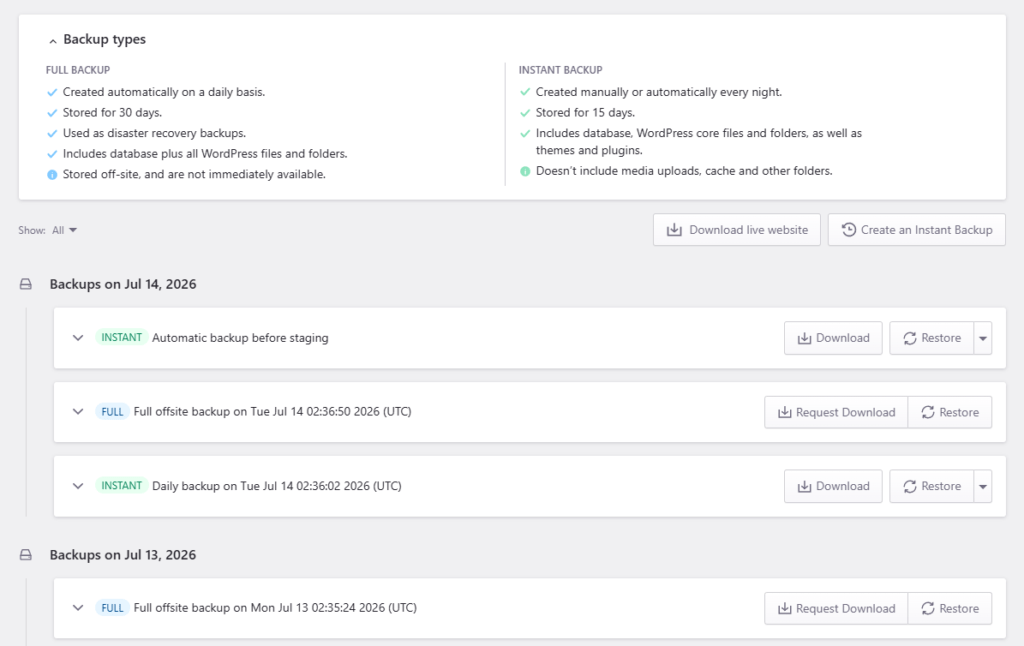
- Locate the backup you want to restore by inspecting its description and timestamp. You can filter the Backup list by selecting Show:Instant to display only Instant backups. Additional backup details (e.g. exact time taken, plugins and themes included, WordPress core version) are available by clicking on the backup list item to expand the details view.
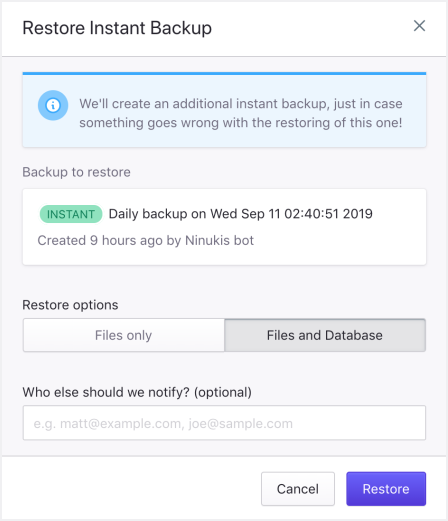
- Click Restore to display the Restore Instant Backup dialog.
- Select a restore option: Files and Database to restore your website’s files as well as a copy of the database at the point the backup was taken. Files only to restore only your website’s files, database will be left intact.
- Optionally enter any additional emails to receive notifications about the process.
- Click Restore to start the restore process. You will receive a Dashboard notification once the operation is complete.
Need help?
If you are not sure which restore point to use, or the rollback does not restore the expected version, contact our Support team before making further changes.
Where to go next
- Restore an instant backup if you need to recover your site from a previous backup.
- Create an instant backup before making new changes after the rollback.
- Review access and error logs if you need to understand what caused the issue.
- Deploy staging to production when the corrected version is ready to go live.
Was this article helpful?