

Manage Themes
The Themes page gives you an overview of the themes installed on your website.
The information shown applies to the currently selected Production or Staging environment.
When to use
Use the Themes page when you want to:
- Confirm which WordPress theme is active
- Review installed theme versions
- Find inactive themes
- Check whether updates are available
- Record theme information when troubleshooting a website issue
Access the Themes page
- Log in to the Pressidium Dashboard.
- Go to Websites.
- Select the website you want to manage.
- Confirm that you are viewing the correct Production or Staging environment.
- Click Themes.
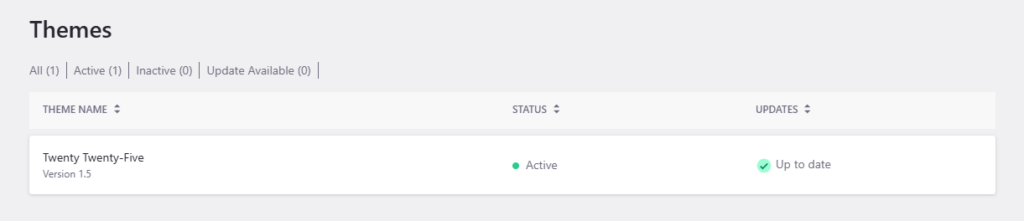
Sections included
- Theme status filters
- A table of installed themes
Theme status filters
Use the filters above the themes table to display themes based on their current status.
- All: Shows every installed theme.
- Active: Shows the theme currently active on the selected environment.
- Inactive: Shows installed themes that are not currently active.
- Update Available: Shows themes for which an update is available.
The number in parentheses indicates how many themes match each filter.
Themes table
The themes table provides the following information.
Theme name
Shows the name of the installed theme and its current version.
For example:
- Twenty Twenty-Five
- Version 1.5
Status
Shows whether the theme is currently:
- Active
- Inactive
WordPress can have only one active theme on each website environment.
Updates
Shows the update status reported for the theme.
- Up to date: The Dashboard is not currently reporting an available update.
- Update available: A newer version of the theme is available.
You can use the sorting controls beside the table headings to change the order in which themes are displayed.
Common questions
Why are different themes shown in Production and Staging?
Production and Staging are separate website environments. A theme installed, activated, or updated in one environment may not have the same status in the other.
Confirm the selected environment before reviewing theme information.
What does Active mean?
Active identifies the theme WordPress is currently using to control the website’s appearance and templates in the selected environment.
Can more than one theme be active?
No. Only one theme can be active in each WordPress website environment. Other installed themes appear as Inactive.
Need help?
If a theme is missing, its status appears incorrect, or your website has display problems after a theme change, contact Pressidium Support.
Include:
- The website name
- The affected environment
- The theme name and version
- A description of the issue
- A screenshot of the Themes page
Where to go next
- Troubleshoot theme display issues if your website layout or styling is not displaying correctly.
- Review the Plugins page to check installed plugins and investigate possible theme and plugin conflicts.
Was this article helpful?