

Manage website plugins
Use the Plugins screen in the Pressidium Dashboard to review and manage the WordPress plugins installed on your website.
When to use
Use this page when you want to:
- Check whether plugins are active or inactive
- Identify outdated or vulnerable plugins
- Review changes before installing an update
- Apply the same action to multiple plugins
- Refresh plugin information after making changes in WordPress
Access the Plugins page
- Log in to the Pressidium Dashboard.
- Go to Websites.
- Select the website you want to manage.
- Select Production or Staging.
- Go to WordPress → Plugins.
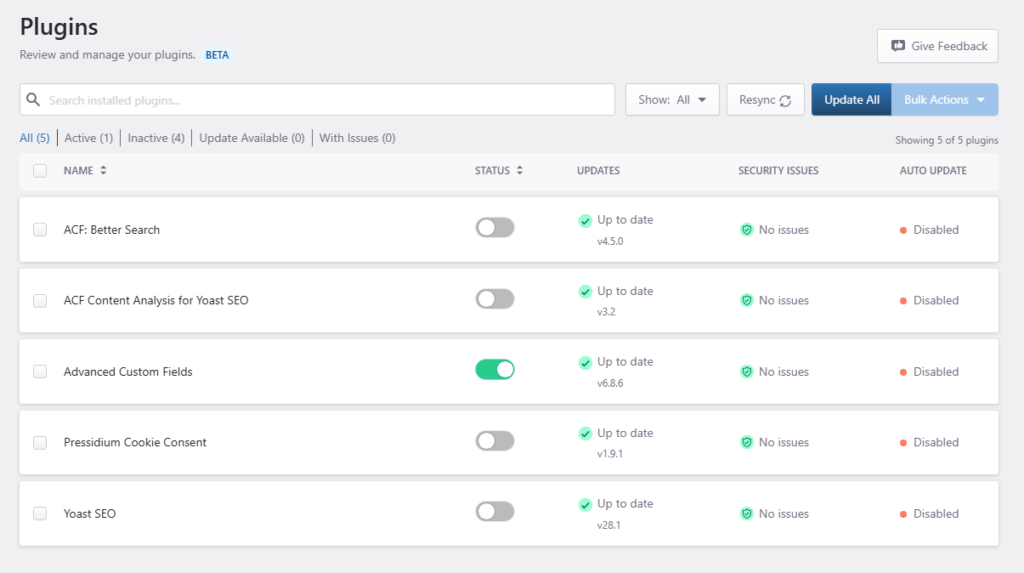
Plugin details
Each plugin is listed with the following details:
- Name: The plugin’s name.
- Status: Shows whether the plugin is active or inactive. Use the toggle to activate or deactivate it.
- Updates: Shows the installed version and whether the plugin is up to date. When an update is available, you can update the plugin from this page.
- Security Issues: Shows whether any known security issues have been detected for the installed plugin version.
- Auto Update: Shows whether automatic updates are enabled or disabled for the plugin.
Plugin search and filters
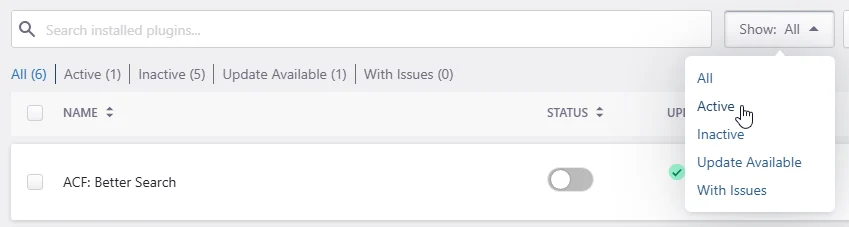
Use the search field to find an installed plugin by name.
Use the Show menu or the filters above the plugin table to display:
- All
- Active
- Inactive
- Update Available
- With Issues
The number beside each filter shows how many plugins match that state.
Update controls and changelog
When a newer version of a plugin is available, the Updates column displays Update available.
Open the update menu to review the available version or select Changelog.

Depending on the information provided by the plugin developer, the plugin information window can include:
- Plugin homepage
- Plugin author
- Description tab
- Changelog tab
Review the changelog before significant updates to understand changes, fixes, and possible compatibility requirements.
Update a plugin
To update one plugin:
- Find the plugin marked Update available.
- Open its update menu.
- Select Changelog, when available, and review the changes.
- Select the available update version.
- Wait for the background job to complete.
You will receive a Dashboard notification when the operation finishes.
After the update, confirm that the new plugin version is displayed and test the website functionality affected by the plugin.
Update selected plugins
To update several plugins at the same time:
- Select the plugins you want to update.
- Open Bulk Actions.
- Select Update.
- Apply the action.
- Wait for the background job to complete.
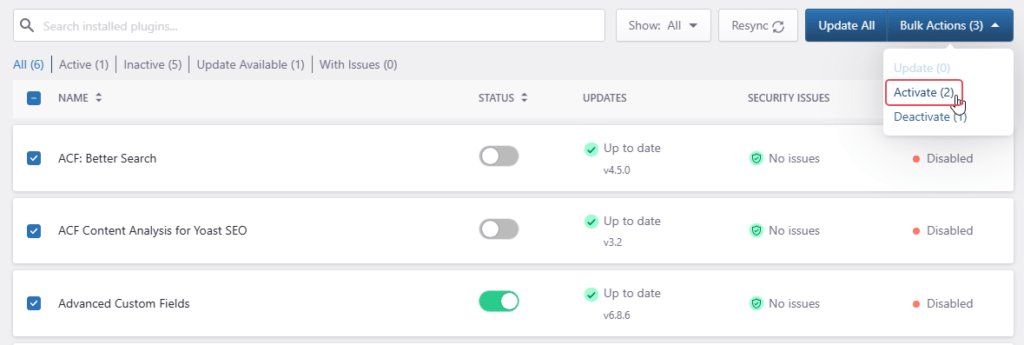
Only selected plugins with an available update are updated.
Update all plugins
To update all plugins with available updates:
- Select Update All.
- Review the confirmation window.
- Select Update All Plugins.
- Wait for the background job to complete.
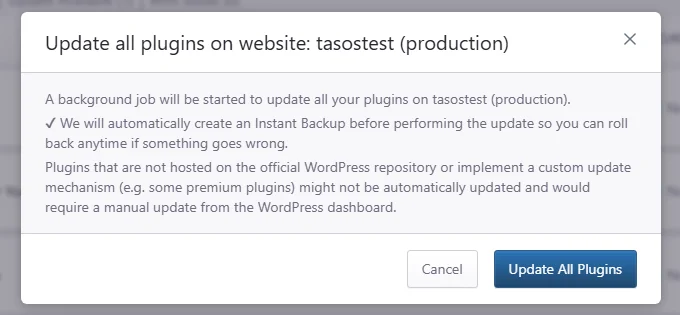
The Dashboard updates all plugins with an available update.
After the operation completes, test the website and confirm that important functionality continues to work correctly.
Some premium plugins and plugins that use custom update mechanisms may not update through the Pressidium Dashboard. When required, update these plugins from the WordPress dashboard according to the plugin developer’s instructions.
Activate or deactivate a plugin
To change the status of one plugin:
- Find the plugin.
- Use the toggle in the Status column.
- Review the confirmation window.
- Select Activate Plugin or Deactivate Plugin.
- Wait for the background job to complete.
- Confirm that the plugin shows the expected status.
Test the website after changing a plugin’s status.
Activate or deactivate multiple plugins
To change the status of several plugins:
- Select the plugins you want to change.
- Open Bulk Actions.
- Select Activate or Deactivate.
- Apply the action.
- Wait for the background job to complete.
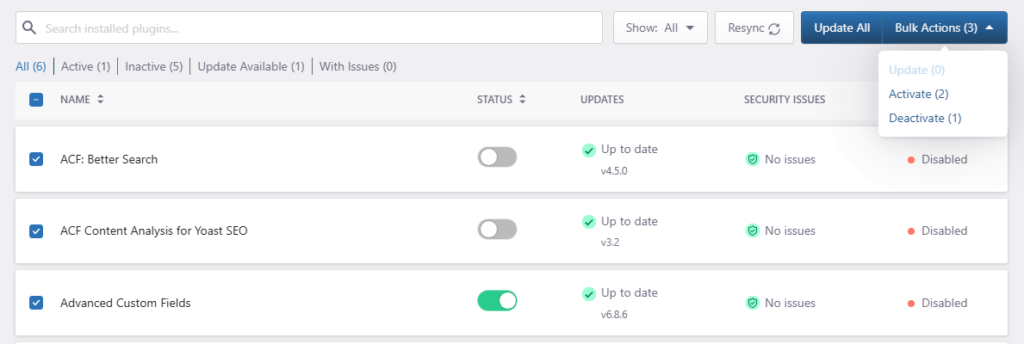
The number beside Bulk Actions shows how many plugins are selected.
Actions that do not apply to the selected plugins are unavailable. For example:
- Update is unavailable when none of the selected plugins has an update.
- Activate is unavailable when all selected plugins are already active.
- Deactivate is unavailable when all selected plugins are already inactive.
After the operation completes, confirm the status of the selected plugins and test the website.
Resync plugin information
Plugin information is synchronized with your WordPress installation. If information displayed in the Dashboard appears outdated, select Resync to refresh it.
Use Resync when:
- A plugin was installed or removed directly in WordPress.
- A plugin was updated from WordPress.
- A plugin’s status changed outside the Pressidium Dashboard.
- The displayed version or security information appears outdated.
Review plugins with security issues
The Security Issues column shows whether known security issues have been detected for the installed plugin version.
To review affected plugins:
- Open the Show filter.
- Select With Issues.
- Review the affected plugin and installed version.
- Check whether an updated version is available.
- Review the changelog or the plugin developer’s release notes.
- Test the update on Staging whenever possible.
- Update the Production plugin after confirming that the website works correctly.
A security warning indicates that the installed plugin version may be affected by a reported vulnerability. It does not necessarily mean that the website has been compromised.
When a fixed version is available, prioritize updating the affected plugin.
If no fixed version is available:
- Review the plugin developer’s security guidance.
- Consider temporarily deactivating the plugin.
- Replace the plugin with a maintained alternative when appropriate.
- Review whether the plugin is still required.
Manage plugins from the website Overview
You can also review plugin status and install available updates from the website Overview screen.
To access it:
- Go to Websites.
- Select the website you want to manage.
- Select Production or Staging.
- Open Overview.
- Find the Plugins section.
By default, this section displays plugins with available updates.
Use the Show menu to display:
- All plugins
- Active plugins
- Disabled plugins
- Outdated plugins
- Plugins with security issues
From this section, you can review plugin information, open available changelogs, update individual plugins, or update all outdated plugins.
Use the dedicated Plugins screen when you need to select specific plugins, perform bulk actions, or activate and deactivate plugins.
Verification
After updating, activating, or deactivating a plugin:
- Wait for the background job to complete.
- Review the Dashboard notification and confirm that the operation completed successfully.
- Return to the Plugins screen.
- Select Resync if the displayed information has not refreshed.
- Confirm the expected plugin version or status.
- Open the website in a private or incognito browser window.
- Test the functionality affected by the plugin.
Depending on the website, check important functionality such as:
- WordPress administration
- Forms
- Navigation and page layouts
- Search
- User accounts
- WooCommerce product, cart, and checkout pages
- Third-party integrations
Common issues and solutions
Plugin information is outdated
Select Resync to refresh plugin versions, statuses, and security information from WordPress.
A plugin update is not available in the Dashboard
Some plugins outside the official WordPress repository or plugins that use custom update mechanisms cannot be updated through the Pressidium Dashboard.
Check:
- Whether the update is available from the WordPress dashboard
- The plugin developer’s documentation
- Whether the plugin license or subscription is active
- Whether the plugin requires a manual update
A Bulk action is unavailable
An action is disabled when it does not apply to the selected plugins.
For example:
- Update is disabled when no selected plugin has an update
- Activate is disabled when all selected plugins are already active
- Deactivate is disabled when all selected plugins are already inactive
A plugin update fails
Review the Dashboard notification for the failed job.
Confirm that:
- The plugin supports your current WordPress version.
- The plugin supports your current PHP version.
- The plugin license is active, when required.
- Another plugin-management job is not already running.
After checking these requirements, retry the update.
A Bulk Action is unavailable
An action is unavailable when it does not apply to the selected plugins.
For example:
- Update is unavailable when no selected plugin has an update.
- Activate is unavailable when all selected plugins are active.
- Deactivate is unavailable when all selected plugins are inactive.
Plugin controls are unavailable
Confirm that:
- You have permission to manage the website.
- The correct environment is selected.
- No other plugin-management job is running.
- The website is connected and responding correctly.
The website has a problem after a plugin change
Restore the Instant Backup created automatically before the plugin operation if the website stops working correctly.
If the Dashboard remains accessible, you can also deactivate the affected plugin.
Test the change on Staging before attempting it again on Production.
Best practices
- Review the changelog before significant plugin updates.
- Test important updates on Staging before applying them to Production.
- Prioritize plugins with known security issues.
- Avoid updating several critical plugins together unless the changes have already been tested.
- Test important website functionality after plugin changes.
- Remove plugins that are no longer required.
- Review the list of banned plugins before installing caching, backup, security, or server-management plugins.
Need help?
- A plugin-management job repeatedly fails.
- A plugin remains in the wrong state after the job completes.
- Your website becomes unavailable after a plugin change.
- You cannot restore the automatically created backup.
- A security warning remains after installing a fixed plugin version.
Include:
- Website name
- Environment: Production or Staging
- Plugin name and version
- Action you performed
- Approximate time of the action
- Dashboard notification or job status
- Any visible error message
- Screenshot of the issue
- Troubleshooting steps you already completed
Where to go next
- Create an Instant Backup if you want an additional manual recovery point before making significant changes.
- Restore an Instant Backup if you need to recover from an unsuccessful plugin change.
- Troubleshoot plugin compatibility problems if a plugin causes errors, conflicts, or unexpected website behavior.
- Review banned plugins before installing plugins that may conflict with the Pressidium platform.
Was this article helpful?