

Performance Plugin EDGE integration
The Pressidium Performance Plugin can be used on its own to help optimize front-end assets and Media Library images inside WordPress.
When connected to EDGE, the plugin also acts as the WordPress integration layer between your site and the EDGE platform.
This gives EDGE additional WordPress awareness for cache management, purging, and site information collection.
What changes when the plugin is connected to EDGE
When the plugin is connected to Pressidium EDGE, it does more than optimize assets.
It helps EDGE understand your WordPress site and respond to WordPress changes more accurately.
The EDGE integration adds:
- WordPress-aware cache tagging
- Automatic cache purging after content changes
- Manual cache purge controls
- Developer hooks for custom purge workflows
- Structured WordPress installation data collection
This makes the plugin both a local WordPress optimization tool and an integration layer between WordPress and EDGE.
Connect to EDGE
Connecting your site to Pressidium EDGE enables automatic cache management between WordPress and the EDGE platform and unlocks additional EDGE cache-management controls.
Step 1: Get the Client ID and Client Secret
You will need the Client ID and Client Secret provided in the final step of creating a new site. If you did not save these credentials, locate the Client ID in the Dashboard and, if needed, generate a new Client Secret:
- Login to the Pressidium Dashboard
- On the Sites screen, select your site and click Manage Website.
- Navigate to WordPress → Settings page and locate the WordPress Integration section.
- Copy the displayed Client ID to your clipboard.
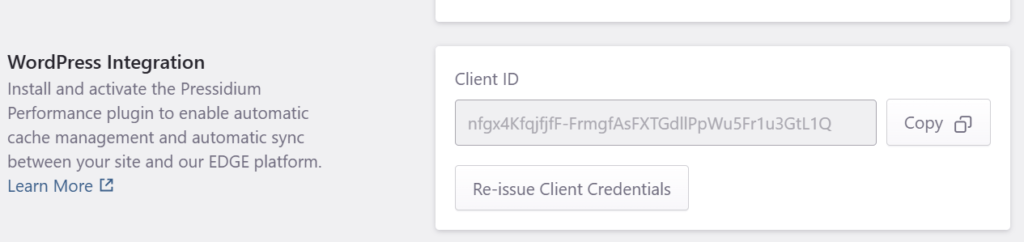
You can also Re-issue the Client Credentials. This may be needed if:
- The original secret was not copied.
- The secret was exposed.
- You want to rotate the credentials.
- The WordPress plugin connection needs to be reset.
Step 2: Enter the credentials in the plugin’s settings
Click Performance in the menu to open the Performance Plugin settings, then open the Pressidium EDGE tab.
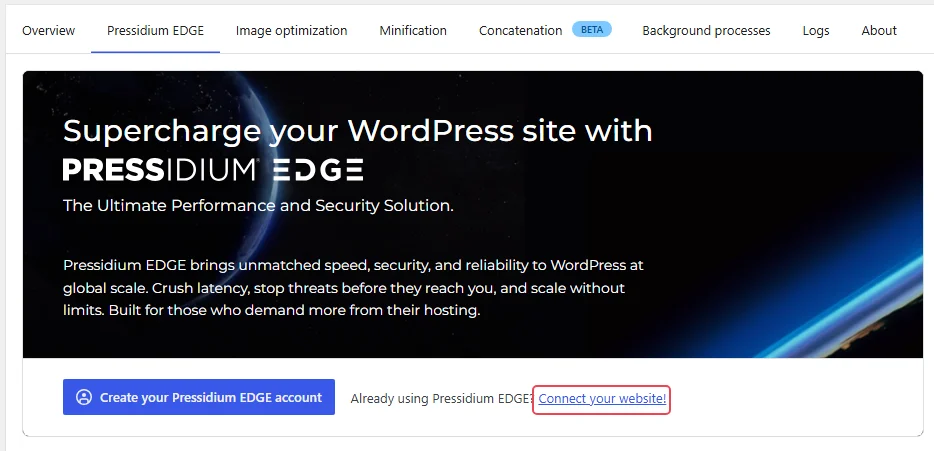
Click Connect your website to open the popup window and paste the Client ID and Client Secret.
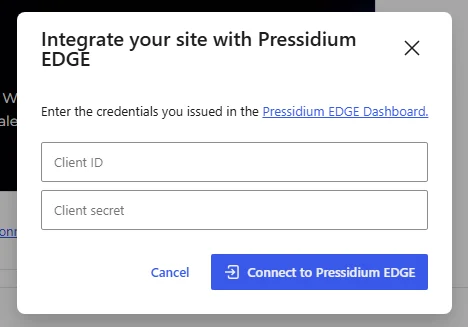
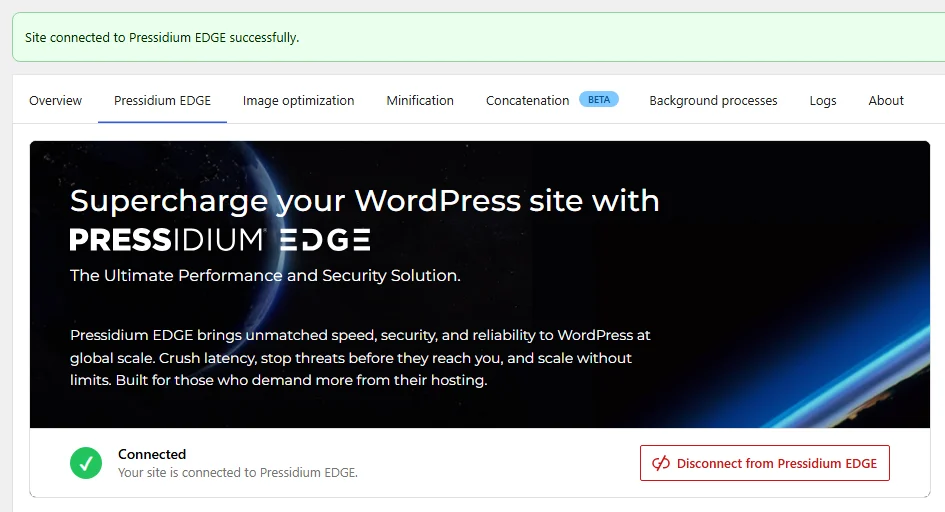
Click Connect to Pressidium EDGE. You should see a confirmation that the connection was successful:
Troubleshooting issues
If Connect to Pressidium EDGE returns an error:
- Check that the Client ID and Client Secret were copied correctly. If you re-issued the Client Secret, make sure you are using the latest value.
- Try connecting again after a few minutes.
- If the issue persists, contact Pressidium Support and include the affected domain and a screenshot of the error.
Cache management
The plugin helps EDGE manage cached WordPress content.
It adds cache tags to requests so EDGE can identify what each cached response represents. For example, a cached response may relate to a single post, an archive page, or another WordPress-generated view.
This allows EDGE to purge the right cached content when changes happen in WordPress.
Automatic purges may be triggered by actions such as:
- Creating, updating, or deleting a post
- Updating existing content
- Installing or updating a plugin
- Changing a theme
- Other WordPress actions that affect cached output
This helps keep cached content fresh without requiring you to manually purge the entire site after every change.
Manual purge controls
You can also purge cached content manually from the plugin settings page.
Use manual purge when you want to clear cached content immediately, for example after:
- Publishing major content updates
- Changing layout or theme settings
- Updating important assets
- Troubleshooting stale content
- Making changes that are not covered by automatic purge behavior
After purging, EDGE will fetch fresh content from your origin the next time it is requested.
Developer purge hooks
The plugin exposes WordPress hooks for programmatic cache purge control.
Developers can use these hooks to trigger purges from custom workflows, plugins, or deployment processes.
This is useful when cached content depends on:
- Custom post types
- Custom fields
- Page builders
- External integrations
- Import jobs
- Deployment workflows
- Non-standard publishing flows
Use developer purge hooks when automatic purging does not fully match how your site updates content.
WordPress installation data collection
When connected to EDGE, the plugin collects structured information about your WordPress installation and sends it to the EDGE API.
This helps EDGE understand the site environment and support WordPress-aware behavior.
The collected information may include:
- WordPress core details, such as version, database version, locale, timezone, URLs, domains, site type, and user count
- PHP environment details, such as PHP version, server architecture, web server, loaded extensions, time limit, and memory limit
- Database details, such as server version, table prefix, charset, collation, table names, table sizes, index sizes, and estimated row counts
- Plugin details, such as name, slug, version, author, active state, network activation, auto-update status, update availability, and WordPress.org availability
- Theme details, such as name, slug, version, author, active state, child theme status, parent theme, auto-update status, and update availability
- MU plugin details, such as name, slug, version, and author
This information is used to support the EDGE integration and improve platform awareness of your WordPress environment.
How the plugin and EDGE work together
The relationship is simple:
- The Performance Plugin optimizes assets inside WordPress.
- Pressidium EDGE accelerates and protects traffic before it reaches your origin.
- When connected, the plugin gives EDGE additional WordPress intelligence.
Together, they support:
- Faster front-end assets through plugin optimization
- Faster delivery through EDGE caching and routing
- More accurate cache purging through WordPress-aware cache tags
- Better platform awareness through structured site information
The plugin complements EDGE at the WordPress performance layer and integrates with EDGE at the WordPress intelligence layer.
What this does not mean
Connecting the plugin to EDGE does not mean the plugin replaces EDGE.
It also does not mean EDGE becomes a WordPress plugin.
The plugin does not replace:
- EDGE Dashboard access
- DNS setup
- SSL setup
- Firewall rules
- Traffic analytics
- Security events
- Billing or plan management
Common questions
Do I need the plugin to use EDGE?
EDGE is the platform layer that sits in front of your site. The plugin is used to connect WordPress to EDGE for WordPress-aware behavior such as cache tagging, purging, and site information collection.
Can I use the plugin without EDGE?
Yes. The plugin can be used on its own for image optimization, CSS and JavaScript minification, optional concatenation, and background optimization tasks.
What extra value does the plugin add when connected to EDGE?
It gives EDGE more WordPress context.
This helps with cache tagging, automatic purging after WordPress changes, manual purge controls, developer purge workflows, and structured site information collection.
Does the plugin manage EDGE security or analytics?
No. EDGE security, Firewall rules, traffic analytics, DNS, SSL, and billing remain managed from the Pressidium Dashboard.
Does the plugin purge the entire site every time content changes?
The integration is designed to support more WordPress-aware purging through cache tags. This helps EDGE clear relevant cached content instead of relying only on broad manual purges.
Common issues and solutions
The plugin is installed but not connected to EDGE
Check that the site has been added to your EDGE account and that you have the required API credentials.
Then open the plugin settings and confirm the connection details are entered correctly.
Cache does not update after a WordPress change
First, check whether the plugin is connected to EDGE.
Then confirm that the content change is one of the actions that should trigger a purge. If the content is generated by a custom workflow, custom post type, or external integration, you may need a developer purge hook.
Manual purge does not appear to update the page
Clear the relevant cache and request the page again.
If the page still shows old content, check whether the browser, another plugin, the origin server, or another caching layer is also serving cached content.
Custom content is not purged as expected
Custom workflows may need custom purge logic.
Use developer purge hooks when content changes outside standard WordPress publishing actions.
Best practices
- Connect the plugin to EDGE after the site has been added to your EDGE account.
- Keep the plugin active if you rely on WordPress-aware purge behavior.
- Use manual purge for major content or layout changes.
- Use developer purge hooks for custom publishing workflows.
- Avoid using multiple plugins that try to control the same cache behavior.
- Use the Pressidium Dashboard for EDGE platform settings.
- Use the plugin for WordPress-side optimization and integration.
Need help?
If the plugin does not connect to EDGE or cache purging does not behave as expected, contact Support and include:
- Site URL
- WordPress version
- Plugin version
- EDGE site name or domain
- Description of the content change
- Time the change was made
- Whether the issue affects one URL or the whole site
- Screenshot of the plugin connection status, if available
- Any custom workflow, custom post type, or page builder involved
Where to go next
After you connect the Pressidium Performance Plugin to EDGE, review the available settings and confirm the integration is working as expected.
- To change plugin options, follow Configure Performance Plugin settings.
- To confirm your EDGE setup is complete, follow Verify your setup.
- To troubleshoot a disconnected integration message, review WordPress integration not connected.
- To troubleshoot plugin connection or sync issues, review Performance Plugin troubleshooting.
Was this article helpful?