

Optimize CSS and JavaScript with the Performance Plugin
The Pressidium Performance Plugin helps optimize CSS and JavaScript by reducing file size and, optionally, combining files. These features can improve loading speed and reduce browser requests.
What CSS and JS optimization does
CSS and JS optimization focuses on two main features:
- Minification
Reduces the size of JavaScript and CSS files by removing unnecessary characters. - Concatenation
Combines multiple JavaScript or CSS files into a single file to reduce HTTP requests.
You can manage these settings from wp-admin → Performance
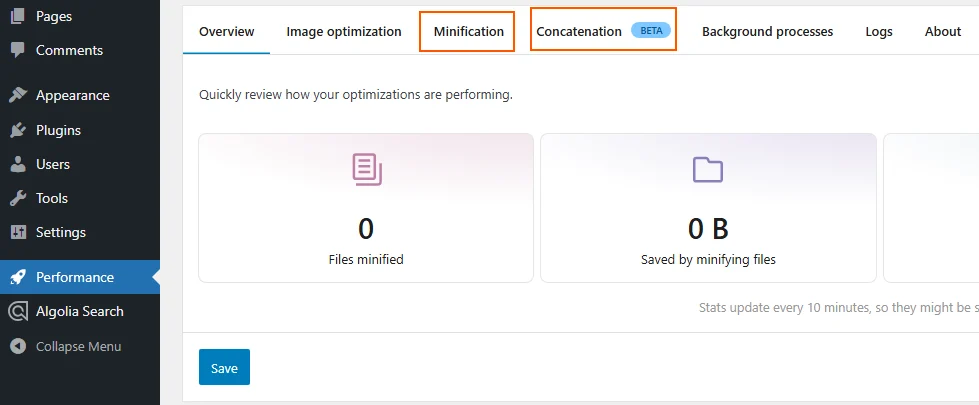
Then open either the Minification or Concatenation tab.
Minification
Minification reduces the size of your JavaScript and CSS files. This can help your pages load faster because the browser has less code to download and process.
How minification works
When a front-end page is requested, the plugin scans the generated HTML and looks for eligible JavaScript and CSS files.
If it finds files that can be minified, it queues them for background optimization. If a file has already been minified, the plugin serves the optimized version instead.
Which files are minified
The plugin minifies JavaScript and CSS files when they meet these conditions:
- The file is not excluded from minification
- The file has not already been minified by the plugin
- The file is not already minified
- The file is not empty
- The file is a supported file type, meaning JS or CSS
Excluding files from minification
Some scripts or stylesheets may not work correctly after minification.
You can exclude them from the Minification tab.
Use the following sections:
- Script exclusions for JavaScript files
- Style exclusions for CSS files
You can use either:
- Absolute URLs
- Regular expressions
Developers can also exclude files programmatically with this filter:
pressidium_performance_minification_exclusions_{$file_type}The $file_type value can be either js or css.
Where minified files are stored
Minified files are stored in
wp-content/uploads/pressidium-performance/minified/
, a directory that is created automatically.
It also stores a database record for each minified file.
When minified files expire
Minified files are considered valid for 7 days by default.
During this time, the plugin serves the cached optimized version.
After 7 days, the plugin checks whether the original file has changed.
If the file changed, it will be minified again.
Developers can adjust this period with this filter:
pressidium_performance_minification_ttl_in_daysConcatenation
Concatenation combines multiple JavaScript or CSS files into one file.
This can reduce the number of HTTP requests needed to load a page.
You can manage this from the Concatenation tab.
How concatenation works
When a non-admin page is requested, the plugin scans the HTML.
It looks for script and style tags.
Then it groups files by type:
- JavaScript
- CSS
The plugin creates a hash based on the original file URLs.
If no matching concatenated file exists, the files are queued for background processing.
If a matching file already exists, the cached version is served.
Excluding files from concatenation
Some files may need to load separately.
You can exclude them from the Concatenation tab.
Use the following sections:
- Script exclusions for JavaScript files
- Style exclusions for CSS files
You can use absolute URLs or regular expressions.
Developers can also use this filter:
pressidium_performance_concatenation_exclusions_{$file_type}The $file_type value can be js or css.
Where concatenated files are stored
Concatenated files are stored here:
wp-content/uploads/pressidium-performance/concatenated/The files are named using the generated hash.
Example file paths may look like this:
wp-content/uploads/pressidium-performance/concatenated/1234567890abcdef.js
wp-content/uploads/pressidium-performance/concatenated/abcdef1234567890.cssThe plugin also stores records in the WordPress database.
If the plugin is deleted, these files and records are removed.
Recommended practice
To manage these settings efficiently and with minimal risk:
- Start with Minification, then check your site carefully. Review key pages, forms, menus, sliders, checkout pages, and interactive elements.
- Only enable Concatenation after confirming minification works correctly.
Because concatenation is a beta feature, it should be tested more carefully.
Troubleshooting CSS or JS issues
If something breaks after enabling optimization:
- Disable concatenation first
- Clear any caches
- Test the page again
- Exclude the affected CSS or JS file
- Re-enable the feature and test again
If the issue remains, disable minification for the affected file.
You can also check the Logs tab for debugging information.
Where to go next
After you configure CSS and JavaScript optimization, review the related plugin settings or check site performance.
- To change CSS, JavaScript, and other plugin options, follow Configure Performance Plugin settings.
- To configure image optimization, follow Automatic image optimization via Performance Plugin.
- To review site performance data after optimization, open Performance overview.
- To troubleshoot layout, loading, or optimization issues, review Performance Plugin troubleshooting.
Was this article helpful?