

Cloning a website using the Cloning Tool
You can easily create a clone (duplicate) of an existing installation by using our dedicated Cloning tool. To create a website clone:
- Select the Websites menu option from the Dashboard sidebar.
- Click on your website’s name to go to the website overview.
- Select Cloning Tool → Clone to my account.

The Cloning tool screen will open.
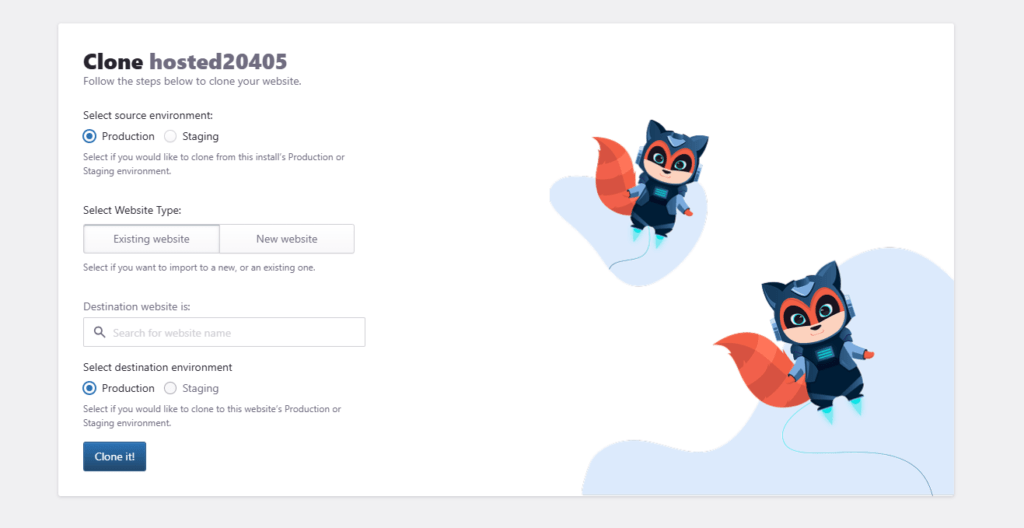
1. Select the source environment Staging or Production to clone the staging or the production environment respectively.
2. Select the Website Type to either create a new website or clone to an existing website.
Choose Existing website to clone to a new website to create a brand new website. To clone to a new website your account must have available website slots i.e must be below the maximum website limit imposed by your Plan. You have the option to clone directly to the Production or Staging environment.
You can also clone to an existing website. In that case, keep in mind that The existing installation files and data will be overwritten
3. Click Clone it! to start the cloning process. You can monitor the background job status by inspecting the Activity In Progress sidebar panel. When cloning is finished you will receive a Dashboard notification.
Creating a website clone is a great way to test out major updates and changes to your website without impacting your main website operations.
Need help?
If you are not sure whether to clone to a new website or overwrite an existing website, contact our Support team before starting the cloning process.
Where to go next
- Create an instant backup before cloning to an existing website.
- Initialize your staging environment if you want a safe environment for testing changes.
- Restore an instant backup to another website if you want another way to copy site content.
- Set up your domain and DNS records if the cloned site will use its own domain.
Was this article helpful?