

Team Settings
The Team Settings area lets you manage who has access to your Pressidium account, update team details, and review account activity.
Use this page when you need to invite teammates, assign roles, review pending invitations, update your team name, or check recent team activity.
Access Team Settings
To open Team Settings:
- Log in to the Pressidium dashboard.
- Click the avatar icon in the bottom-left corner.
- Select Team Settings.
The Team Settings area contains three tabs:
- Team Members
- Team Settings
- Activity Logs
Team Members
Use Teammates to invite people to your team and review who already has access to the account.
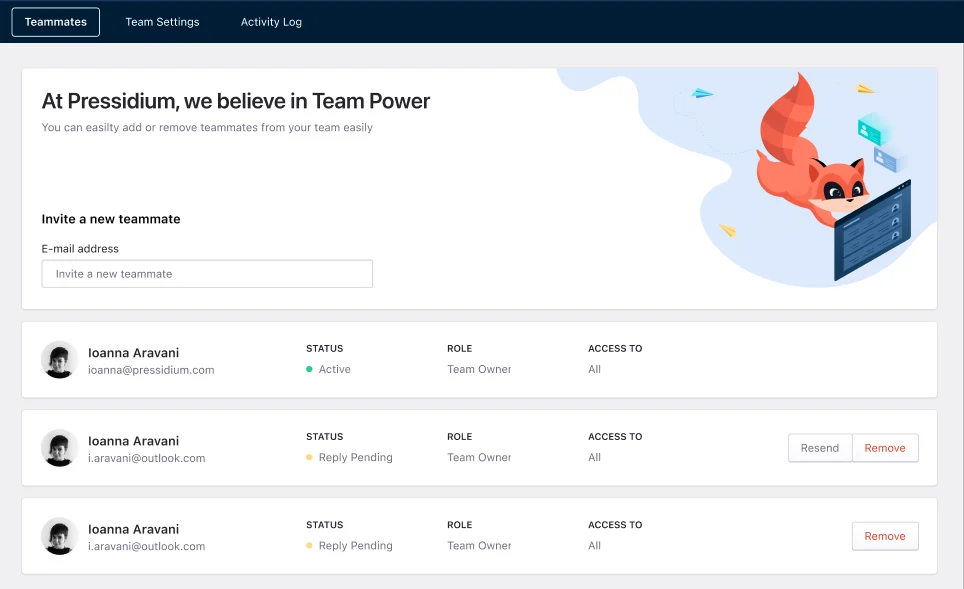
To invite a teammate:
- In E-mail address, enter the teammate’s email address.
- Under Choose a team role, select the access level the teammate should have.
- Click Send invitation.
The teammate will receive an email invitation to join your team.
Choose a team role
Select the role that matches what the teammate needs to do.
- Team Admin: Full access to everything in the team account.
- Websites Admin: Access to all websites or specific websites, depending on the permissions you configure.
- Billing Manager: Access only to team billing.
Review existing teammates
The teammate list shows each person’s name, email address, status, role, and access scope.
Common statuses include:
- Pending: The invitation has been sent but not accepted yet.
- Active: The teammate has accepted the invitation and can access the team.

If an invitation is pending, you can:
- Resend invitation: Sends a new invitation email.
- Remove invitation: Cancels the invitation so the person can no longer join with that invite.
Team Settings
Use the Team Settings tab to review and update basic settings for your team.
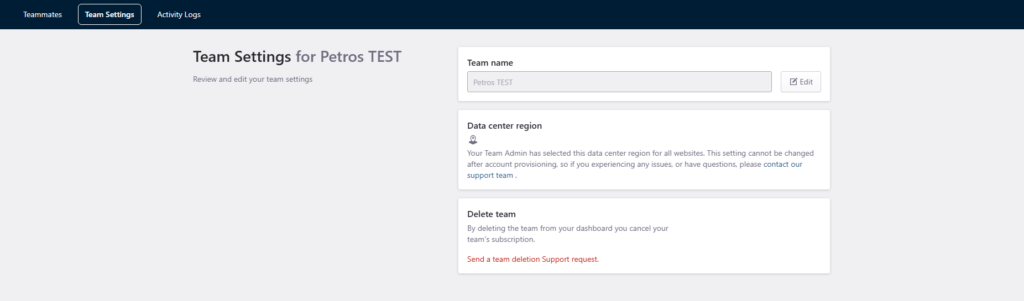
Edit the team name
To change the team name:
- Click Edit next to Team name.
- Enter the new team name.
- Save your changes.
Data center region
If you have questions about your team’s data center region, contact Support.
Delete a team
Deleting a team cancels the team subscription.
To start the process, click Send a team deletion Support request.
Activity Logs
Use Activity Logs to review recent activity for your team.
The log shows each recorded action with its audit ID, installation, environment, user, and date.
Review team activity
- Go to Team > Activity Logs.
- Review the latest entries in the table.
- Use the pagination controls to move between pages.
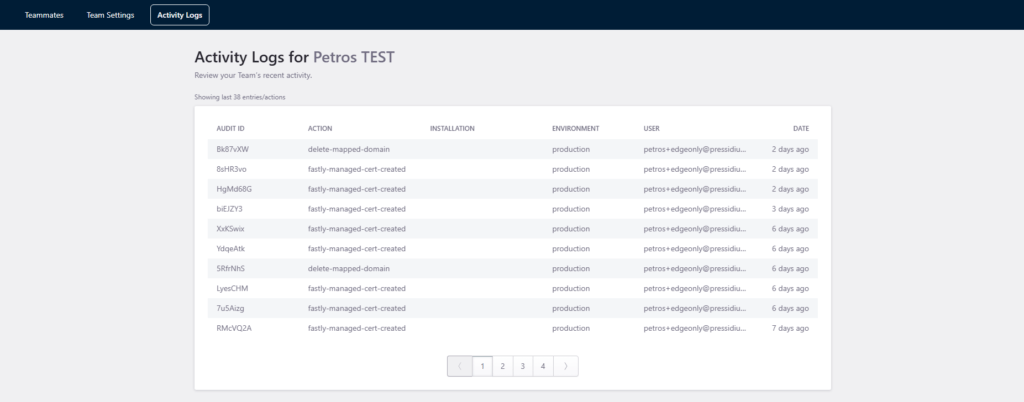
What the columns mean
Audit ID
Unique reference for the logged action.
Action
The event or change that was recorded.
Installation
The related site or installation, when available.
Environment
The environment where the action happened.
User
The teammate or account user who performed the action.
Date
When the action was recorded.
Need help?
If you cannot invite a teammate, update team settings, or review activity logs, contact Support and include:
- Your team name
- The affected user’s email address, if relevant
- The action you were trying to complete
- A screenshot of any error message
Where to go next
- Use Account Settings & Profile to update your personal profile, password, security settings, or SSH keys.
- Use Billing settings to review payment information, billing details, and invoice-related account information.
- Open Dashboard overview to learn where key account and site management areas are located.
- New to EDGE? Start with Create your account.
Was this article helpful?