

The EDGE Dashboard
The dashboard gives you a summary of your EDGE account, websites, support tickets, team access, and subscription activity.
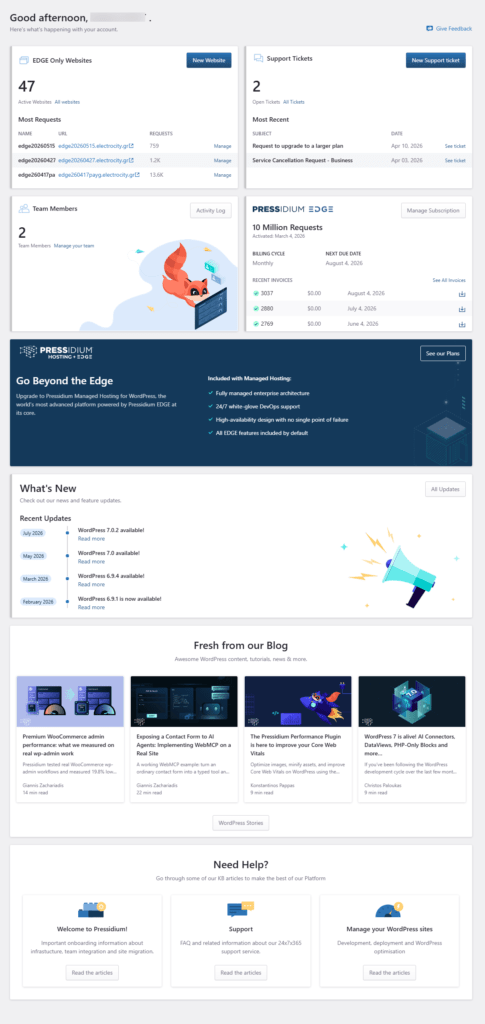
Use this page to quickly check account status, create a new website, review recent tickets, manage team members, and access billing information.
Included sections
The dashboard is divided into cards. Each card shows a different part of your EDGE account.
- EDGE Only Websites
- Support Tickets
- Team Members
- Subscription
- Go Beyond the Edge
- What’s New
- Fresh from our Blog
- Need Help?
EDGE Only Websites
The EDGE Only Websites card shows the websites connected to your EDGE account.
From this card, you can:
- View the number of active websites.
- See the websites with the most requests.
- Open the full website list by clicking All websites.
- Manage an individual website by clicking Manage.
- Start creating a new website by clicking New Website.
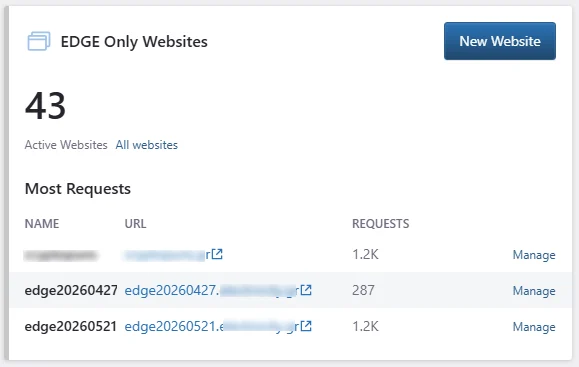
The Most Requests table shows:
- Name: The website name.
- URL: The website URL.
- Requests: The number of requests recorded for that website.
Note: If a website shows 0 requests, traffic may not be routed through EDGE yet, or the site may not have received traffic during the current reporting period.
Support Tickets
The Support Tickets card shows your current support activity.
From this card, you can:
- View the number of open tickets.
- Open the full ticket list by clicking All Tickets.
- Review the most recent support tickets.
- Open a specific ticket by clicking See ticket.
- Create a new support request by clicking New Support ticket.
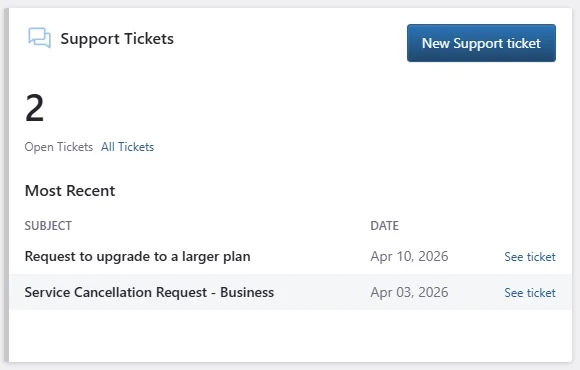
The Most Recent table shows:
- Subject: The ticket title.
- Date: The date the ticket was created or last updated.
- See ticket: A link to open the ticket details.
Team Members
The Team Members card shows how many users currently have access to your EDGE account.
From this card, you can:
- View the number of team members.
- Manage account users by clicking Manage your team.
- Review account activity by clicking Activity Log.
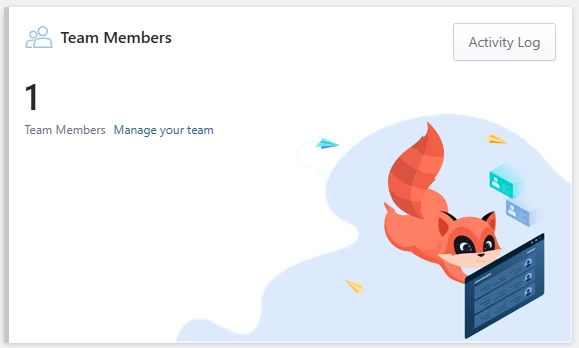
Use this section when you need to add, remove, or review users with access to your EDGE account.
Subscription
The subscription card shows your current EDGE plan and billing information.
From this card, you can see:
- Current EDGE plan.
- Activation date.
- Billing cycle.
- Next due date.
- Recent invoices.
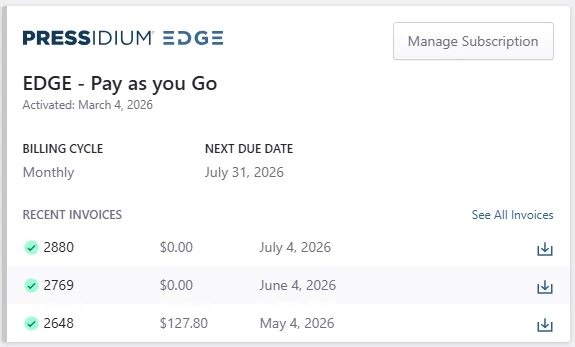
You can also:
- Manage your subscription by clicking Manage Subscription.
- View all invoices by clicking See All Invoices.
- Download an invoice by clicking the download icon next to the invoice.
Go Beyond the Edge
The Go Beyond the Edge section introduces Pressidium Managed Hosting for WordPress.
Use this section if you want to compare your current EDGE service with Pressidium Managed Hosting, where EDGE is included as part of the hosting platform.
Managed Hosting includes:
- Fully managed enterprise architecture.
- 24/7 white-glove DevOps support.
- High-availability design with no single point of failure.
- All EDGE features included by default.

Click See our Plans to view Managed Hosting plans.
What’s New
The What’s New section shows recent product, platform, and WordPress updates.
Use this section to:
- Review recent updates.
- Open a specific update by clicking Read more.
- View the full update history by clicking All Updates.
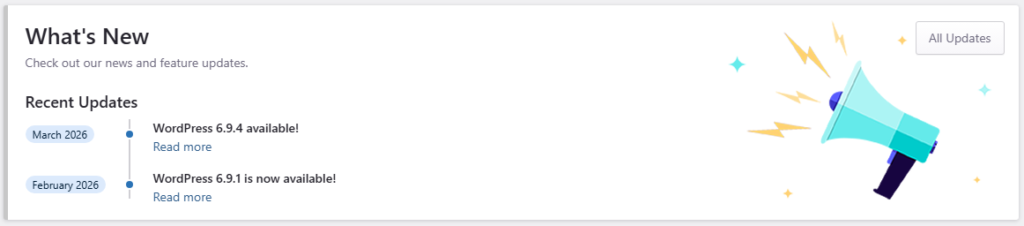
Each update includes a date and a short title. Updates may include WordPress version notices, feature releases, platform improvements, or important service announcements.
Fresh from our Blog
The Fresh from our Blog section shows recent articles from the Pressidium blog.
Use this section to learn more about WordPress performance, security, scaling, hosting, and EDGE-related topics.
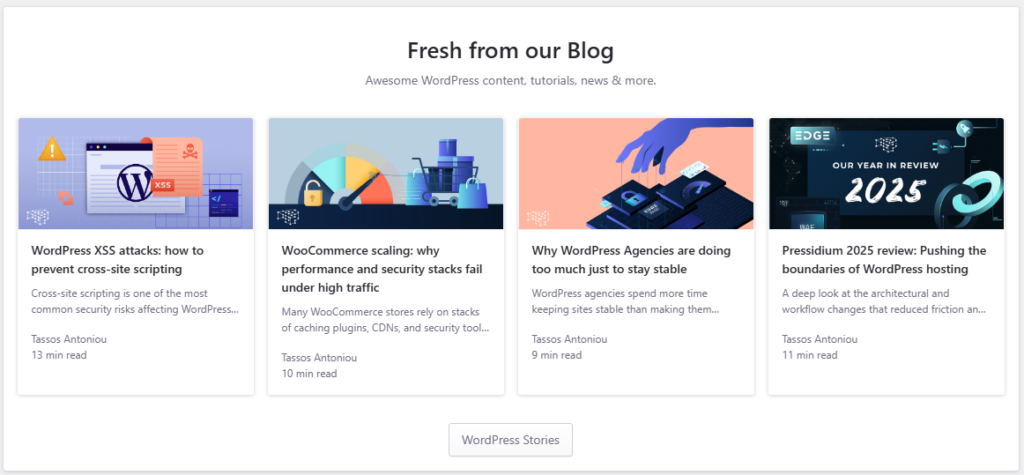
Click an article card to open the full post. Click WordPress Stories to view more articles from the blog.
Note: Blog articles are educational resources. They do not change your EDGE configuration or account settings.
Need Help?
The Need Help? section links to knowledge base articles that can help you use and manage the platform.
Use this section to find guidance on onboarding, support, and WordPress site management.
The available article groups include:
- Welcome to Pressidium!: Onboarding information about infrastructure, team setup, and site migration.
- Support: FAQs and information about Pressidium’s 24/7/365 support service.
- Manage your WordPress sites: Guidance for development, deployment, and WordPress optimization.
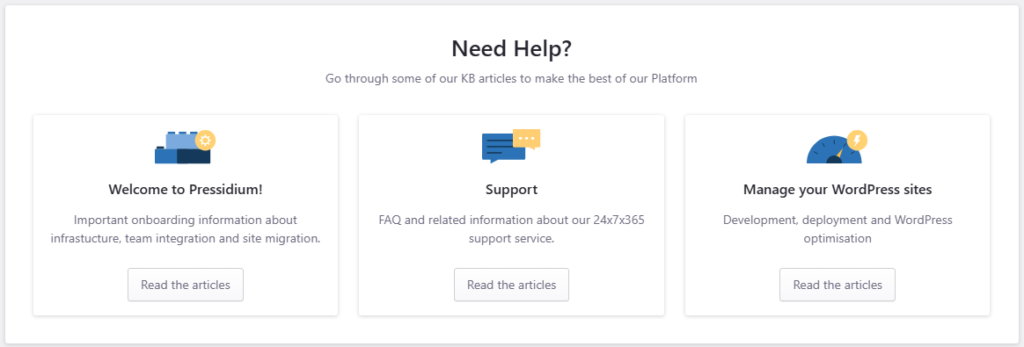
Click Read the articles under a category to open the related knowledge base articles.
Note: These articles are help resources. Reading them does not change your EDGE account, websites, or configuration.
Where to go next
- New to EDGE? Start with Create your account.
- Ready to connect a site? Use Adding a WordPress site to EDGE to add your site, configure the origin, and prepare setup.
- Need to review all sites in your account? Open Websites overview to search, review, and open websites.
- Want to understand what EDGE does before setup? Read How Pressidium EDGE works.
- To update your personal details, password, security settings, or SSH keys, go to Account Settings & Profile.
- To manage users and team access, go to Team settings.
- To review payment and invoice-related details, go to Billing settings.
Was this article helpful?