

Create Your Account
This guide explains how to choose a Pressidium EDGE Service plan, create your account, enter your billing information, and complete the payment process.
Prerequisites
Before you begin, make sure you have:
- An email address that is not already associated with a Pressidium account
- The billing details required for an individual receipt or company invoice
- Access to the payment method you want to use
Choose your Pressidium EDGE plan
Open the Pressidium EDGE signup page.
The first thing you will see is the available Pressidium EDGE plans, their included request allowances, and their monthly pricing.
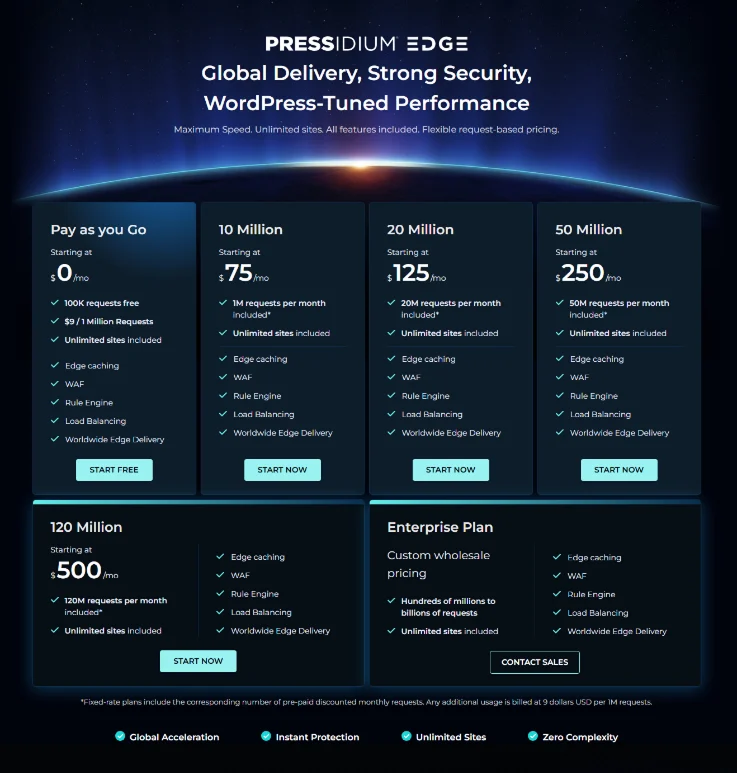
Select the plan that matches your expected request volume:
- Click Start Free to select PAYG.
- Click Start Now to select a fixed-rate plan.
- Click Contact Sales to discuss an Enterprise plan.
All plans include unlimited WordPress sites and the main Pressidium EDGE features.
PAYG starts at no monthly cost and includes the first 100,000 requests for free. Usage beyond that allowance is billed at the current request rate.
After selecting a plan, the signup form opens with your chosen plan displayed in the Your Order panel.
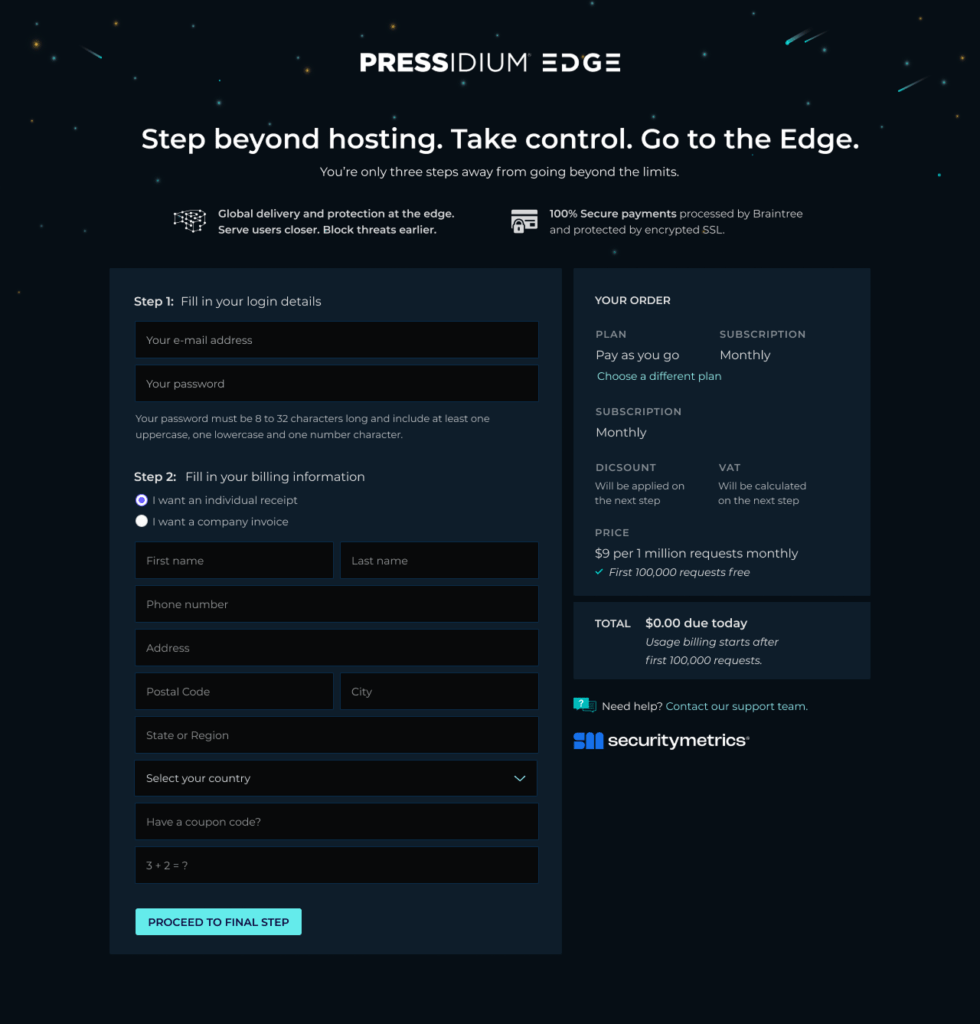
Step 1: Enter your login details
Enter the login details for your Pressidium EDGE account:
- Enter your email address.
- Enter a password.
- Review the selected plan in the Your Order panel.
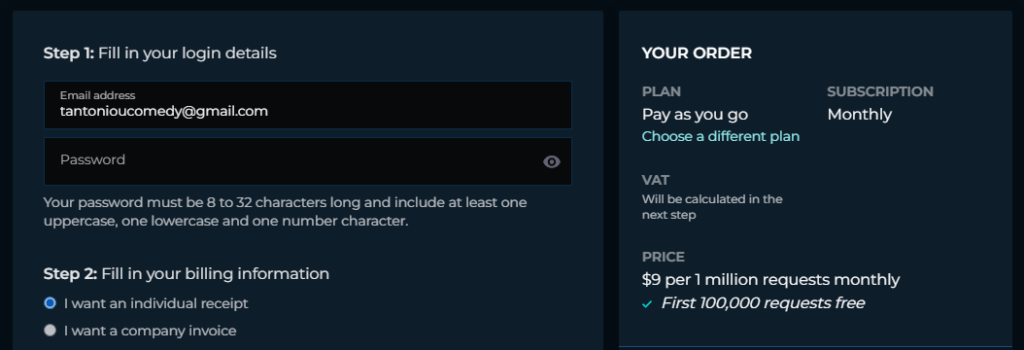
Your password must be between 8 and 32 characters and contain at least:
- One uppercase letter
- One lowercase letter
- One number
The Your Order panel shows the plan selected on the previous page. To select another plan, click Choose a different plan.
Confirm that the correct plan is displayed before continuing.
Step 2: Enter your billing information
Enter the billing details for your Pressidium EDGE account.
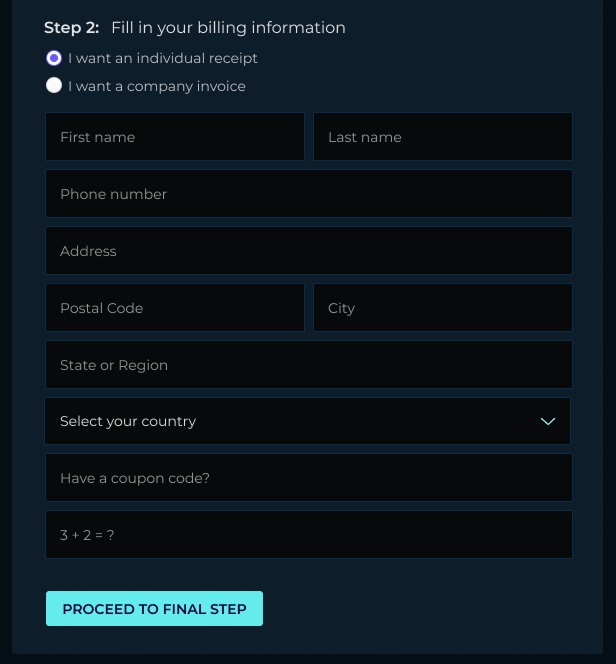
First, select the billing document you require:
- Individual receipt
- Company invoice
Then complete the available billing fields:
- Enter your first and last name.
- Enter your phone number.
- Enter your address.
- Enter your postal code and city.
- Enter your state or region.
- Select your country.
- Enter a coupon code, if you have one.
- Complete the verification question.
The Your Order panel on the right continues to display the plan you selected on the previous page.
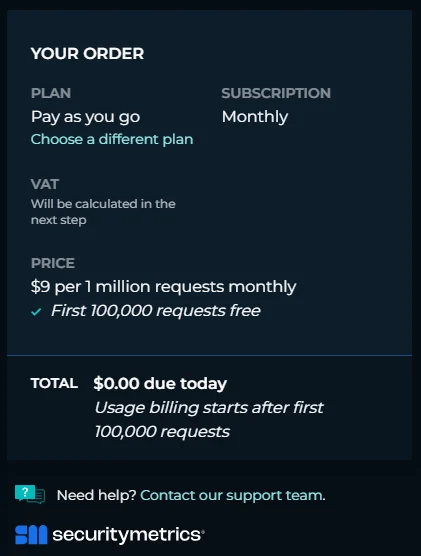
Review the selected plan and billing details before continuing. To return to the plans page and select another plan, click Choose a different plan.
After completing the form, review the order summary and click Proceed to final step.
Step 3: Enter your payment details
The final signup screen contains the payment form and an updated Your Order panel.
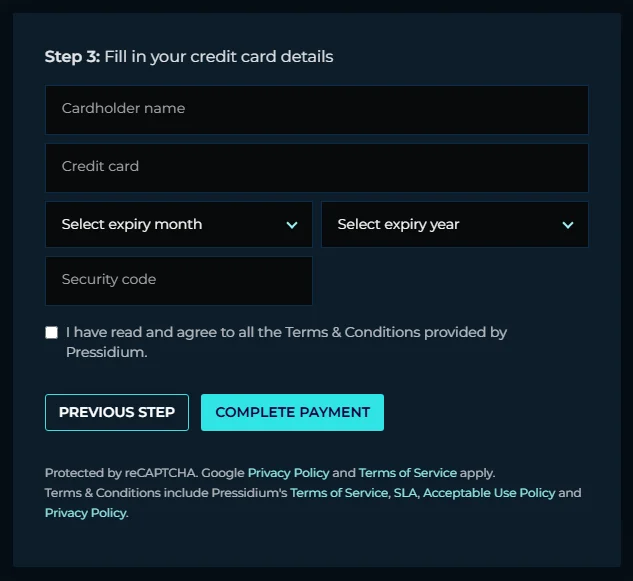
Complete the payment form:
- Enter the cardholder’s name.
- Enter the credit or debit card number.
- Select the card’s expiration month and year.
- Enter the card security code.
- Select the checkbox to confirm that you have read and agree to Pressidium’s terms and policies.
For PAYG, the panel confirms that the first 100,000 requests are free and that usage billing begins after this allowance is used.
To select another plan, click Choose a different plan. To return to the billing information screen, click Previous Step.
Click Complete Payment to submit your payment details and create your account.
Wait for the payment process to finish before closing or refreshing the page.
Confirm account creation
After the payment is processed, the Welcome aboard page confirms that your Pressidium EDGE account has been created successfully.
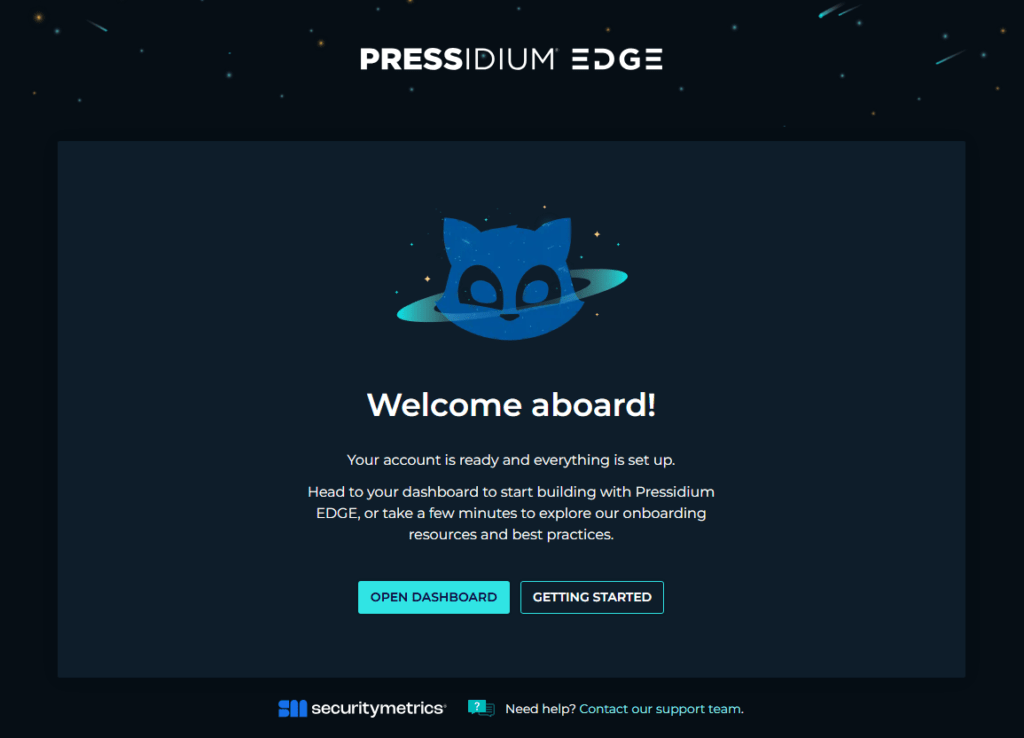
Choose how you want to continue:
- Click Open Dashboard to access your account and start adding your WordPress sites to EDGE.
- Click Getting Started to review the onboarding resources and recommended setup steps.
To verify that the account is active, open the Dashboard and confirm that you can access your account and website management options.
The Dashboard may then display the Pressidium EDGE welcome tour while your account setup is completed. Follow Complete the Pressidium EDGE Dashboard welcome tour for guidance through this process.
If you need assistance, click Contact our support team at the bottom of the confirmation page.
Common Questions
Can I change my plan later?
Yes! You can upgrade or downgrade your plan at any time. Currently, plan changes require contacting support (open a support ticket from the dashboard). Automated plan changes are coming soon.
Do I need to pay immediately?
You can start with the PAYG plan at no monthly cost. It includes 100K free requests, so you can try Pressidium EDGE before moving to a fixed-rate plan.
For details about billing, included requests, overage, and available plans, see Pressidium EDGE plans and pricing.
Can I use an email address associated with another Pressidium account?
Each Pressidium account requires a unique email address.
To access an existing account, ask the account owner to invite you as a team member using your email address.
What if I forget my password?
On the Pressidium Dashboard sign-in page, click Forgot your password? and follow the instructions for the email address associated with your account.
Common issues and solutions
The payment cannot be completed
If the payment step fails:
- Confirm that the payment details are correct.
- Verify that the billing country and billing information match the payment method.
- Confirm that the payment method is active and can be charged.
- Retry the payment once.
- Contact your payment provider if the transaction was declined.
- If the issue persists, contact Support.
When contacting Support, include the error message and the approximate time of the payment attempt.
Warning: Do not include your full card number, card security code, password, or other sensitive payment information in a support request.
The email address is already registered
If the signup page reports that your email address is already registered:
- Open the Pressidium Dashboard sign-in page.
- Click Forgot your password?
- Enter the email address you used during signup.
- Check whether you already have an account or were invited to another Pressidium account as a team member.
If you believe the email address was registered incorrectly, contact Support.
The selected plan is incorrect
If the Your Order panel shows the wrong plan, click Choose a different plan to return to the plans page.
Select the correct plan, then continue through the signup form again. Confirm that the correct plan appears in the Your Order panel before completing payment.
Need help?
If you cannot complete the signup process, contact Support and include:
- The email address used during signup
- The plan you selected
- The step where the issue occurred
- A screenshot of the page
- Any error message displayed
- The approximate time the issue occurred
Where to go next
- After opening the Dashboard for the first time, follow Complete the Pressidium EDGE Dashboard welcome tour to finish the initial onboarding flow.
- To learn how to navigate the platform, open Dashboard overview.
- When you are ready to connect your first site, follow Add a WordPress site to EDGE.
- To review request allowances, billing, and available plans, read Pressidium EDGE plans and pricing
Was this article helpful?