

Complete the Pressidium EDGE Dashboard welcome tour
After you create your Pressidium EDGE account and open the Dashboard for the first time, a short welcome tour introduces the initial setup process, key platform features, support resources, and team management options.
When to use
Use this guide when:
- You have completed your Pressidium EDGE signup
- You are opening the Dashboard for the first time
- You want to repeat the welcome tour
- Your account setup is still being completed
Start the welcome tour
The first screen confirms that your Pressidium EDGE account is being set up.
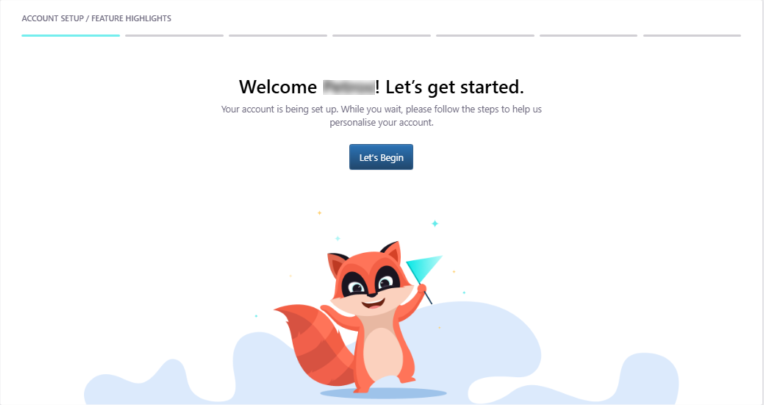
Click Let’s Begin to start the welcome tour.
Tell us about yourself
The next step asks what best describes you or your organization. This helps personalize your dashboard experience.
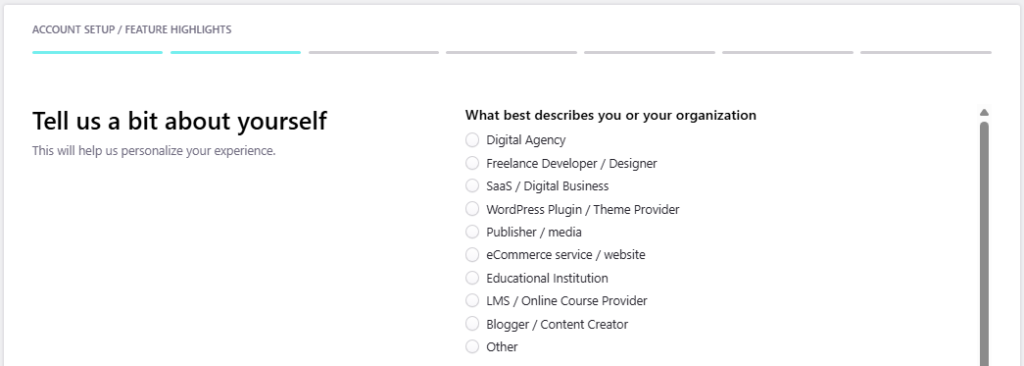
Select the options that best matches your use case, then click Next to continue.
Supercharge your first site
This screen introduces the process for connecting your first WordPress site.
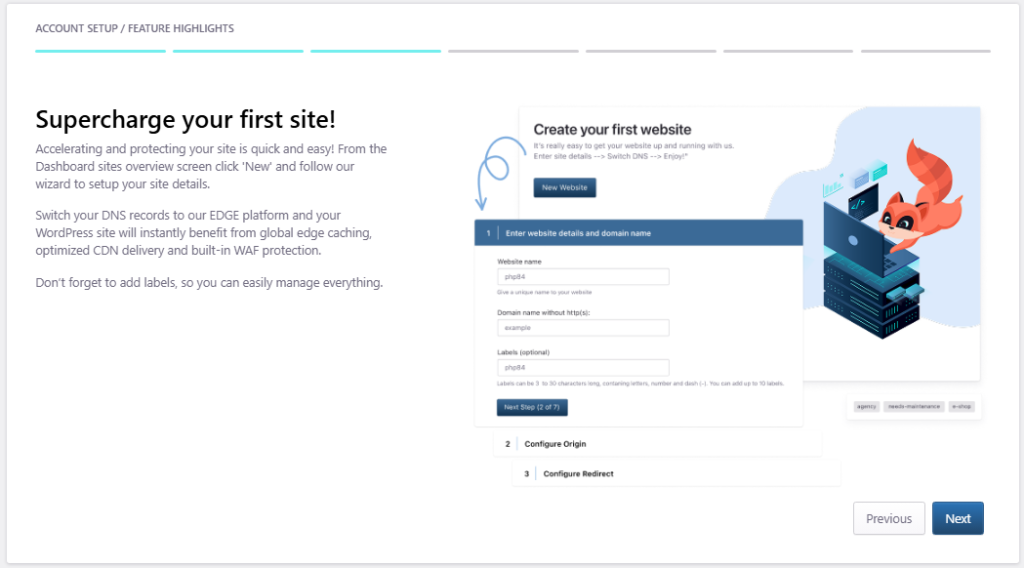
From the dashboard, you can add your first WordPress site by clicking New Website and following the setup wizard.
The wizard guides you through the main setup steps, including:
- Entering your website details
- Configuring your origin
- Setting up redirects
- Connecting your domain through DNS
Fine-tune your EDGE experience
Here we introduce the tools available after you connect a site.
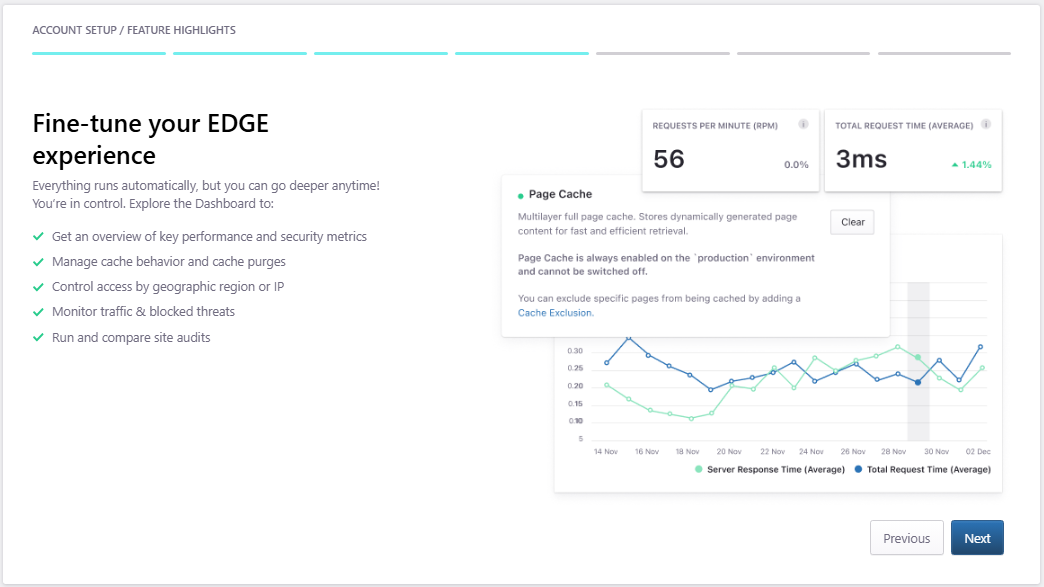
You can use the Dashboard to:
- Review performance and security metrics
- Manage cache behavior and cache purges
- Control access by geographic region or IP
- Monitor traffic and blocked threats
- Run and compare site audits
EDGE runs automatically, but these controls are available when you need a more specific configuration.
Get 24x7x365 support
Pressidium support is available 24×7, 365 days a year.
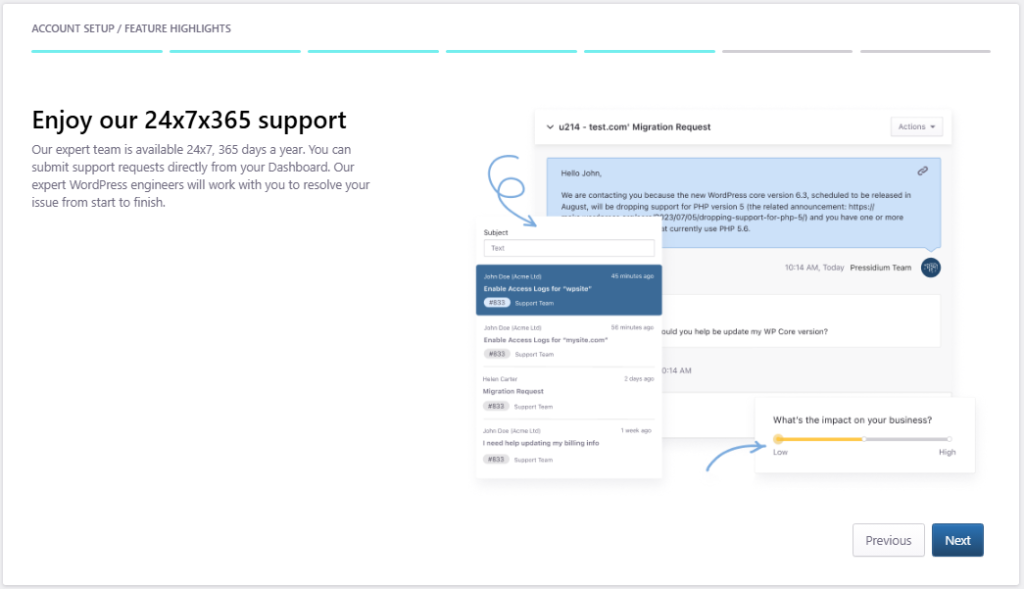
You can submit support requests directly from your dashboard. Our WordPress engineers can help with setup, troubleshooting, and platform-related questions.
When opening a support request, includ
Use help resources
This screen points you to additional resources.
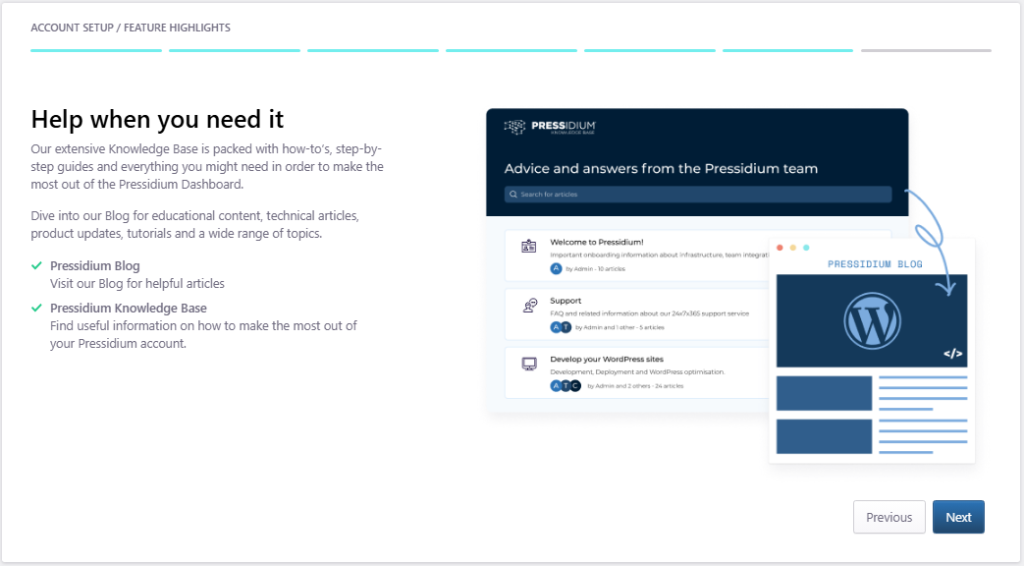
You can use:
- Pressidium Blog for educational articles, tutorials, and updates
- Pressidium EDGE documentation for help articles and product guidance
Use these resources when you want to learn more about the dashboard, setup steps, or available features.
Invite your team
The dashboard supports team collaboration.
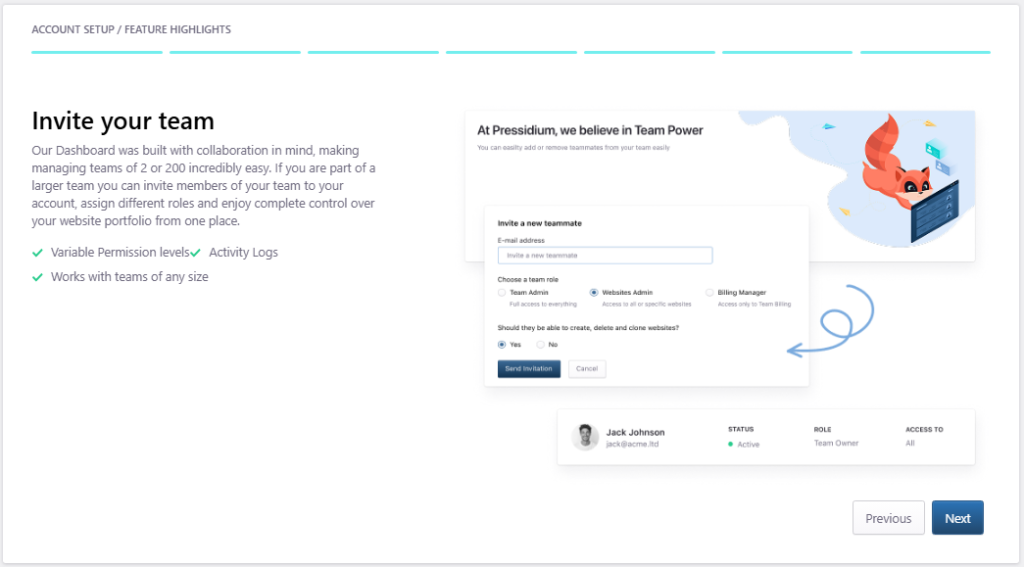
You can invite team members and assign access based on their role. This is useful if more than one person manages your sites, billing, support requests, or account settings.
Team features include:
- Variable permission levels
- Activity logs
- Support for teams of any size
Account setup completion
The final screen appears while your account setup is being completed.
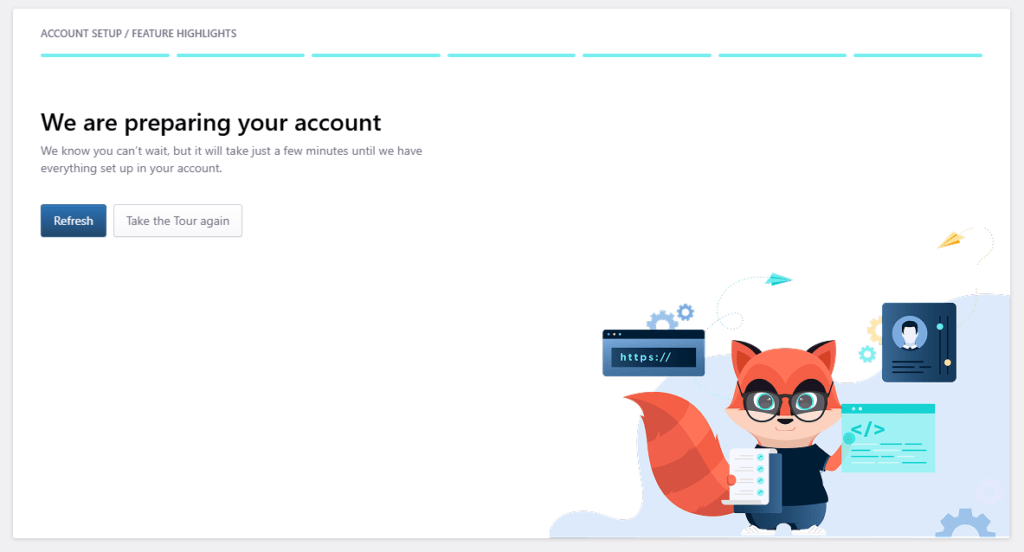
You can click Refresh to check whether setup has finished.
You can also click Take the Tour again to repeat the feature highlights flow.
Once setup is complete, you will be able to continue into the dashboard and start managing your Pressidium EDGE account.
Common issues and solutions
Account setup is still in progress
Wait a few minutes, then click Refresh.
If setup remains incomplete, contact Support and include your account email address, the approximate signup time, and a screenshot of the setup screen.
I closed the welcome tour
Open the welcome tour again from the Dashboard and continue from the beginning.
Need help?
If the account setup does not complete, contact Support and include:
- Your account email address
- The approximate time signup was completed
- A screenshot of the final setup screen
- Any error message displayed
Where to go next
- After creating your account, open Dashboard overview to learn the main areas of the Pressidium EDGE Dashboard.
- Ready to connect your first site? Use Adding a WordPress site to EDGE to add your site and prepare setup.
- To invite teammates or manage team access, go to Team settings.
- To review payment and billing details, go to Billing settings.
Was this article helpful?