

Log in to WordPress with a One-Time Login link (seamless login)
Seamless login allows website owners and team members, with management access to a specific website, to securely log in to the WordPress admin Dashboard directly from the Pressidium dashboard by creating a temporary one-time login link.
Logging with a One-Time Login link
1. Navigate to the website overview screen by selecting/clicking on the related card in the Websites overview screen.
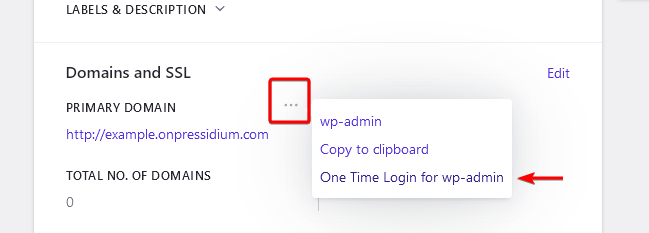
2. Click the “ellipsis” action menu located in the Domains and SSL section to display the drop-down action menu.
3. Click One Time Login for wp-admin.
4. Click the Create One Time Login link button to create a one-time login link for logging into the WP Admin Dashboard. When the process is finished, the link will be displayed in the modal body. You can click on it to log in to your WordPress website or copy-paste it.
How the One Time Login link works
When clicking the WP Admin button, we attempt, behind the scenes, to create a secure, temporary, one-time login link using the same email you use for your current Pressidium Dashboard session.
- If the email of your current Dashboard session matches the email of a registered WordPress user account, our system will be able to successfully create a login link (please see the compatibility section below for possible exceptions).
- If the email does not match a registered WordPress user the process will fail. In this case, a failure notification will be displayed in the Dashboard.
Limitations / Compatibility
Creating a one-time login link might fail or not work correctly (i.e. auto login the user) in the following cases:
- A plugin (or code) is active that changes (or “hides”) the default WordPress login URL.
- A multisite website.
- A plugin (or code) is active that alters the default WordPress login process (e.g. a 2FA or MFA plugin or other custom login mechanism).
- When password protection is activated for a website.
Need help?
If the one-time login link does not work, or you cannot access the correct WordPress user account, contact our Support team before resetting access manually.
Where to go next
- Reset a WordPress user password if the user needs permanent login access.
- Access your WordPress site if you need another way to reach the WordPress admin area.
- Manage role-based dashboard users if another team member needs Pressidium Dashboard access.
- Secure your account using two-factor authentication to strengthen dashboard login protection.
Was this article helpful?