

Manage team members and Dashboard roles
In order to create new Dashboard users you must be an Account Owner / Team Owner or Account Administrator / Team Administrator.
Please read about the different Roles and Permissions of Portal Users, before creating any new accounts.
Create / Invite a new team user
1. Select the Team Settings option from the top menu and then the Teammates tab.
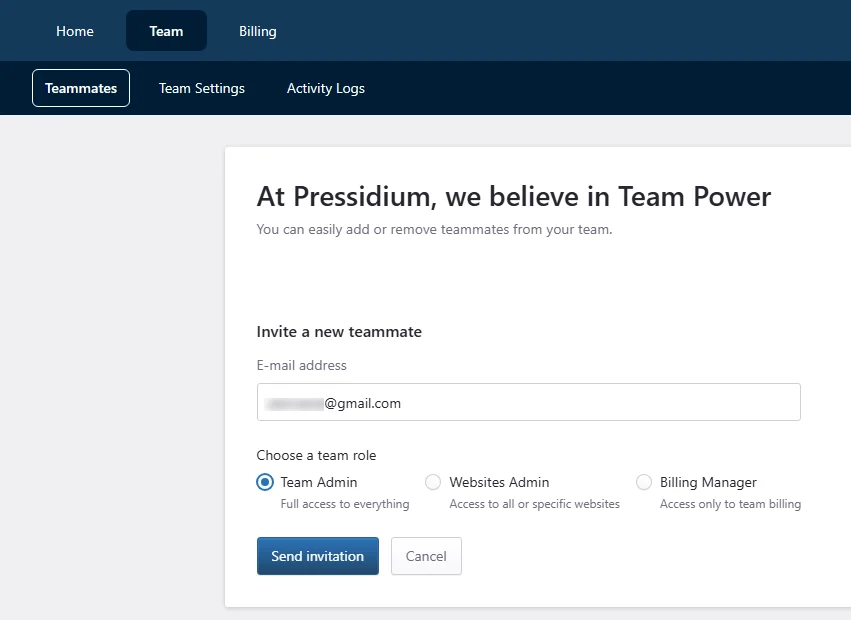
2. Enter the email of the new team member.
Make sure it’s a valid email address as an invitation notification will be sent to this address.
3. Select the desired user role. Choose between Team Admin, Billing Admin or Website Admin.
A Team Admin has full access to your account so use this role with care and assign it only to team members you fully trust.
A Billing Admin has access only to billing information, invoice downloads and payment settings.
A Website Admin can have full access to all websites (including the ability to create, delete or clone) or you can restrict access to one or more websites.
4. Click Send Invitation. An email invitation to join the team will be sent to the new member. The user should accept/confirm the invitation to become a member of the team.
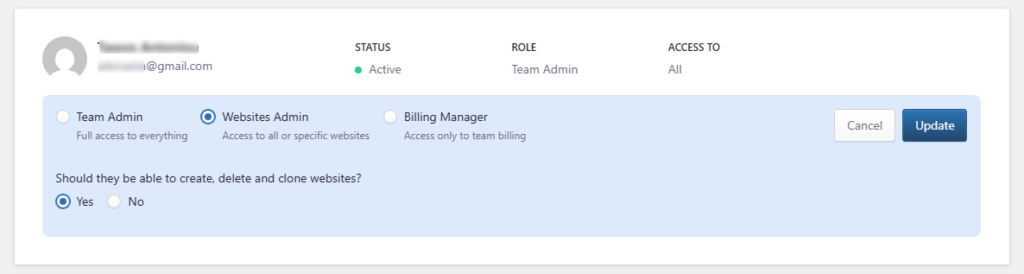
Edit user / Modify Role
- Select the Team menu option from the Dashboard sidebar.
- Locate the user you want to modify from the Team members list.
- Click Edit.

Make any necessary updates (Role change, Website restrictions etc.) and click Update to confirm the updates.
Delete user
- Select the Team menu option from the Dashboard sidebar.
- Locate the user you want to modify from the Team members list.
- Click Remove.
- Confirm the user removal by clicking Yes, remove.

Need help?
If you are not sure which role to assign, or whether a user should have account-level or site-level access, contact our Support team before changing permissions.
Where to go next
- Review roles and permissions of dashboard users before assigning or changing a user’s access.
- Review your team’s activity with the activity log to audit recent account and site changes.
- Secure your account using two-factor authentication to strengthen dashboard login protection.
- Manage SFTP users if a user also needs file access to a website.
Was this article helpful?