

Use Under Attack Mode
Under Attack Mode adds a temporary browser challenge for visitors before they can access your website. Use it during an active, high-volume automated attack that is making the site slow or unreachable.
When to use
Use Under Attack Mode when:
- Pressidium Support instructs you to enable it
- Security or traffic analytics show a sudden increase in automated malicious traffic
- An active attack is placing significant load on the website or origin
Do not enable it solely because traffic is higher than usual. A campaign, sale, crawler, application error, or origin problem may cause similar symptoms.
Prerequisites
Before enabling the mode, make sure:
- The website is routed through Pressidium EDGE
- You have access to the website in the Pressidium Dashboard
- You have confirmed that the issue is likely caused by automated attack traffic
Enable Under Attack Mode
- Log in to the Pressidium Dashboard.
- Go to Websites.
- Select the website you want to manage.
- On the Site overview page, locate Quick Actions.
- Turn on Under Attack Mode.
- Review the confirmation window.
- Click Enable.
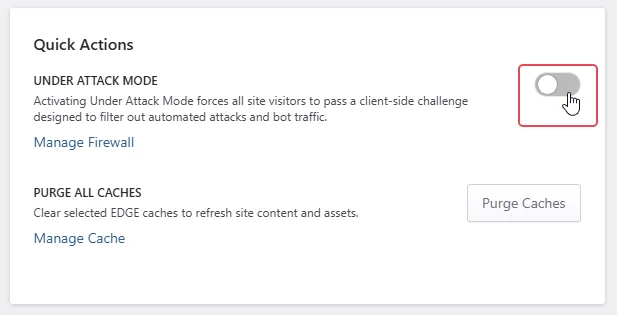
After you confirm the action, the Dashboard starts enabling Under Attack Mode. Wait for the completion notification before testing the website.
Once enabled, visitors must pass a temporary browser challenge before accessing the requested resource.
What visitors experience
When Under Attack Mode is enabled, visitors see a temporary verification page before accessing the requested resource. The client-side challenge helps filter automated attacks and bot traffic before it reaches the website.
To complete the challenge, the visitor’s browser must have:
- JavaScript enabled
- Cookies enabled
After successful verification, EDGE stores a temporary verification cookie in the visitor’s browser. This allows the visitor to continue browsing without completing the challenge on every page.
Warning: Under Attack Mode can affect legitimate visitors, API requests, monitoring services, and search engine crawlers. Use it only while the website is experiencing an active attack.
Verify that Under Attack Mode is active
- Open the website in a private browser window.
- Confirm that the temporary verification page appears.
- Complete the challenge.
- Confirm that the requested page loads.
- Review Requests Analytics and Geo & IP Analytics to check request patterns, response outcomes, source countries, and high-volume IP addresses. Confirm that the website’s responsiveness has improved.
Disable Under Attack Mode
Disable Under Attack Mode after the attack has ended and website traffic has returned to normal.
- Log in to the Pressidium Dashboard.
- Go to Websites.
- Select the website you want to manage.
- Locate Quick Actions on the Site overview page.
- Turn off Under Attack Mode.
- Open the website and confirm that visitors can access it without the verification page.
- Test important forms, APIs, integrations, and monitoring services.
Common issues and solutions
A visitor cannot pass the challenge
Symptom: The verification page reloads or the visitor cannot access the website.
Likely causes:
- JavaScript is disabled
- Cookies are disabled
- Browser privacy settings prevent the verification cookie from being stored
Resolution:
- Enable JavaScript and cookies.
- Reload the page.
- Test from another current browser or network.
An API or external service stops working
Under Attack Mode uses a browser-based challenge. API clients and other automated services may be unable to complete it.
Disable Under Attack Mode after the active attack ends. If a required service must remain available during the attack, contact Support and include the affected endpoint and service details.
Search engine or monitoring traffic is affected
Search engine crawlers and monitoring tools may be unable to complete the verification challenge.
Use Under Attack Mode only temporarily. After disabling it, confirm that the affected crawler or monitoring service can access the website again.
The website remains slow or unavailable
Under Attack Mode helps filter automated attack traffic, but it does not correct unrelated origin, application, plugin, database, or network problems.
Review Requests Analytics, Geo & IP Analytics, response errors, and any recent plugin, theme, deployment, or application changes. If the website remains slow after suspicious traffic decreases, contact Support.
Verification
After disabling Under Attack Mode, confirm that:
- The verification page no longer appears
- Public pages load normally
- Forms and login pages work
- API requests and external integrations succeed
- Search engine and monitoring services can access the website
- Traffic patterns, error rates, and website responsiveness have returned to expected levels.
Need help?
- The website remains unavailable while Under Attack Mode is active
- Legitimate visitors cannot complete the challenge
- A required API or integration remains blocked
- The challenge continues to appear after the mode is disabled
- You are unsure whether the traffic is caused by an attack
Include:
- Website name and domain
- Affected environment
- Date and approximate time
- Affected URLs or services
- Screenshots of the verification page or error
- Relevant source IP addresses, when available
- Recent traffic or security observations
Where to go next
- Review Requests Analytics to identify request spikes, response errors, and frequently requested paths.
- Review Geo & IP Analytics to investigate high-volume IP addresses and unexpected geographic traffic.
- Review Performance Analytics to check whether website and origin response times have returned to expected levels.
- Manage Firewall access rules to block or allow confirmed IP addresses or restrict traffic from specific countries after investigating the source.
Was this article helpful?