

Manage SSL certificates
The SSL Certificates page lets you manage SSL certificates across your EDGE account.
Use this page when you want to:
- Review SSL certificates in your EDGE account
- Search certificates by website name or domain
- Import a certificate from a Certificate Provider
- Generate a CSR for a new certificate
- Export certificate data as a PEM file
- Update an existing certificate
- Delete a certificate you no longer use
Prerequisites
Before importing or updating a certificate, make sure you have the certificate data from your Certificate Provider.
You may need:
- The private key
- The website certificate
- The Certificate Authority (CA) bundle
Access the SSL Certificates page
- Log in to the Pressidium Dashboard.
- Select your EDGE account.
- Go to SSL Certificates.
Included sections
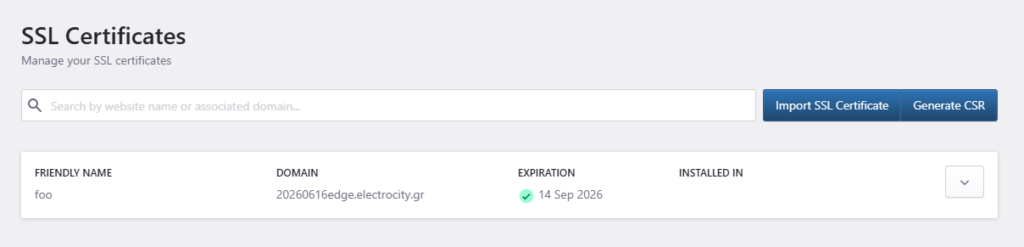
The SSL Certificates page includes:
- A search field
- An Import SSL Certificate button
- A Generate CSR button
- A certificate list
- Certificate actions for each certificate
Search SSL certificates
Use the search field to filter certificates by website name or associated domain.
Certificate list
The certificate list shows all SSL certificates available in the selected EDGE account.
Each row includes:
- Friendly Name: The name assigned to the certificate.
- Domain: The domain associated with the certificate.
- Expiration: The certificate expiration date.
- Installed In: Where the certificate is currently installed.
- Actions: Export, update, or delete the certificate.
Import an SSL certificate
Use Import SSL Certificate when you already have a certificate from your Certificate Provider and want to add it to your EDGE account.
Click the Import SSL Certificate button to show the pop-up window.
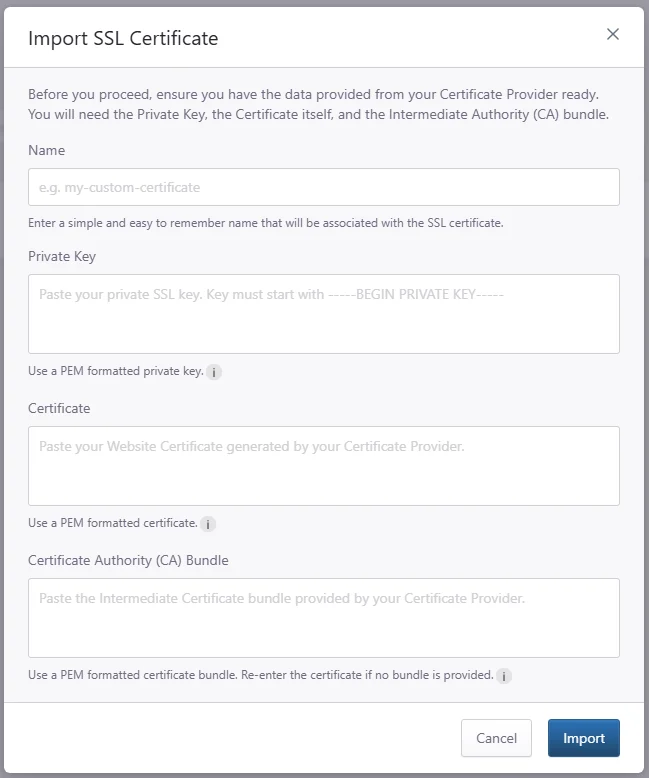
- Enter a Name for the certificate. Use a simple name that helps you identify the certificate later.
- Paste the Private Key. The private key must be PEM formatted and must start with:
-----BEGIN PRIVATE KEY----- - Paste the Certificate. This is the website certificate generated by your Certificate Provider.
- Paste the Certificate Authority (CA) Bundle. This is the intermediate certificate bundle provided by your Certificate Provider.
- Click Import.
If no CA bundle is provided, re-enter the certificate in the CA bundle field.
Generate a CSR
Use Generate CSR when you need to create a Certificate Signing Request for a new SSL certificate.
Click Generate CSR to reveal the request window
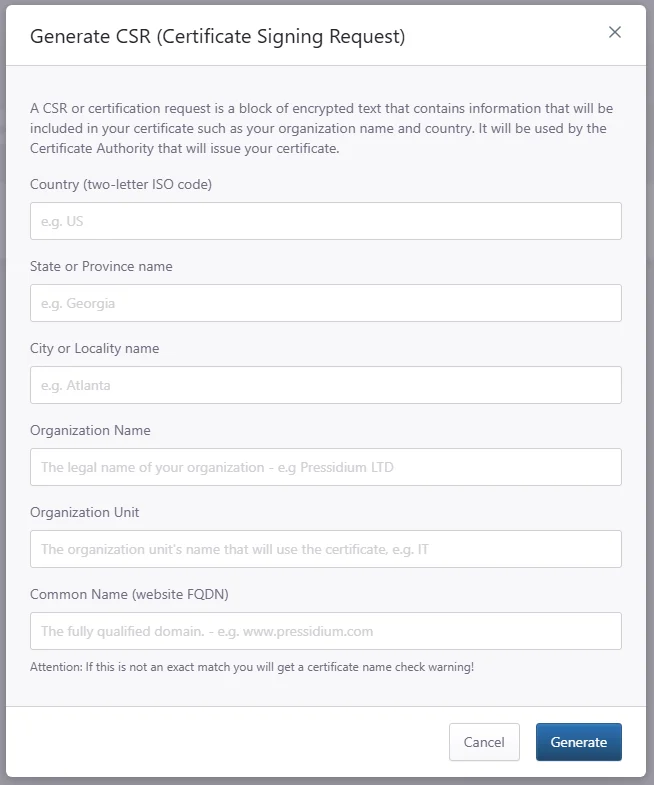
- Enter the Country. Use the two-letter ISO country code, for example:
US - Enter the State or Province name.
- Enter the City or Locality name.
- Enter the Organization Name. This should be the legal name of your organization.
- Enter the Organization Unit. This is the department or team that will use the certificate, for example:
IT - Enter the Common Name. This must be the fully qualified domain name for the certificate, for example:
www.example.com - Click Generate.
Make sure the Common Name exactly matches the domain the certificate will be issued for. If it does not match, you may get a certificate name check warning.
Certificate actions
Each certificate provides a menu with the following actions:
- Export: Download the certificate as a PEM file
- Update: Replace or refresh the certificate data
- Delete: Remove the certificate from your EDGE account
Export an SSL certificate
Use Export to download the certificate data as a PEM file.
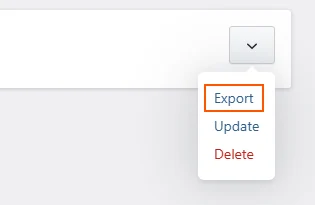
- Find the certificate you want to export.
- Click the actions menu on the right side of the certificate row.
- Select Export.
- Save the
.pemfile to your computer.
Update an SSL certificate
Use Update when you need to replace or refresh an existing certificate.
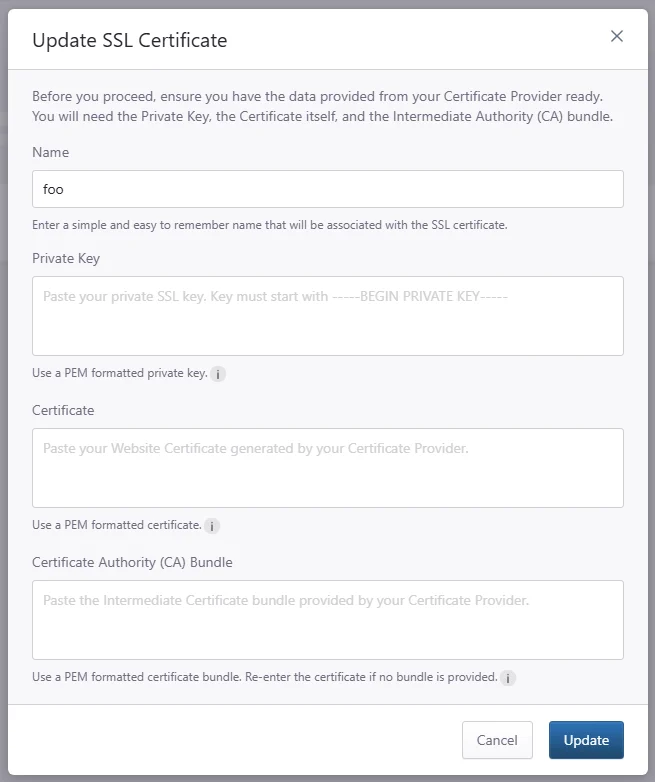
- Review or edit the certificate Name, Private Key, Certificate, and Certificate Authority (CA) Bundle.
- Click Update.
Delete an SSL certificate
Use Delete when you no longer need a certificate in your EDGE account.
Best practices
- Use clear certificate names so certificates are easy to identify later.
- Keep private keys secure.
- Do not share private keys outside trusted systems or support channels.
- Check certificate expiration dates regularly.
- Update certificates before they expire.
- Make sure the Common Name matches the certificate domain exactly.
- Confirm that a certificate is no longer in use before deleting it.
Need help?
Contact Support if:
- A custom certificate cannot be imported or updated
- The Dashboard rejects certificate or private-key data
- A generated CSR does not contain the expected information
- A certificate cannot be exported or deleted
- You cannot determine where a certificate is installed
Include:
- The certificate’s friendly name and associated domain
- The action you were performing
- The exact Dashboard error
- The certificate provider
- A screenshot with sensitive values removed
- The troubleshooting steps you already completed
Where to go next
After you review the SSL certificates page, continue with the next guide that matches your setup status.
- To understand how SSL certificates are issued and activated, read SSL certificate setup.
- To confirm your domain is routing through EDGE, follow Verify your setup.
- To check whether DNS changes may still be updating, read DNS propagation explained.
- To troubleshoot certificate activation delays, review SSL certificate not activating.
- To troubleshoot certificate warnings or browser errors, review SSL certificate errors.
Was this article helpful?