

Add a domain to an EDGE site
To add a domain to an EDGE site, go to Websites and click the site you want to manage.
Go to WordPress → Domains, then click Add Domain.
Use this flow to enter the domain, confirm origin settings, choose whether the domain serves the site directly or redirects elsewhere, configure SSL, verify domain ownership, and route traffic through Pressidium EDGE.
Sections included
- Enter your domain name: Adds the domain name you want to connect.
- Configure Origin: Shows the origin server that EDGE will send valid uncached requests to.
- Configure Redirect: Sets whether the domain serves the site directly or redirects to another domain.
- Configure SSL: Selects the SSL certificate option and HTTPS redirect behavior.
- Verify Domain: Provides DNS records for domain ownership and SSL verification.
- Route Traffic to Pressidium: Provides DNS records for routing live traffic through EDGE.
Prerequisites
- Make sure you have access to your DNS provider before adding a domain.
- You may need to add or update DNS records during the verification and routing steps.
Watch the setup walkthrough
This video tutorial walks you through the complete process for adding a domain to EDGE:
If your domain is proxied behind a service (like Cloudflare), watch this video tutorial instead:
The written steps below include the full instructions, additional guidance, and troubleshooting details.
Step 1: Enter your domain name
In Enter your domain name, enter the domain without http:// or https://.
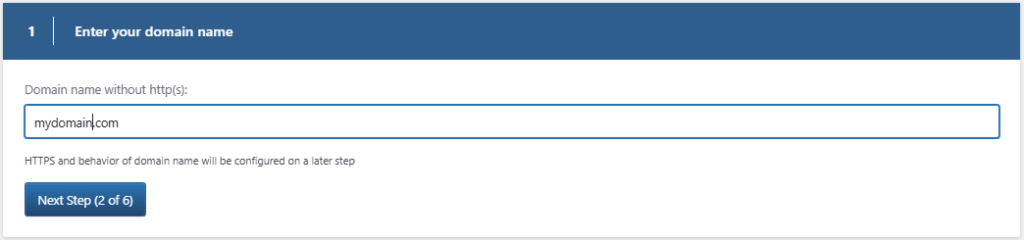
Click Next Step (2 of 6) to continue.
Step 2: Configure Origin
The Configure Origin step shows the origin hostname or IP address that EDGE uses for this site.
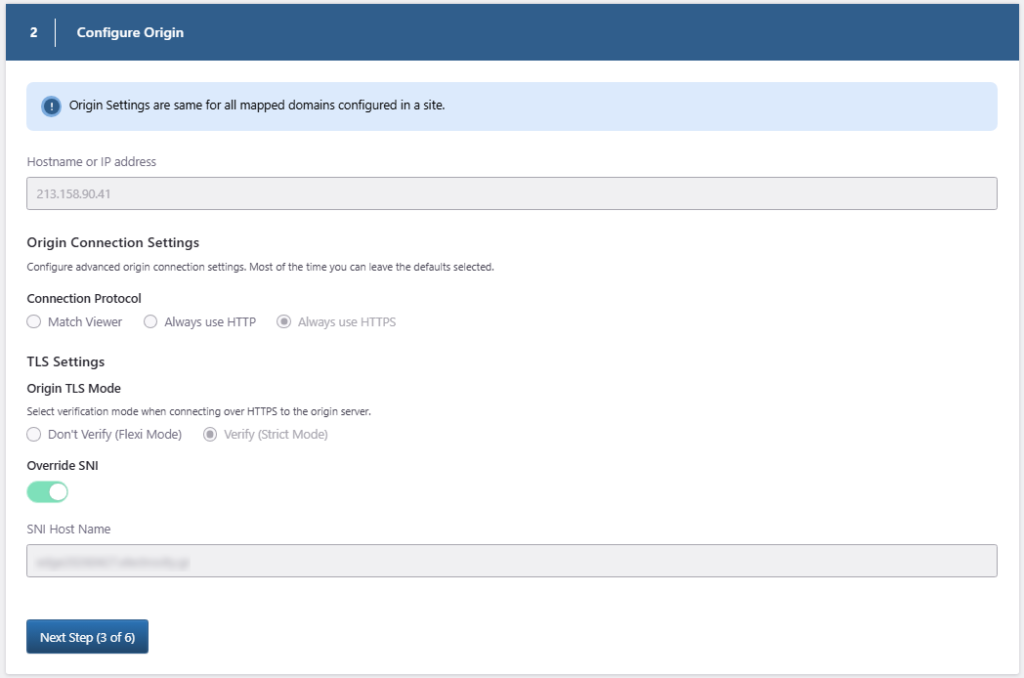
Origin settings are shared across all mapped domains configured for the same site.
Most sites can keep the default origin connection settings.
Origin connection settings
The Connection Protocol option controls how EDGE connects to your origin.
Available options include:
- Match Viewer: EDGE uses the same protocol used by the visitor request.
- Always use HTTP: EDGE connects to the origin over HTTP.
- Always use HTTPS: EDGE connects to the origin over HTTPS.
The Origin TLS Mode option controls certificate verification when EDGE connects to the origin over HTTPS.
Available options include:
- Don’t Verify (Flexi Mode): EDGE connects over HTTPS without strict certificate verification.
- Verify (Strict Mode): EDGE verifies the origin certificate.
Use Verify (Strict Mode) when your origin has a valid SSL certificate for the expected host name.
Click Next Step (3 of 6) to continue.
Step 3: Configure Redirect
The Configure Redirect step controls what happens when visitors access this domain.
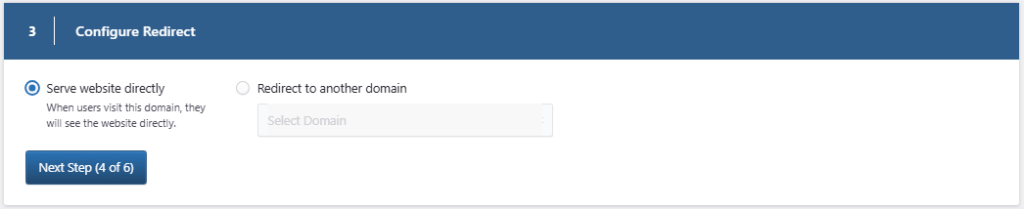
Choose one of the following:
- Serve website directly: Visitors see the website directly on this domain.
- Redirect to another domain: Visitors are redirected to another domain.
If you choose Redirect to another domain, select the destination domain from the dropdown.
Click Next Step (4 of 6) to continue.
Step 4: Configure SSL
The Configure SSL step controls the SSL certificate type and HTTPS redirect behavior for the domain.
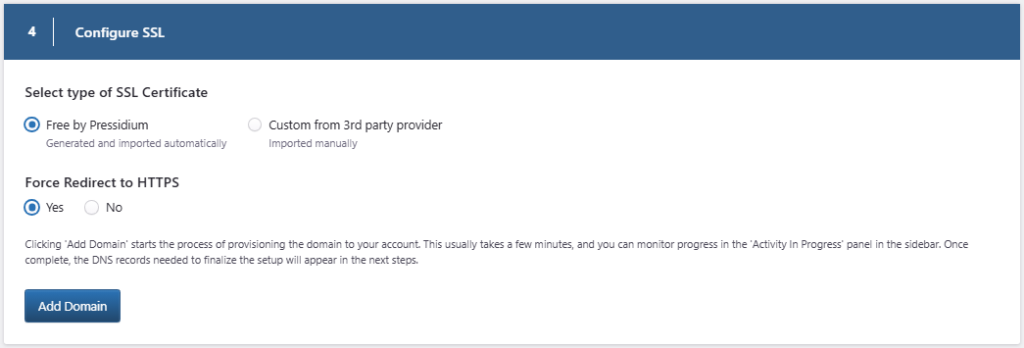
Select type of SSL Certificate
Choose one of the following:
- Free by Pressidium: The SSL certificate is generated and imported automatically.
- Custom from 3rd party provider: The SSL certificate is imported manually.
Force Redirect to HTTPS
Choose whether visitors should be redirected to the HTTPS version of the domain.
Available options:
- Yes
- No
Click Add Domain to add the domain to your account.
After you click Add Domain, Pressidium EDGE begins provisioning the domain in the background.
Once provisioning is complete, the DNS records needed to finish setup appear in the next steps.
Step 5-6: Verify the domain and Route traffic through EDGE
After the domain has been provisioned, the Dashboard displays the DNS record required to verify domain ownership.
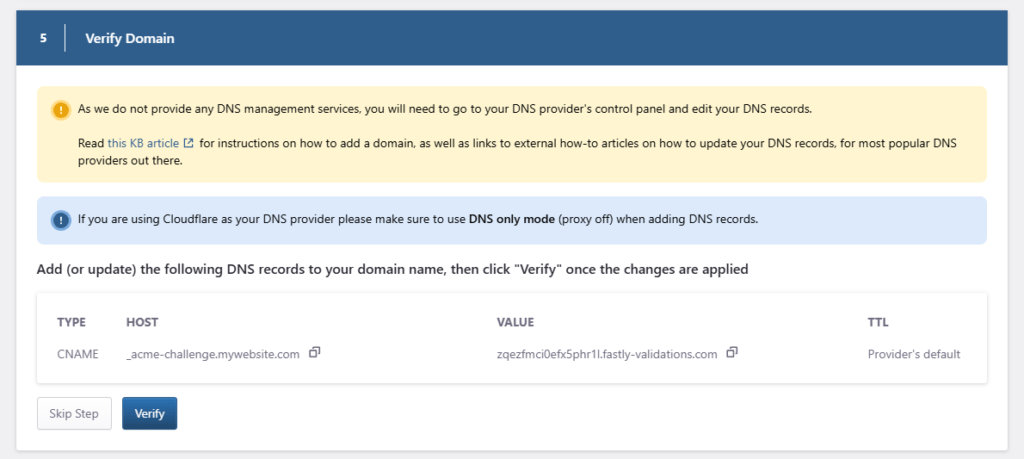
For the domain to become active through EDGE, follow Point a domain to Pressidium EDGE, to complete the domain verification and reroute the site’s traffic.
Need help?
Contact Support if:
- Domain provisioning does not complete
- Domain verification remains pending after the DNS record has propagated
- The Dashboard does not display the required routing records
- The domain does not route through EDGE after the DNS changes have propagated
- SSL activation fails after domain verification
Include the site name, domain, DNS provider, approximate time of the change, and screenshots of the DNS records and Dashboard status.
Where to go next
After adding a domain, continue with DNS, verification, and SSL checks.
- Route live traffic through EDGE by following Point a domain to Pressidium EDGE.
- Learn what to expect while DNS updates in DNS propagation explained.
- Confirm the domain is routing correctly by following Verify your setup.
- Check how certificates are issued and activated in SSL certificate setup.
- Fix missing or incorrect DNS records with DNS configuration problems.
Was this article helpful?