

Organize your Websites with Labels
Labels help you group, find, and manage websites in your Pressidium EDGE account.
Use labels when you manage several sites and need a simple way to identify them by client, project, priority, environment, team, or maintenance status.
Label limits and format
Each website can have up to 10 labels, and each label can be up to 30 characters long.
Labels can contain:
- Letters
- Numbers
- Dashes, such as
high-priority
Recommended label patterns
Before adding labels across many websites, decide what you want labels to help you find.
Common label patterns include:
- Client or account, such as
client-acmeorclient-newsco - Environment, such as
production,staging, ortesting - Site type, such as
woocommerce,membership,lms, ormarketing - Priority, such as
high-priorityorcritical - Workflow status, such as
maintenance,review,launch, orarchived - Team ownership, such as
seo-team,dev-team, orsupport-team
Use lowercase labels with dashes for consistency, especially because label search is case sensitive.
Good examples:
client-acmeproductionwoocommercehigh-prioritymaintenance
Avoid using several versions of the same label, such as ClientA, client-a, and clienta.
For agencies and teams, keep the label system simple. A small set of predictable labels is easier to search and maintain than many one-off labels.
Add labels from the Websites screen
Use this method when you want to add or update labels from the main websites list.
- Go to Websites.
- Find the website you want to update.
- Click Add Labels or Edit Labels.

- Enter the label name in the input field.
- Press Tab to add multiple labels.
- To remove a label, click the X icon next to it.
- Click Save Changes.
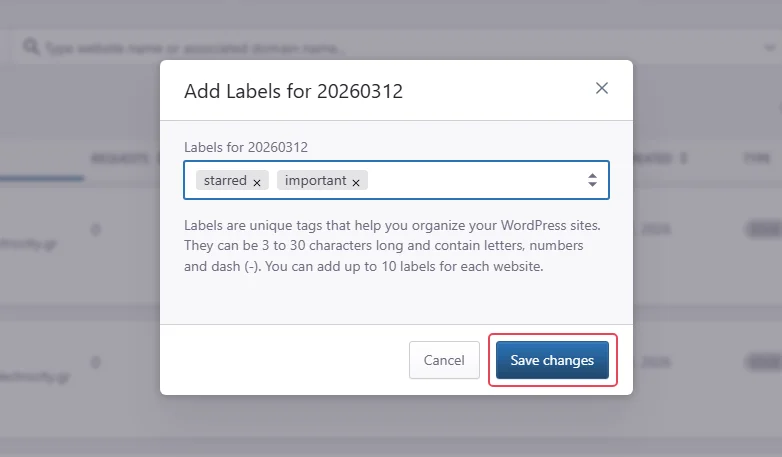
The assigned labels will appear in the websites list.

Add labels from the Website Overview screen
Use this method when you are already viewing a specific website.
- Choose a site to Manage
- On the site Overview page, in the Site Details pane, click Edit Labels
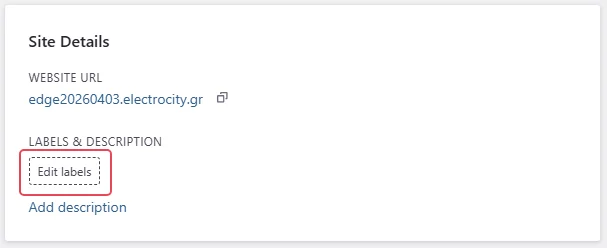
Add, update, or remove labels. Then click Save Changes.
Add labels when creating a new website
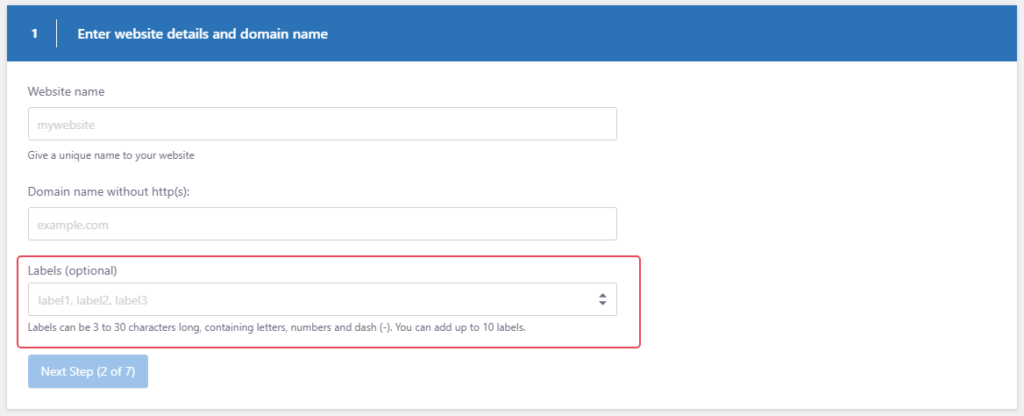
You can also assign labels while creating a new website.
In the New Website flow, use the optional Labels field to add labels before the website is created.
Search websites by label
After you add labels to one or more websites, you can search for websites that use a specific label.
- Go to Websites.
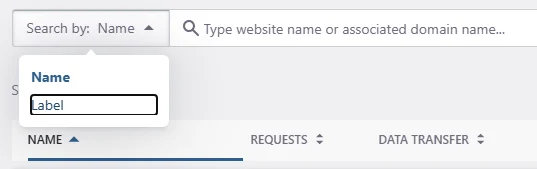
- Find the Search by: Label field.
- Enter the full label name.
- Review the matching websites.

Best practices
Use short, consistent label names.
Keep labels specific enough to be useful, but broad enough to reuse across multiple websites.
For example, use woocommerce for all WooCommerce sites instead of creating separate labels such as store, shop, and ecommerce unless your team needs those distinctions.
Review labels periodically and remove labels that are no longer useful.
For agencies or teams, agree on a simple naming pattern before adding labels across many websites.
Common issues and solutions
I cannot find a website by label
Check that you entered the full label name exactly.
Label search is case sensitive, so priority and PRIORITY are treated differently.
I cannot add more labels
Each website can have up to 10 labels.
Remove unused labels before adding new ones.
A label does not save
Check that the label is no more than 30 characters and only uses supported characters.
Then try saving again.
Need help?
Contact Support if labels do not save, labels do not appear in the websites list, or label search does not return the expected results.
Include:
- Website name
- Label name
- Screenshot of the label field or search result
- What you expected to happen
- What happened instead
Where to go next
- Managing labels as part of a larger agency workflow? Continue with Manage multiple sites to organize onboarding, testing, monitoring, and client handoff across several websites.
- Adding a new website? Use Adding a WordPress site to EDGE and assign labels during setup if you already know the client, project, priority, or site type.
- Need to review your full website list? Open Websites overview to search, filter, and open sites in your EDGE account.
- If several people manage the same account, review Team settings so labels, access, and site ownership stay clear across your team.
Was this article helpful?