
Switch your PHP runtime
Switching PHP version in the Dashboard is not the same as applying a security patch to the version you already run. You choose the runtime for Production or Staging.
A notice in WordPress Admin from a plugin that tells you to update PHP is not a message from Pressidium. Confirm the selected version in PHP Engine before you switch. Do not switch production only because a plugin showed that notice.
Pressidium supports different PHP versions for each website and environment.
Using the Pressidium Dashboard
Open Websites in the sidebar (Websites overview), then select the website.
In the navigation bar, select Staging.
Click Settings.
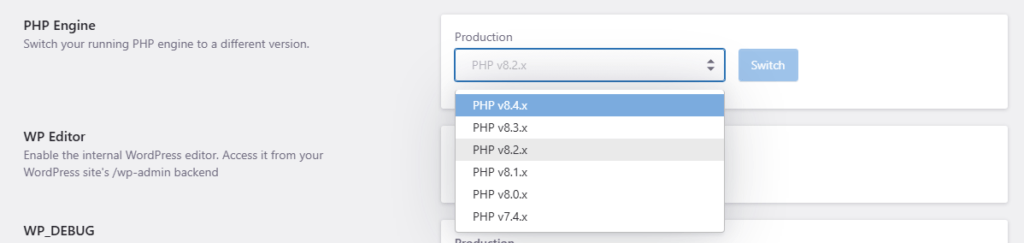
Select the PHP version from the PHP Engine menu.
Click Switch. The change takes effect in a few minutes.
Test the staging site.
Repeat steps 2–5 with Production selected.
If staging does not exist yet, initialize your Staging environment before you switch production.
Tips and considerations
Before you change PHP version, check for compatibility issues. New PHP versions can introduce changes that break older themes or plugins.
Follow Upgrading PHP for suggested actions before a version upgrade.
Use staging or a website clone to test and fix issues before you switch production.
Need help?
If you are not sure which PHP version to use, or the site shows errors after switching runtime, contact Support before changing it again.
Where to go next
How Pressidium applies PHP security updates if you asked about a CVE or a patch on the PHP version you already run.
Upgrading PHP if the runtime change is part of a PHP version upgrade.
Create an Instant backup before changing PHP runtime on production.
Enable WordPress debug logs if you need to investigate errors after switching runtime.
Override PHP.ini variables if the site needs custom PHP configuration after the runtime change.
Was this article helpful?