

Error logs
Use the Logs screen in your Dashboard to review access logs and error logs for a WordPress site.
Access logs show HTTP request activity for your site. Error logs help you identify PHP errors, plugin issues, theme issues, and other application-level problems.
Access the Error Logs page
- Log in to the Pressidium Dashboard.
- Go to Websites.
- Select the website you want to review (or press S to open quick search).
- Confirm that the correct environment is selected in the top navigation bar: Production or Staging.
- Go to Logs → Error Logs.
Error Logs
Error Logs can help you identify potential problems with your website such as plugin and theme coding/PHP errors or incompatibilities. To view error logs:
- Navigate to the website overview screen by selecting/clicking on the related card in the Websites screen. (or by using the S keyboard shortcut to quick-search websites).
- Verify the environment you want to apply the change, Production or Staging by checking out the currently selected environment in the navigation bar.
- Click on the Logs menu.
- Expand the Error Log panel by clicking on it. The log viewer window will appear.
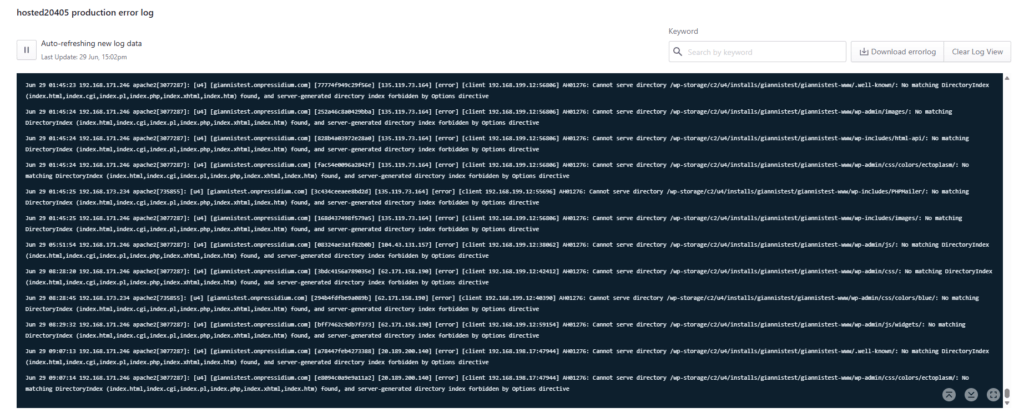
By default the log viewer will auto refresh the display when new data are available ( can be toggled on/off using the Auto-refresh option). By utilizing the log viewer you can:
- Download the error log by clicking on the Download errorlog button.
- Clear the error log by clicking on the Clear Log button.
- Search for a keyword by utilizing the input box. Matching text will be highlighted.
- Expand the logs view to full screen to avoid excessive line wrapping and view more lines without scrolling by using the expand/collapse button.
- Scroll to top/bottom by using the related buttons on the bottom right side of the logs view.
Best practices
Enable access logs only for the time needed to troubleshoot an issue.
Before making changes based on errors found in the logs, create a backup of the site.
When investigating plugin, theme, or PHP issues, confirm that you are viewing logs for the correct environment.
Need help?
If you cannot enable access logs, download a log file, or identify the cause of an error shown in the logs, contact our Support team for guidance.
Where to go next
- Review website analytics to compare log findings with traffic and performance data.
- Create an instant backup before making changes based on errors found in the logs.
- Manage SFTP users if a developer needs file access to investigate plugin, theme, or PHP issues.
- Switch your PHP runtime if the logs point to PHP compatibility issues.
Was this article helpful?