

Verify your domain for Pressidium EDGE
If you selected Free by Pressidium when adding your domain to EDGE, you must verify domain ownership before Pressidium can issue and install your managed SSL certificate.
This step is only required for non-redirect domains using Pressidium-managed SSL certificates. The setup wizard automatically skips verification for redirect domains or domains using custom SSL certificates.
To complete verification, you’ll need to add the DNS record or records displayed in the Pressidium Dashboard. This guide explains how to do so during initial setup or later from the Domains page.
Prerequisites
Before continuing, make sure you have:
- Added the website to Pressidium EDGE
- Access to the domain’s DNS provider
- Permission to add or update DNS records
To see domain ownership verification in the full setup walkthrough, watch the Step 5 section in the following video tutorial:
If your domain is behind a proxy, like Cloudflare, watch this video tutorial instead:
Open the domain verification details
You can access domain verification in two ways.
During initial website setup
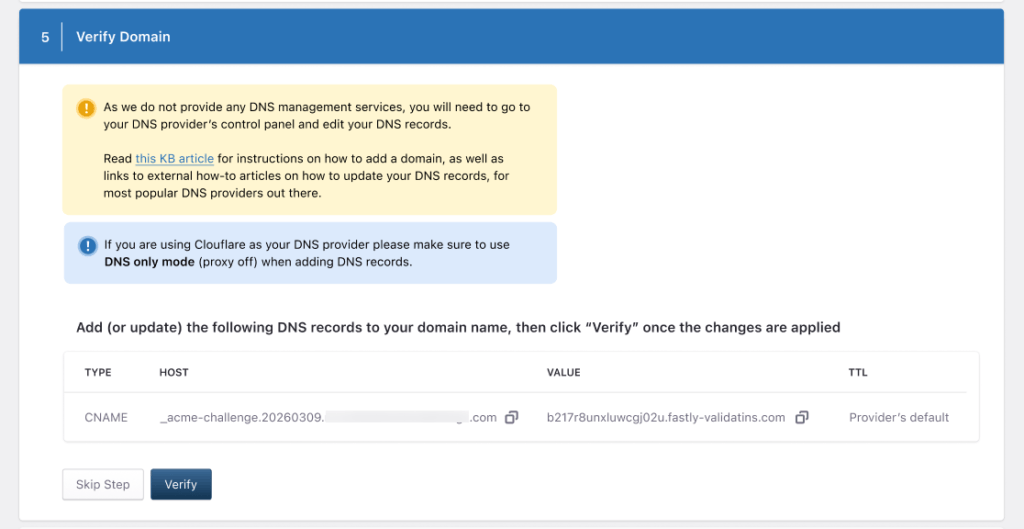
If you are still using the setup wizard, continue to the Verify Domain Ownership step.
From the Domains page
If you skipped verification during setup or need to return to it later:
- Go to WordPress > Domains.
- Open Configure > DNS Details.
- Select Domain ownership / SSL verification.
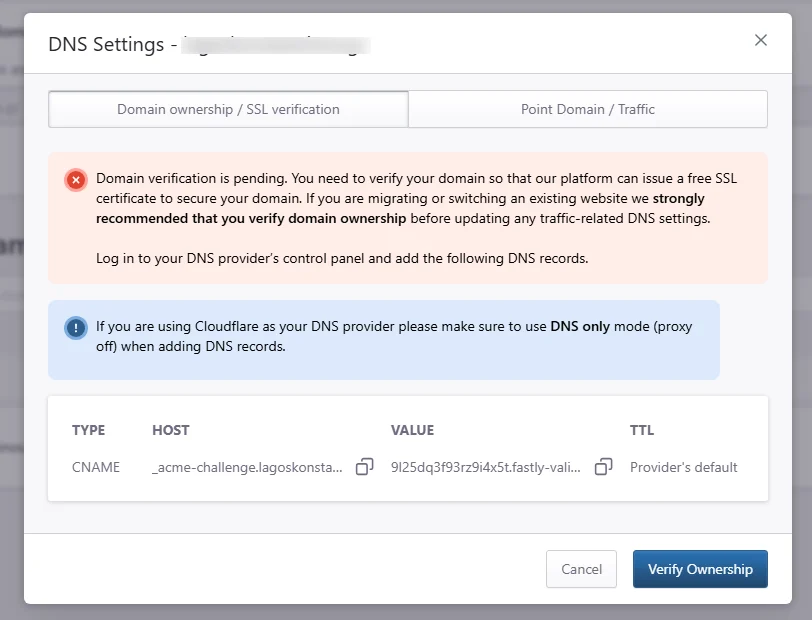
Both interfaces provide the DNS record required to verify the domain.
Verify domain ownership
- Copy the DNS record displayed in the Pressidium Dashboard.
- Login to your DNS provider’s control panel and add the new CNAME records.
- Open the DNS zone for the domain.
- Add the CNAME record using the exact Type, Host, Value, and TTL shown by Pressidium.
- Save the record.
After configuring DNS, return to your Pressidium dashboard and click “Verify Ownership“.
Our platform will check if the DNS record has propagated correctly.
DNS propagation can take some time (from a few minutes to up to 24-48 hours in rare cases).
You can use an online service such as www.whatsmydns.net to check the status yourself. So if the verification fails immediately, wait a while and try again.
Verification success
When EDGE detects the required DNS record, domain verification completes successfully.

What happens after verification?
Once domain ownership is verified, Pressidium EDGE can proceed with issuing and installing your managed SSL certificate automatically.
Certificate provisioning normally completes within minutes to hours. You can check its status in WordPress > Domains, where the HTTPS column displays SSL Enabled once the certificate is active.
You can then continue with the DNS changes required to route website traffic through Pressidium EDGE.
If verification is pending
If domain verification remains pending, the DNS record may not have propagated yet or the configured record may not match the value provided by Pressidium.

Check that:
- The DNS record type matches the value shown in the Dashboard.
- The Host value was copied exactly.
- The Value/Target matches the value provided by Pressidium.
- The record was added at the DNS provider currently authoritative for the domain.
- If you use Cloudflare, the record is set to DNS only rather than proxied.
- Enough time has passed for the DNS change to propagate.
For a more detailed troubleshooting guide, see SSL certificate not activating.
After checking the record, return to the Dashboard and try Verify Ownership again.
Skip verification during initial setup
If you are completing the initial setup wizard, you can select Skip Step and return to domain verification later.
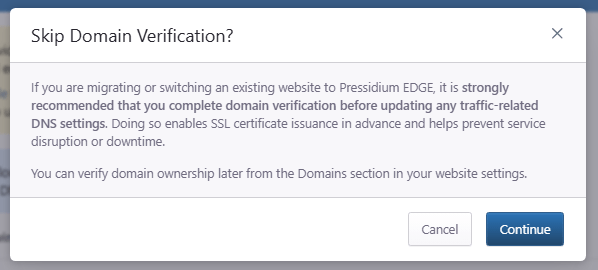
To complete verification later, go to WordPress > Domains > Configure > DNS Details, then open Domain ownership / SSL verification.
Need help?
If verification remains pending after the DNS record has propagated and you have confirmed that its values are correct, contact Pressidium Support.
Include:
- The affected domain
- The DNS record you added
- The DNS provider you are using
- A screenshot of the verification status
Where to go next
- To start sending website requests through EDGE after verification, follow Point your domain traffic to Pressidium EDGE.
- To review the complete website onboarding process, see Adding a WordPress site to EDGE.
- To understand how DNS changes propagate, see DNS propagation explained.
- If domain verification continues to fail, see DNS configuration problems.
Was this article helpful?