

Purge EDGE cache from the Performance Plugin
Connecting the Pressidium Performance Plugin to Pressidium EDGE unlocks cache-management actions directly in WordPress.
Use these controls to clear the entire EDGE cache or selectively purge cached content by Cache Tag or URL.
Prerequisites
Before continuing, make sure:
- The Pressidium Performance Plugin is installed and activated.
- Your WordPress site is connected to Pressidium EDGE.
If your site is not connected yet, follow Connect the Performance Plugin to Pressidium EDGE.
Open the cache-management controls
In WordPress, open Performance from the menu, and go to the Pressidium EDGE tab.
When the plugin is connected to EDGE, the cache-management actions become available.
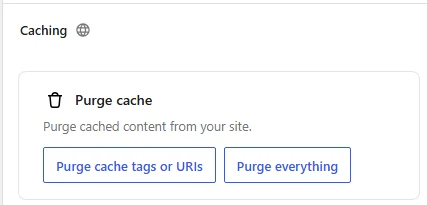
You can choose between:
- Purge everything to clear all cached content.
- Purge cache tags or URIs to selectively purge cached content.
Purge everything
Click Purge everything when you want to clear all cached content for the connected site from the EDGE cache.
Use selective purging instead when you only need to clear specific content.
Purge Cache Tags
To selectively purge content by cache tag, click Purge cache tags or URIs.
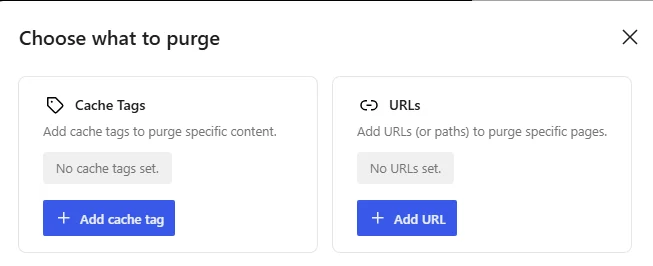
Under Cache Tags, add the cache tag you want to purge. Purging a tag clears cached content associated with that tag.
If your WordPress implementation uses custom cache tags, developers can use the pressidium_edge_purge_cache_tags filter to add or remove tags from the set that the Performance Plugin sends for purging.
<?php
/**
 * Filter the computed cache tags that are going to be purged.
 *
 * @param string[] $cache_tags Cache tags to be purged.
 * @param int[]    $post_ids   IDs of the posts to be purged.
 *
 * @return string[]
 */
function pressidium_edge_filter_purge_cache_tags( $cache_tags, $post_ids ) {
    // Add and/or remove any cache tags here.

    return $cache_tags;
}

add_filter(
    'pressidium_edge_purge_cache_tags',
    'pressidium_edge_filter_purge_cache_tags',
    10,
    2
);
After adding the tag under Cache Tags, click Purge.
Purge URLs
You can also selectively purge cached content by URL or path.
A complete URL is not required. Accepted values are case-insensitive and can use any of these formats:
https://example.com/foo/
https://example.com/foo
http://example.com/foo/
http://example.com/foo
example.com/foo/
example.com/foo
/foo/
/foo
foo/
foo
The protocol, domain, and trailing slash are optional. For example, all of the following are accepted:
https://example.com/foo/
/foo
foo
Under URLs, add the URL or path you want to purge, then click Purge.
Need help?
If cache purging does not work as expected, contact Pressidium Support and include:
- The affected domain
- The Cache Tag, URL, or path you attempted to purge
- The approximate time of the purge
- A screenshot of the cache-management screen
- A description of the cached content that remained unchanged
Where to go next
- To review all optimization controls available in the plugin, see Performance Plugin configuration.
- To review how content is being served from cache, see Cache Analytics.
- To manage EDGE caching for the site, see Cache Management.
Was this article helpful?