

Firewall: control access across your websites
In this guide you learn how to manage IP-based and country-based access rules at the edge, before requests reach your WordPress site.
Use the Firewall page when you want to
- block a suspicious IP address
- allow a trusted IP address
- restrict traffic from specific countries
Access the Firewall page
- Go to Websites.
- Select the website you want to work on.
- Go to Security → Firewall → Access.
Sections included
- IP Access: Lets you restrict website access and control incoming traffic using IP access rules.
- Geo Blocking: Lets you block access based on visitor location.
IP Access
This part contains:
- Blocked IPs section: Used to prevent specific IP addresses from reaching your site.
- Allowed IPs section: Used to make sure trusted IP addresses are permitted.
Blocked IPs
The Blocked IPs table shows IP addresses that are currently blocked.
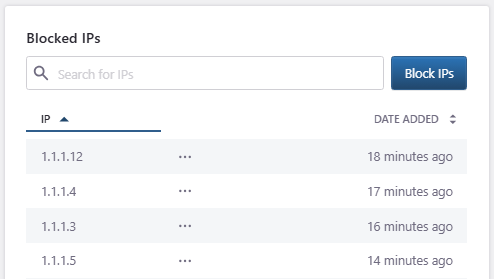
For each IP, the table shows:
- IP: The blocked IP address.
- Date Added: When the IP was added to the blocklist.
Use the search field to find a blocked IP.
How to Block IPs
Click Block IPs to open the blocklist modal and add new IP addresses.
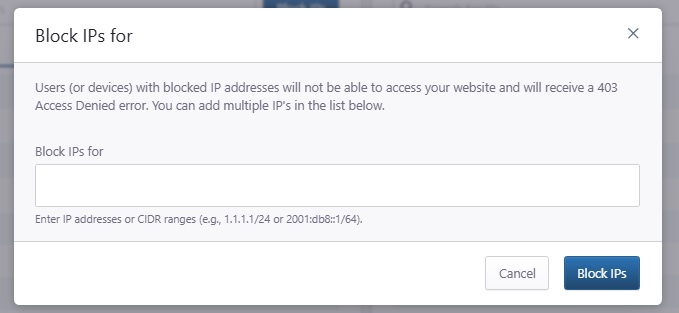
Users or devices with blocked IP addresses cannot access your website. They receive a 403 Access Denied error.
Enter one or more IP addresses or CIDR ranges.
Examples:
1.1.1.1/242001:db8::1/64
Click Block IPs to save the rule, or Cancel to close the modal without changes.
Allowed IPs
The Allowed IPs table shows IP addresses that are explicitly allowed.
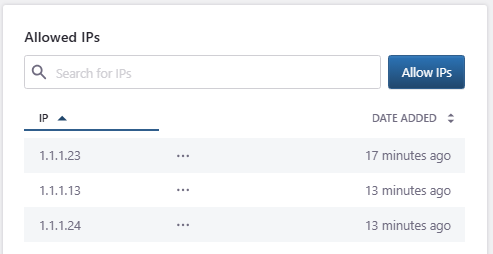
For each IP, the table shows:
- IP: The allowed IP address.
- Date Added: When the IP was added to the allowlist.
Use the search field to find an allowed IP.
How to Allow IPs
Click Allow IPs to open the allowlist modal and add a new IP address.
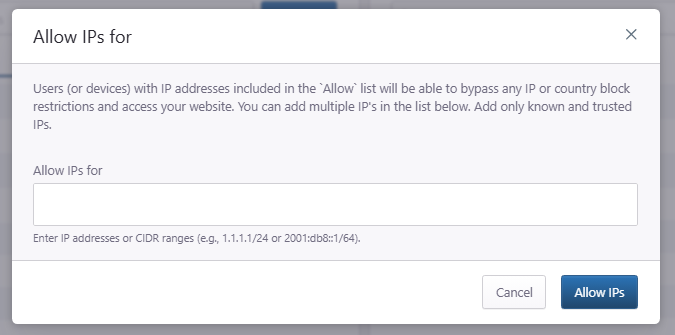
Users or devices with IP addresses in the allowlist can bypass IP or country block restrictions and access your website.
Enter one or more IP addresses or CIDR ranges.
Examples:
1.1.1.1/242001:db8::1/64
Click Allow IPs to save the rule, or Cancel to close the modal without changes.
IP actions
Each IP entry includes an actions menu.
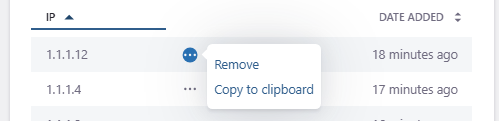
Open the menu to:
- Remove: Delete the IP access rule if the IP should no longer be blocked (or allowed).
- Copy to clipboard: Copy the IP address when you need to share it with your team or include it in a support request
Geo Blocking
You can use our Geo-Blocking feature to block specific countries from accessing any of your sites.
This might be useful in case your website gets potentially malicious traffic from a specific country or for business reasons (e.g. your web store does not operate in some countries and you prefer to have access blocked).
If you see this screen, no countries are currently blocked.
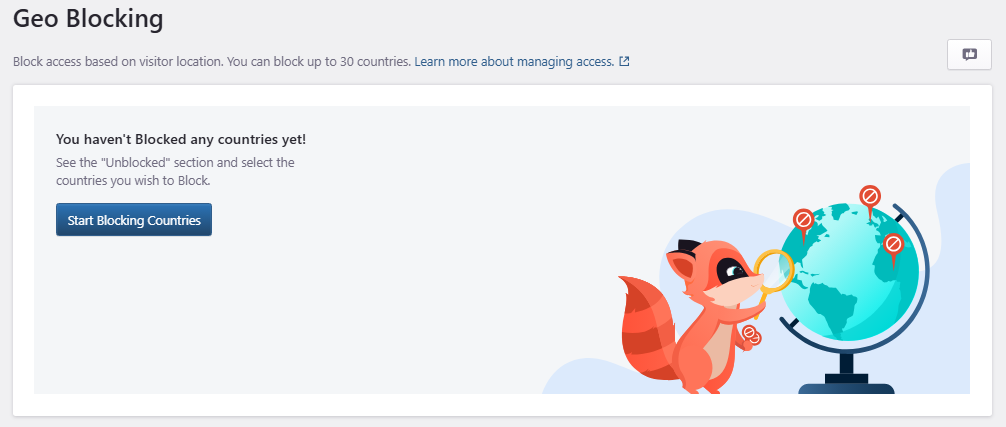
Click Start Blocking Countries to open the Unblocked list.
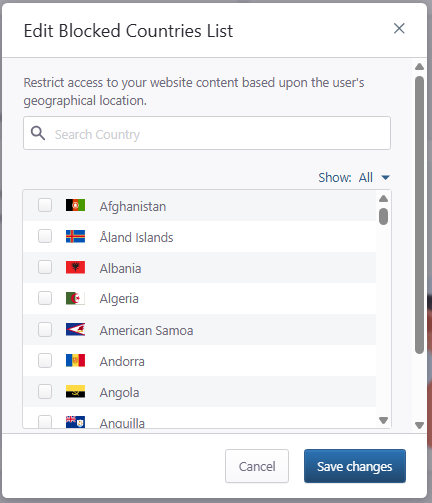
Check the countries you want to block and Save changes.
Blocked visitors will see a 403 Forbidden error (https://developer.mozilla.org/en-US/docs/Web/HTTP/Status/403).
Blocked Countries
After you block one or more countries, the Geo Blocking section shows the Blocked Countries table.
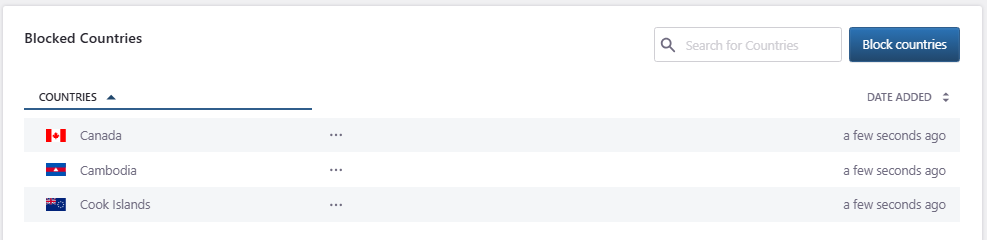
For each country, the table shows:
- Countries: The blocked country name and flag.
- Date Added: When the country was added to the blocklist.
Use the search field to find a blocked country.
Unblock a country
Each blocked country entry includes an actions menu.
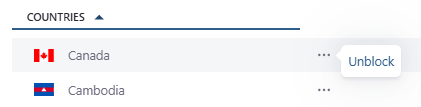
Open the menu and click Unblock to remove the country from the blocklist.
After the country is unblocked, visitors from that location are no longer blocked by this geo-blocking rule.
Understanding access rules
IP access rules and Geo-blocking are applied at the edge before requests reach WordPress. This helps reduce unwanted traffic before it reaches your origin server.
Share feedback
Click the feedback icon in the Geo Blocking section to open the feedback modal.
Use this option to:
- Suggest an improvement.
- Report a bug.
- Leave a comment.
Select a satisfaction rating, choose the feedback type, enter your message, and click Send Feedback.
Common questions
If I add an IP to the IP Allow List will this IP be excluded from the built-in login protection in wp-admin (brute force protection/rate limit)?
No, adding an IP in the IP Allow List does not prevent it from being blocked if a brute force attempt is detected by our WAF engine.
Are IPs blocked by the built-in login protection visible in the Blocked IP list?
No, the Blocked IP list does not contain addresses blocked by our login protection mechanism. It might contain addresses added by our support team or our adaptive WAF (Web Application Firewall) engine. These entries will be indicated with a “lock” icon in the UI and cannot be modified.
Is it possible to block a network IP range?
Yes, it is possible to block a network IP range. For example, you can block an address range using CIDR notation such as 203.0.113.0/24, which covers all IPs from 203.0.113.0 to 203.0.113.255 (example range). However, please note that blocking too many addresses or overly broad ranges may cause unintended disruptions or prevent legitimate traffic from accessing your websites. Use this feature with caution to avoid excessive blocking.
Can I block IPv6 addresses?
Blocking IPv6 addresses is supported for websites utilizing our new EDGE infrastructure. For websites still on our Advanced Network, only IPv4 blocking is supported.
Is it possible to block access from one or more countries?
Yes, this is available via our Geo-Blocking feature.
Common issues and solutions
I have applied country geo-blocking, but I still see some traffic from these locations in my logs and/or in Dashboard Insights.
Some types of requests may be handled higher up in the stack by our EDGE infrastructure before any geo-blocking rules are applied. These can include:
- Redirect requests, e.g.:
- HTTP to HTTPS permanent or temporary redirects for redirect domains (HTTP response codes 301, 302).
- HTTP to HTTPS permanent or temporary redirects for “force HTTPS” behavior (HTTP response codes 301, 302).
- Managed challenge redirects (HTTP response code 307).
- Special HTTP requests (e.g., those pertaining to certificate issuance, such as “ACME” challenges).
- Traffic/requests originating from our monitoring and management infrastructure.
A legitimate visitor is blocked
If a legitimate visitor cannot access the site, check whether their IP address or country is blocked.
Review the Blocked IPs and Geo Blocking sections. If needed, remove the relevant rule.
A trusted service cannot access the site
If a trusted service is blocked, confirm the service’s current IP address or CIDR range.
Add only verified IP addresses to Allowed IPs.
A blocked source still appears in analytics or logs
A blocked IP address or country may still appear in historical data from before the rule was created.
Check the timestamp before assuming the rule is not working.
Need help?
If a Firewall rule blocks legitimate traffic or you are unsure which rule caused the issue, contact Support and include:
- Site name
- Domain
- Affected IP address or country
- Date and time of the issue
- Screenshot of the Firewall page
- Any recent Firewall, DNS, plugin, theme, or WordPress changes
You can open a support request here: Open a support request
Where to go next
- Review Geo/IP analytics to identify the countries and IP addresses generating traffic to your websites.
- Review access and error logs to investigate blocked requests or unexpected access issues.
- Review request analytics to investigate unusual request volumes, redirects, or errors.
- Protect your WordPress site to explore other available security controls.
Was this article helpful?