

Review database details and table size
The Database page gives you an overview of the WordPress database connected to your website.
Use this page to review database details, storage usage, and the tables using the most space or containing the most rows.
Access the Database page
- Log in to the Pressidium Dashboard.
- Select the website you want to review.
- Go to WordPress > Database.
Sections included
- Summary for reviewing the database name, table prefix, server version, and character set
- Tables for reviewing database size, table counts, and the largest or most populated tables
Summary
The Summary section shows the main configuration details for the WordPress database.
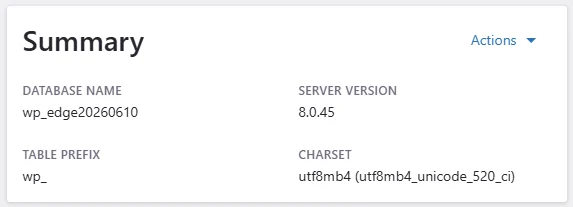
It includes:
- Database Name – the name of the database used by the website
- Table Prefix – the prefix applied to WordPress database tables
- Server Version – the database server version
- Charset – the character set and collation used by the database
Database actions (not available yet)
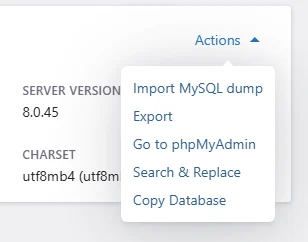
Soon you will be able to open Actions to access the available database tools:
- Import MySQL dump – imports data from a MySQL dump file
- Export – creates an export of the website database
- Go to phpMyAdmin – opens phpMyAdmin for direct database access
- Search & Replace – finds and replaces values across the database
- Copy Database – opens the workflow for copying the database
Tables
The Tables section summarizes the size and structure of the database.
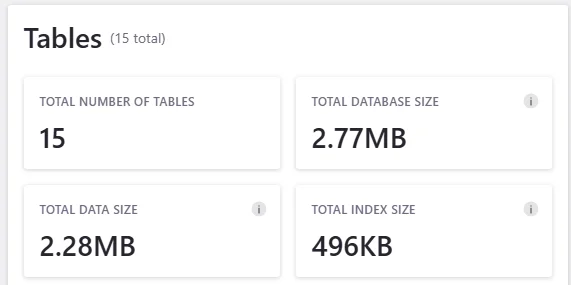
It includes:
- Total Number of Tables – the number of tables in the database
- Total Database Size – the combined size of the table data and indexes
- Total Data Size – the space used to store table records
- Total Index Size – the space used by database indexes
A large database is not always a problem. Review changes over time and investigate tables that grow unexpectedly or are no longer associated with an active plugin or theme.
Top tables
The Top Tables list highlights the database tables with the highest values for the selected ranking method.
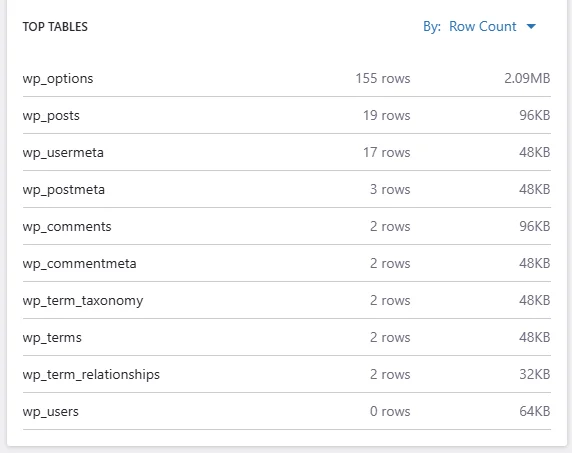
Each row shows:
- Table name
- Number of rows
- Table size
Use the By menu to rank the list by:
- Row Count – shows the tables containing the most rows
- Total Size – shows the tables using the most database storage
Use Row Count to identify tables with a large number of records. Use Total Size to identify tables that occupy the most space.
Common causes of unexpected table growth include:
- Plugin logs
- Cached or temporary records
- Expired transients
- WooCommerce sessions
- Form submissions
- Revision or metadata accumulation
Common questions
Why is the total database size larger than the data size?
The total database size includes both stored table data and database indexes.
Does a high row count mean that a table is causing a problem?
Not necessarily. Some WordPress tables are expected to contain many rows. Review the table’s purpose, size, and rate of growth before taking action.
Can I delete a table that belongs to an unused plugin?
Removing the plugin does not always remove its database tables. Confirm that the table is no longer required and create a backup before deleting it.
Best practices
- Create a backup before making database changes.
- Investigate tables that grow quickly or unexpectedly.
- Remove unused plugins before cleaning up their database tables.
- Test database cleanup operations on staging first.
- Avoid running manual SQL queries on production unless you understand their effect.
- Review database size after major imports, migrations, or plugin changes.
Need help?
If the database size or table information looks incorrect, contact Support and include:
- Website name
- Database name
- Affected table name
- Approximate timestamp
- Screenshot of the Database page
- Any recent plugin, migration, import, or database changes
Where to go next
After checking the Database screen, continue with the related WordPress or performance area.
- Go back to the main WordPress summary in WordPress overview.
- Compare related configuration values in Settings.
- Look for plugin-related causes from the Plugins page.
- Measure the site’s current speed and cache behavior in Performance overview.
- Diagnose slow responses with Site loading slowly.
Was this article helpful?