

Manage domains, DNS, and HTTPS
The Domains page shows the domain connected to your WordPress site and the additional domain names associated with it.
Use this page to review Domains when you want to:
- Confirm a domain is connected.
- Check whether HTTPS is enabled.
- Confirm whether traffic is routed through EDGE.
- Add another domain to the site.
- View DNS records for verification or routing.
- Change whether a domain serves the site directly or redirects elsewhere.
- Copy DNS values for your DNS provider.
Prerequisites
- Adding a domain name involves updating DNS records. We recommend reading our 2 minute guide to DNS to get familiar with how the DNS system works.
- You’ll need the login credentials for your DNS provider, the service that manages your domain’s DNS records. This is typically the company where you registered your domain (like GoDaddy or Namecheap), but it could also be a separate DNS hosting service.
To open it, go to Websites and click the site you want to manage. Then go to WordPress > Domains.
Sections included
- WordPress site domain address: Shows the domain associated with your WordPress site’s
site_url. - Visit site: Opens the WordPress site in a new browser tab.
- Domain Names list: Shows the domains connected to this site.
- Domain search: Lets you search associated domain names.
- Add Domain: Starts the flow for adding another domain.
- Configure menu: Opens domain behavior settings or DNS details for a specific domain.
WordPress site domain address
The WordPress site domain address section shows the domain currently associated with your WordPress site’s site_url.

Click Visit site to open the site. This field is informational. The WordPress site URL cannot be edited from this page.
Domain Names list
The Domain Names section lists the domains associated with the site.
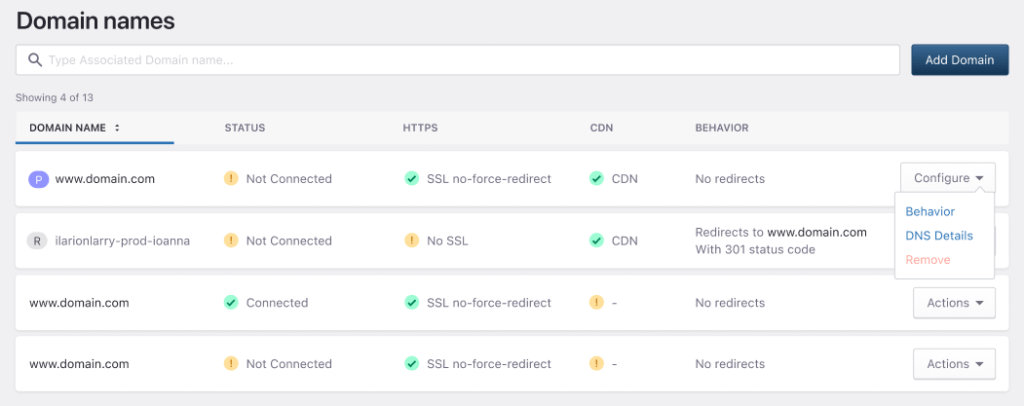
For each domain, the table shows:
- Domain Name: The connected domain.
- Status: Whether the domain is connected.
- HTTPS: Whether SSL is enabled.
- CDN: Whether traffic is routed through EDGE.
- Behavior: Shows the current domain behavior, such as No redirects.
Use the search field to find a domain by name.
Add a domain
Click Add Domain to add another domain to the site.

This opens the domain creation flow.
Use the dedicated Add Domain guide for the full setup steps.
Configure a domain
In the Domain Names list, click Configure next to a domain.
The menu includes:
- Behavior
- DNS Details
Behavior settings
Click Behavior to open the domain behavior settings.
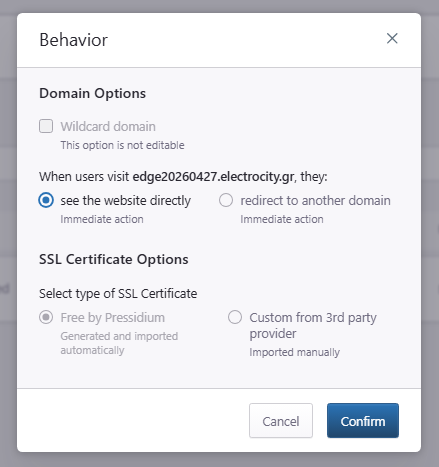
This modal lets you review or configure how the domain behaves when visitors access it.
Domain options
The Domain Options section shows whether the domain is a wildcard domain. The option is not editable.
Visitor behavior
Here you can choose what the response should be when users visit this domain:
- See the website directly: Visitors access the site using this domain.
- Redirect to another domain: Visitors are redirected to a different domain.
Both options are applied as an immediate action after confirmation.
SSL certificate options
The SSL Certificate Options section shows the SSL certificate type for the domain.
Available options may include:
- Free by Pressidium: Generated and imported automatically.
- Custom from 3rd party provider: Imported manually.
Some certificate options may not be editable depending on the domain state or account configuration.
Click Confirm to save the selected behavior, or Cancel to close the modal without changes.
DNS Details
Click DNS Details to view the DNS records required for the domain.
The DNS settings modal includes two tabs:
- Domain ownership / SSL verification
- Point Domain / Traffic
Use these records to verify domain ownership, issue or validate SSL, and route traffic through Pressidium EDGE.
Domain ownership and SSL verification
The Domain ownership / SSL verification tab shows the DNS record required to verify the domain.
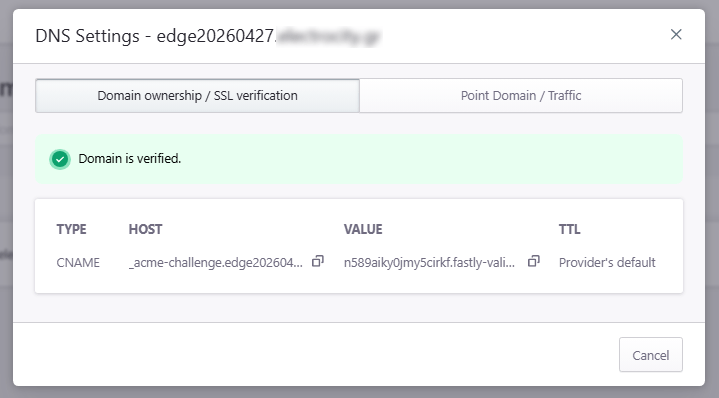
The table includes:
- Type: The DNS record type, such as CNAME.
- Host: The DNS record host value.
- Value: The DNS record target value.
- TTL: The recommended TTL value.
Use the copy icon next to the Host or Value fields to copy the record value.
When verification is complete, the modal shows a success message, such as Domain is verified.
Point domain and traffic
The Point Domain / Traffic tab shows the DNS records required to route traffic through Pressidium EDGE.
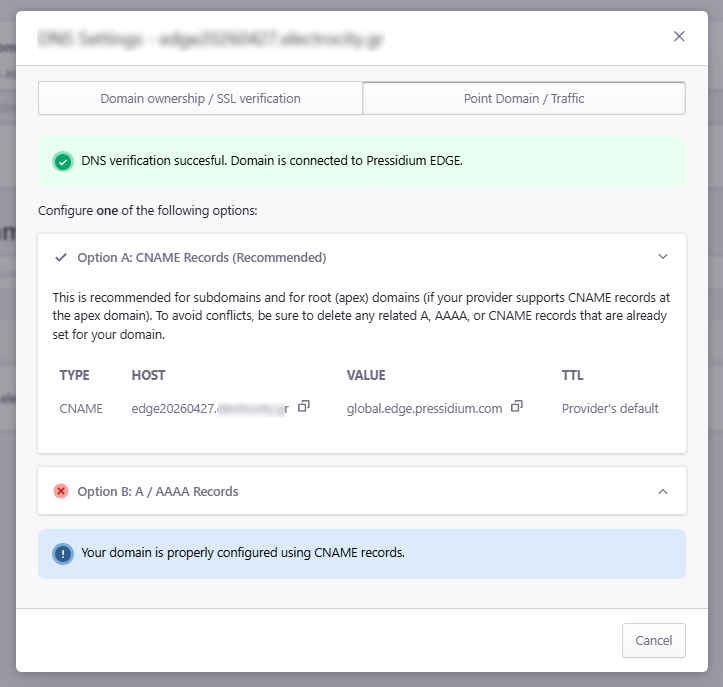
If the domain is configured correctly, the modal shows a success message indicating that DNS verification was successful and the domain is connected to Pressidium EDGE.
Option A: CNAME Records is the recommended option when supported by your DNS provider.
This option is recommended for subdomains and for root domains if your provider supports CNAME records at the apex domain.
The table includes:
- Type: The DNS record type.
- Host: The domain or host value.
- Value: The target value, such as the EDGE routing hostname.
- TTL: The recommended TTL value.
Option B: A / AAAA Records is an alternative routing method.
Use this option only when instructed by the dashboard or when CNAME routing is not available for your domain setup.
Use the copy icon next to DNS values to copy them to your clipboard. This helps avoid typing errors when adding records at your DNS provider.
Understanding domain status
Use the status columns to confirm that a domain is ready:
- Connected means the domain is connected to Pressidium EDGE.
- SSL Enabled means HTTPS is active for the domain.
- A check mark under CDN means the domain is routed through EDGE.
If a domain is verified but traffic is not routed correctly, review the Point Domain / Traffic tab.
If SSL is not enabled, review the Domain ownership / SSL verification tab.
Common issues and solutions
Domain verification is pending
Domain verification may remain pending while DNS changes propagate.
Check that the required DNS record has been added exactly as shown in the dashboard. Confirm the record name, value, and DNS provider zone are correct.
If you recently added or changed the record, wait for DNS propagation and check again.
SSL is not enabled yet
SSL may not be enabled until the domain is verified and DNS points correctly to Pressidium EDGE.
Review the domain status, confirm that DNS is configured correctly, and make sure the domain resolves to EDGE. After the domain is reachable through EDGE, SSL issuance can complete.
Domain does not resolve to EDGE
If the domain still points to another service, traffic may not pass through EDGE.
Check the domain’s DNS records at your DNS provider. Confirm that the active records match the values shown in the Pressidium Dashboard.
Important: Remove or update old records that point directly to the previous host, CDN, or proxy service if they conflict with the EDGE configuration.
Website still loads from the old host
This usually means DNS has not fully propagated, the wrong DNS zone was updated, or an old record is still active.
Confirm that you updated DNS at the authoritative DNS provider for the domain. Then check whether both the root domain and www version are configured correctly.
Redirects are not working as expected
Redirect issues can happen when domain behavior settings, WordPress settings, or origin-level redirects conflict.
Check the primary domain, HTTPS redirect setting, and any redirects configured in WordPress, plugins, or the origin server. Avoid setting the same redirect in multiple places when possible.
www and non-www behave differently
The www and non-www versions of a domain are separate hostnames and may require separate DNS records or domain entries.
Confirm that both versions are added and configured as needed. Then check which version is set as the primary domain and whether redirects are configured to send visitors to the correct version.
Need help?
- Domain verification remains pending after you have confirmed the DNS record is correct
- SSL does not become enabled after the domain is verified and pointed to EDGE
- The domain resolves to the wrong destination
- Redirects create loops or send visitors to the wrong domain
- The
wwwand non-wwwversions behave differently and you are not sure why
Include the following details in your request:
- Site name
- Environment
- Domain name
- DNS provider
- Current DNS records for the domain
- Screenshot of the domain status in the Pressidium Dashboard
- Timestamp of the last DNS change
Where to go next
After reviewing the Domains screen, continue with the domain, DNS, or verification task you need.
- Add another domain by following Add domain.
- Point a domain to EDGE with the DNS configuration guide.
- Learn what happens after DNS changes in DNS propagation explained.
- Confirm the domain is routing correctly with Verify your setup.
- Check certificate behavior for connected domains in SSL certificate setup.
- Fix missing or incorrect records with DNS configuration problems.
Was this article helpful?