

Manage WordPress themes
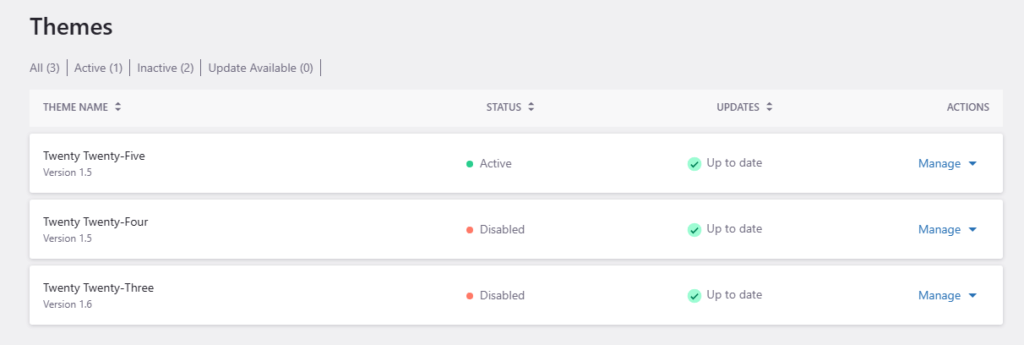
The Themes page lets you review and manage the WordPress themes installed on your website from the Pressidium Dashboard.
Use this page to check which theme is active, review available updates, and manage installed themes.
Access the Themes screen
- Log in to the Pressidium Dashboard.
- Select the website you want to manage.
- Go to WordPress > Themes.
Sections included
- Theme filters for narrowing the list by status
- Theme list for reviewing installed versions, activation status, and available updates
- Manage menu for performing actions on an individual theme
Theme filters
Use the filters above the list to review themes by status:
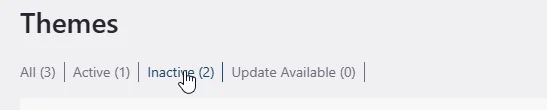
- All
- Active
- Inactive
- Update Available
Theme list
Each row represents one installed theme.

The list includes:
- Theme Name – shows the theme name and installed version
- Status – shows whether the theme is active or disabled
- Updates – shows whether the installed version is up to date
- Actions – provides the actions available for that theme
Manage a theme
Open Manage to view the actions available for the selected theme.
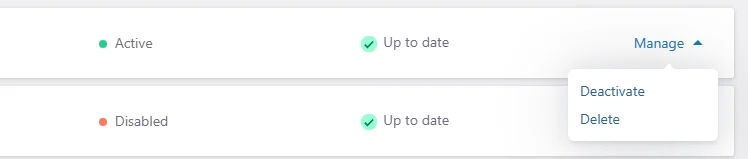
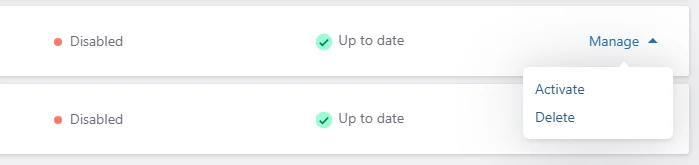
Available actions depend on the theme’s current status and may include:
- Activate
- Deactivate
- Delete
- Update
Verification
After activating, deactivating, updating, or deleting a theme:
- Confirm that the operation has completed.
- Refresh the Themes page.
- Check the theme’s status and installed version.
- Review the website frontend.
- Test important templates, navigation, widgets, and forms.
Need help?
If a theme change causes unexpected behavior, contact Support and include:
- Website name
- Theme name
- Action performed
- Approximate timestamp
- Screenshot of the issue
- Any visible WordPress error
- Relevant error-log entries
Where to go next
After checking themes, continue with the related WordPress or performance area.
- Return to the site’s WordPress summary in WordPress overview.
- Compare theme behavior against installed plugins in Plugins.
- Check configuration details from Settings.
- Measure performance after a theme change in Performance overview.
- Troubleshoot missing assets or visual issues with Images not loading.
Was this article helpful?