

Performance optimization
This guide gives you a recommended first-pass checklist for improving WordPress performance with Pressidium EDGE.
Use it after your site has been added to EDGE and traffic is routing correctly. Each action points you to the Site Management screen where you can review settings, confirm behavior, or make changes.
Prerequisites
Before You Begin, make sure you have:
- Added your WordPress site to Pressidium EDGE
- Configured DNS and allowed it to propagate
- Activated SSL for the site
- Installed the Pressidium Performance Plugin and connected it to EDGE, if your setup uses plugin-based WordPress integration
- Selected the correct site in the Pressidium Dashboard
Recommended actions
Essential performance actions
- Keep EDGE caching enabled for public content.
- Enable image optimization
- Enable CSS and JavaScript optimization carefully.
- Keep private and dynamic pages out of shared public cache.
Advanced performance actions
- Improve cacheability for public pages.
- Reduce plugin behavior that creates unnecessary uncached requests.
- Optimize high-traffic paths.
- Use Traffic Rules for specific performance exceptions.
- Monitor performance after changes.
Essential performance actions
1. Keep EDGE caching enabled for public content
Caching is the main performance layer in Pressidium EDGE. It allows EDGE to serve eligible content from the edge instead of sending every request to your origin.
Go to Sites, select the website you want to manage, then open Performance > Cache.
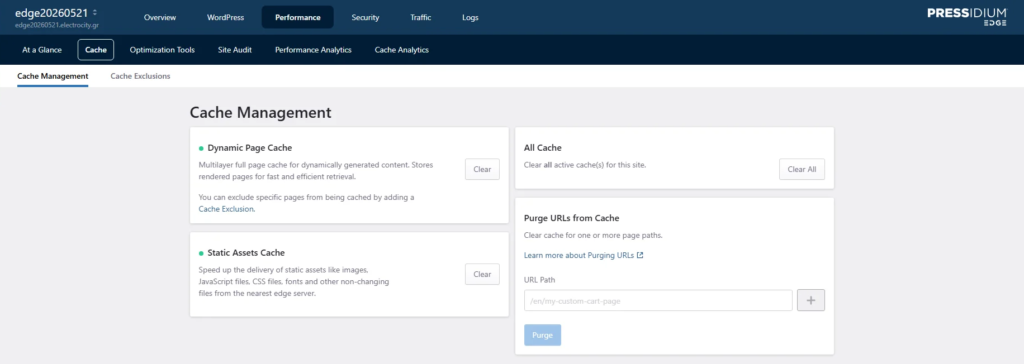
Recommended action: Keep the default WordPress-aware caching behavior enabled for public pages and static assets.
Public content that is usually suitable for caching includes:
- Blog posts
- Public landing pages
- Product pages
- Product category pages
- Public documentation
- Public marketing pages
- Static assets such as images, CSS, and JavaScript files
Avoid disabling caching globally unless you are troubleshooting a specific issue. If cache behavior looks incorrect, start with Troubleshoot cache not working.
2. Enable image optimization
Large images are often one of the biggest causes of slow pages. Image optimization reduces image weight and can improve loading performance.
Open your WordPress admin area, then go to the Pressidium Performance Plugin settings.
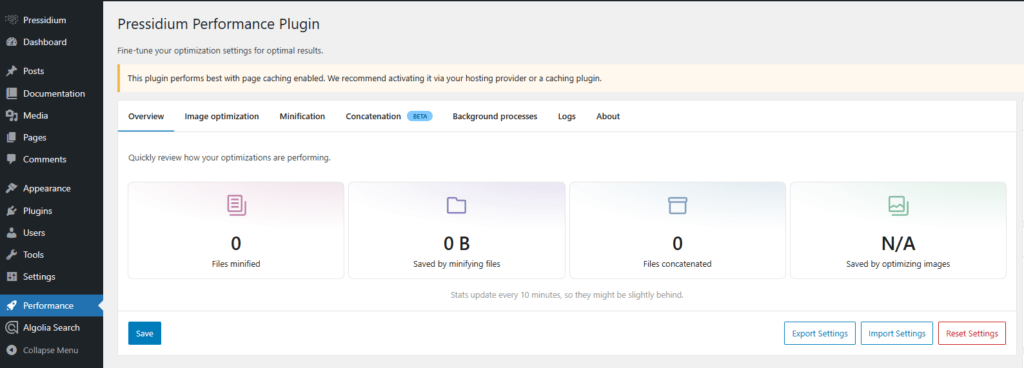
Recommended action: Enable image optimization using the plugin defaults first.
After enabling image optimization, review:
- Homepage images
- Hero images
- Product images
- Blog images
- Image-heavy landing pages
- Mobile image display
If image quality is not acceptable, adjust the plugin settings and test again.
3. Enable CSS and JavaScript optimization carefully
CSS and JavaScript optimization can reduce file size and improve delivery, but some themes, plugins, page builders, or dynamic widgets may depend on specific loading behavior.
Recommended action: In the Pressidium Performance Plugin settings, enable CSS and JavaScript optimization one option at a time, then test important pages.
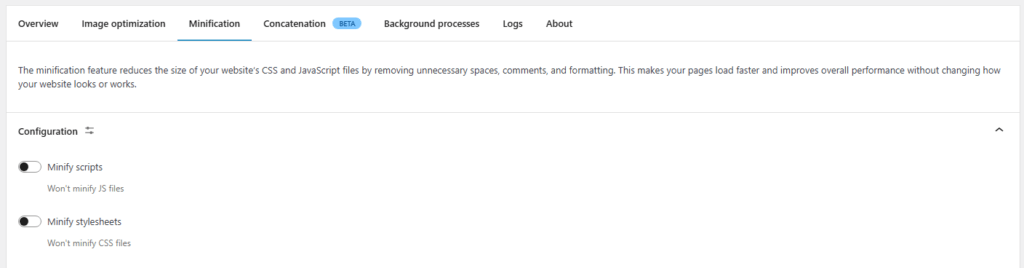
Test:
- Navigation menus
- Forms
- Checkout flow
- Account pages
- Search and filters
- Sliders and popups
- Page builder elements
- Dynamic widgets
- Mobile layout
If a page breaks after enabling an optimization, disable the most recent option, purge cache, and test again.
4. Keep private and dynamic pages out of shared public cache
Some pages should not be cached as shared public content because they contain user-specific, session-specific, or transaction-specific information.
Go to Sites, select the website you want to manage, then open Site Traffic > Traffic Rules only if you need to create a specific cache exception.
Recommended action: Make sure private and dynamic areas bypass shared public cache.
Common pages that should not be cached as shared public content include:
- Cart pages
- Checkout pages
- My Account pages
- Login pages
- Admin pages
- Member dashboards
- LMS course progress pages
- Quiz pages
- Payment pages
- Order received pages
- Private API responses
Advanced performance actions
1. Improve cacheability for public pages
A highly cacheable site sends fewer requests to the origin and serves more responses from EDGE. This usually improves response times and reduces origin load.
Use Site Traffic > Traffic Analytics to identify pages or paths that receive many requests but are not being served efficiently from cache.
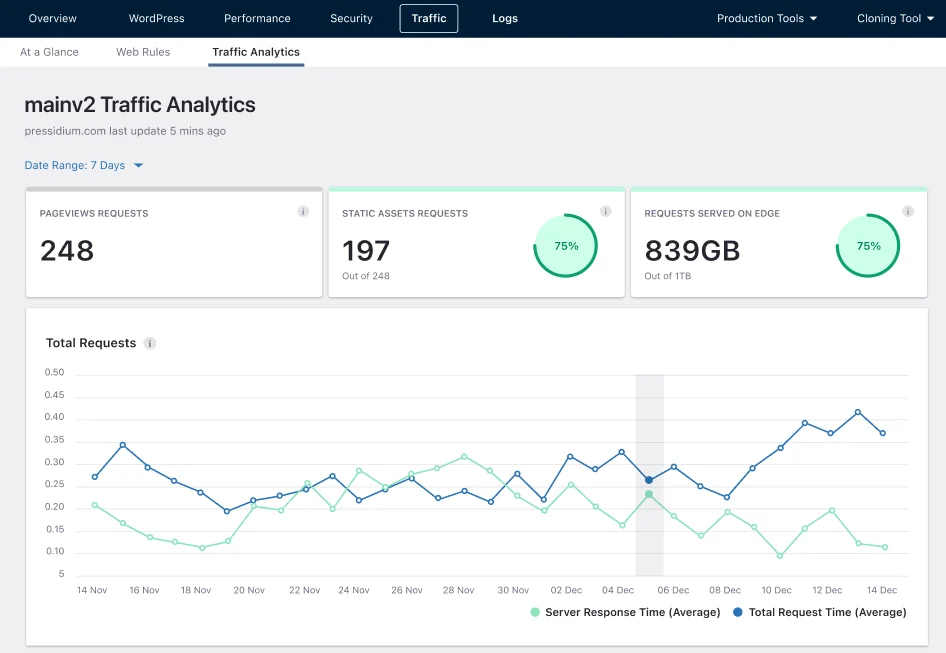
Recommended action: Improve cacheability for public pages before adding complex rules.
Ways to improve cacheability:
- Keep public pages free from unnecessary session cookies.
- Avoid loading personalized content on pages that should be public.
- Move user-specific widgets away from cacheable landing pages when possible.
- Avoid unnecessary query strings on static or public URLs.
- Review plugins that add cookies or dynamic behavior to every page.
- Use static content for public landing pages when possible.
Examples of pages that should usually remain cacheable:
/blog//pricing//features//category/example//product/example-product/
2. Reduce plugin behavior that creates unnecessary uncached requests
Some WordPress plugins add cookies, AJAX calls, dynamic widgets, tracking parameters, or user-specific behavior across the whole site. This can reduce cache efficiency.
Use Site Traffic > Traffic Analytics to identify high-request paths, AJAX endpoints, or pages that generate frequent uncached traffic.
Recommended action: Review plugins that affect every page and disable unnecessary front-end behavior when possible.
Look for plugins that:
- Add session cookies to public pages
- Load AJAX endpoints on every page
- Generate dynamic fragments on cacheable pages
- Add heavy scripts or styles globally
- Duplicate features already handled by EDGE or the Performance Plugin
- Create unnecessary requests for visitors who are not logged in
When possible, configure plugins to load only where they are needed.
3. Optimize high-traffic paths
High-traffic pages and endpoints have the biggest performance impact. Optimizing them can reduce origin load and improve response times for more visitors.
Go to Sites, select the website you want to manage, then open Site Traffic > Traffic Analytics.
Recommended action: Identify the paths with the highest request volume and improve their cacheability or delivery.
Focus on:
- Popular landing pages
- Product pages
- Blog posts with high traffic
- Category and archive pages
- Static assets with high transfer volume
- API or AJAX endpoints with high request volume
- Pages that receive traffic spikes during campaigns
For each high-traffic path, decide whether it should be:
- Cached normally
- Cached with adjusted behavior
- Excluded from cache because it is private or dynamic
- Optimized at the WordPress, plugin, or theme level
4. Monitor performance after changes
After applying performance actions, use the Site Management screens to confirm the result before making more changes.
Use:
- Site Performance → Cache Management to review cache behavior and purge content.
- Site Traffic → Traffic Overview to review requests, bandwidth, and traffic trends.
- Site Traffic → Traffic Analytics to analyze high-request paths and cache activity.
- WordPress → Access Logs to investigate errors that may affect performance.
- WordPress → At a Glance to review WordPress core, plugin, theme, domain, and SSL status.
Recommended action: Wait until the site has received enough real traffic before judging results. Some cache and performance patterns are easier to evaluate after visitors have requested important pages.
Recommended actions by site type
Blog or content site
Recommended actions:
- Keep default EDGE caching enabled.
- Enable image optimization.
- Enable CSS and JavaScript optimization carefully.
- Keep public posts, categories, and landing pages cacheable.
- Avoid unnecessary cookies on public pages.
- Use Traffic Analytics to find high-traffic content.
- Avoid custom rules unless a specific page needs different behavior.
Related docs: Review Cache Management, Traffic Analytics, and Site Audit for content performance checks.
WooCommerce site
Recommended actions:
- Keep product and category pages cacheable where appropriate.
- Keep cart, checkout, account, payment, and order pages out of shared public cache.
- Test the full purchase flow after cache or optimization changes.
- Review AJAX cart behavior if it generates high request volume.
- Use Traffic Rules only for specific WooCommerce exceptions.
- Monitor traffic during campaigns, promotions, and seasonal peaks.
Related docs: Start with Prepare your WordPress site for better caching, then use Cache URL and cookie exclusions for cart, checkout, account, or cookie-based exceptions.
Membership or LMS site
Recommended actions:
- Cache public landing pages and public content where appropriate.
- Keep dashboards, course progress, quizzes, certificates, and account pages out of shared public cache.
- Test logged-in and logged-out behavior.
- Review cookies and dynamic paths before creating custom rules.
- Use Traffic Analytics to identify uncached high-traffic areas.
- Avoid broad cache rules that affect member-only content.
Related docs: Use Prepare your WordPress site for better caching to separate public and private content, and Cache URL and cookie exclusions when member-only paths need explicit bypass behavior.
High-traffic site
Recommended actions:
- Keep default EDGE caching enabled.
- Identify high-request paths in Traffic Analytics.
- Improve cacheability for public high-traffic pages.
- Reduce unnecessary AJAX and plugin-generated requests.
- Use Traffic Rules only for clear exceptions.
- Review Error Log during traffic spikes.
- Test important flows before campaigns or launches.
Related docs: Use Performance monitoring, Traffic Overview, Traffic Analytics, and Access Logs to investigate traffic and delivery patterns.
Agency or multi-site account
Recommended actions:
- Use labels in the Sites Overview page to organize sites by client, environment, priority, or workflow.
- Keep a consistent performance optimization process across client sites.
- Start with default EDGE behavior for each site.
- Avoid copying Traffic Rules from one site to another without checking the site structure.
- Document why custom rules or exclusions exist.
- Review Traffic Analytics per site before making changes.
Related docs: Use Manage multiple sites for the broader agency workflow, and Organize your websites with labels to keep client sites easier to find and review.
Testing checklist
After each performance action, test:
- Homepage
- Important landing pages
- Blog posts or content pages
- Product pages, if applicable
- Cart and checkout, if applicable
- Login and account pages
- Forms
- Search and filters
- API or AJAX-powered features
- Mobile layout
- Logged-in and logged-out behavior
For cache-related changes, test in a private browsing window.
For WooCommerce, membership, or LMS sites, test with a real user flow whenever possible.
Common issues and solutions
Site looks slower after enabling EDGE
Likely causes:
- DNS has not fully propagated
- Cache is not warm yet
- The tested page is not cacheable
- A plugin or theme is generating uncached responses
- The test location or tool is inconsistent
Resolution steps:
- Confirm DNS is routing traffic through EDGE.
- Test a public cacheable page in a private browsing window.
- Review Site Traffic > Traffic Analytics for uncached traffic.
- Review Site Performance > Cache Management.
- Purge cache only if content or rules recently changed.
- Check WordPress > Error Log for backend errors.
Updates are not showing
Likely causes:
- Cached content is still being served
- Browser cache is showing an older version
- A plugin generated cached output
- The affected URL was not purged
Resolution steps:
- Purge the affected cache.
- Test in a private browsing window.
- Check the exact affected URL.
- Confirm whether the issue appears for logged-in or logged-out users.
- Review cache behavior if the issue repeats.
Images are not optimized
Likely causes:
- The Pressidium Performance Plugin is not active
- Image optimization is not enabled
- The images are not handled through the WordPress Media Library
- The page is using external images
- The image format or source is not eligible for optimization
Resolution steps:
- Confirm the Pressidium Performance Plugin is active.
- Review image optimization settings.
- Test an image from the WordPress Media Library.
- Check whether the image is loaded from your site or an external source.
- Refresh cache and test the affected page again.
CSS or JavaScript optimization breaks the page
Likely causes:
- A theme or plugin script depends on a specific loading order
- A script does not work well with minification
- A page builder or dynamic widget requires special handling
- Cached optimized assets are still being served
Resolution steps:
- Disable the most recent optimization change.
- Purge cache.
- Test the affected page again.
- Re-enable one optimization option at a time.
- Identify the affected theme, plugin, or asset.
A dynamic page is being cached
Likely causes:
- The page matches a broad cache rule.
- The page does not send expected session or private-content signals.
- A plugin changes the page URL or cookie behavior.
- The rule order is too broad or unclear.
Resolution steps:
- Confirm the exact affected URL.
- Check whether the page includes user-specific content.
- Review Site Traffic > Traffic Rules.
- Add or narrow a cache bypass rule if needed.
- Purge cache.
- Test logged-in and logged-out behavior.
Best practices
- Start with the default EDGE behavior.
- Make one change at a time.
- Test important user flows after each change.
- Avoid broad custom rules.
- Keep private and dynamic user content out of shared public cache.
- Use Traffic Analytics before creating Traffic Rules.
- Review performance after plugin, theme, or WooCommerce updates.
- Keep notes for any custom rule or exception you add.
- Test on staging before applying risky changes to production, when possible.
- Do not disable caching globally to solve a page-specific issue.
Need help?
Contact Support if:
- You are unsure whether a page should be cached or bypassed
- A cache rule affects more traffic than expected
- Checkout, login, account, membership, LMS, or API behavior looks incorrect
- Performance is worse after setup and you cannot identify why
- CSS or JavaScript optimization breaks important site functionality
- You need help interpreting traffic or cache behavior
Include:
- Site name
- Affected domain
- Affected URL
- Expected behavior
- Actual behavior
- Timestamp and timezone
- Whether the issue affects logged-in users, logged-out users, or both
- Screenshots of relevant settings or errors
- Recent changes made to cache, rules, plugins, themes, or DNS
Where to go next
- Open Cache Management to review caching behavior, purge content, and confirm how EDGE handles cached responses.
- Review Traffic Overview to check requests, bandwidth, cache activity, and site traffic trends.
- Analyze Traffic Analytics to identify high-request paths, uncached traffic, and unusual request patterns.
- Use Cache URL and cookie exclusions when a specific path or cookie needs different cache behavior.
- Check WordPress Overview to review WordPress core, plugins, themes, domains, and SSL status.
- Review Access Logs to investigate request-level activity that may affect performance or user experience.
- Continue with Performance monitoring after making changes so you can compare cache behavior, traffic, and response timing.
- If the site remains slow, use Troubleshoot site loading slowly.
Was this article helpful?